What readers usually run into
- OCR fails on gray pages
- Skewed text
- Low contrast
- Old scans
Why OCR needs a clean image
OCR depends on character shapes. Gray haze, skew, compression blocks, shadows, and weak contrast all make characters harder to separate from the page. Cleaning the scan can give OCR a better image to analyze, but it does not remove the need to review OCR output.
Prepare one page first
Choose a representative page before processing a whole file. Ask for background reduction, darker text, and layout preservation. If the page contains tables, formulas, columns, or footnotes, tell the prompt to preserve those structures instead of trying to simplify them.
Run OCR separately
After exporting the cleaned image-based PDF, use a dedicated OCR tool if you need searchable text. Keep the original scan and compare OCR text against both the original and the cleaned version.
Know when cleanup is not enough
If the scan is severely blurred, cropped, or photographed at too low a resolution, cleanup may not produce reliable OCR. In that case, rescanning at better quality is usually the better path.
What to clean before OCR
Focus on problems that confuse character recognition: gray backgrounds, shadows across text, skewed lines, feeder streaks, low contrast, and compression blocks. Do not ask the cleanup step to simplify the page or remove content that OCR may need. Tables, formulas, footnotes, captions, and page numbers should remain visible even if they make the page look less minimal.
How to test one page
Pick a page with small text, columns, or tables rather than the cleanest page in the file. Clean it, export it, run OCR, and inspect the output. If OCR still drops punctuation or merges columns, adjust the scan cleanup prompt or rescan. Testing the hard page first prevents wasting time on a whole file that still fails where it matters.
Why review is still required
OCR can produce confident-looking mistakes. It may confuse 0 and O, 1 and l, decimal points, footnote markers, or table columns. A cleaner scan can reduce those errors but cannot eliminate them. Keep the cleanup result, the OCR output, and the original scan available until someone has reviewed the important content.
When to rescan before OCR
Rescan before OCR when the page is cropped, motion-blurred, very low resolution, or photographed at a steep angle. Cleanup can reduce noise, but it cannot create reliable characters from missing pixels. If the paper is available, improve the capture first: flatten the page, increase light, avoid compression, and check small text. RedesignPDF is most useful after you have captured enough real detail for cleanup to preserve.
Example OCR-preparation prompt
A practical prompt is: "Prepare this scanned PDF for OCR by reducing gray background, cleaning shadows, improving text contrast, and preserving columns, tables, footnotes, formulas, and page numbers." That wording keeps the visual page faithful to the original while making it easier for a later OCR tool to analyze. Avoid asking RedesignPDF to produce searchable text; that belongs to the OCR step.
Related example to compare
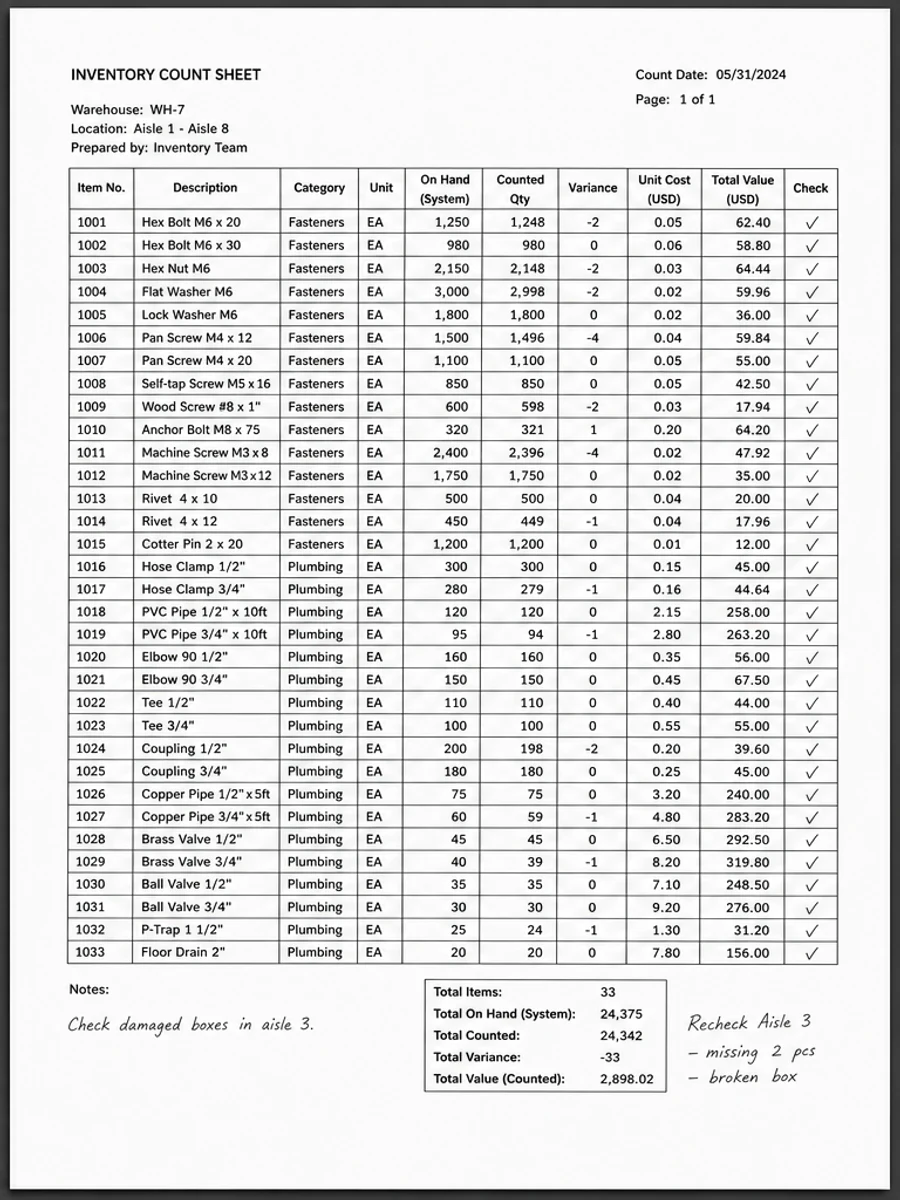
Academic paper and scanned table examples are useful OCR-preparation references because they contain small text, columns, formulas, and structured layouts. If those elements survive cleanup, the workflow is more likely to help a later OCR step. If they become weaker, reduce cleanup strength before processing the rest of the file. Keep the hard page as your benchmark and recheck it after export, not only before OCR begins.
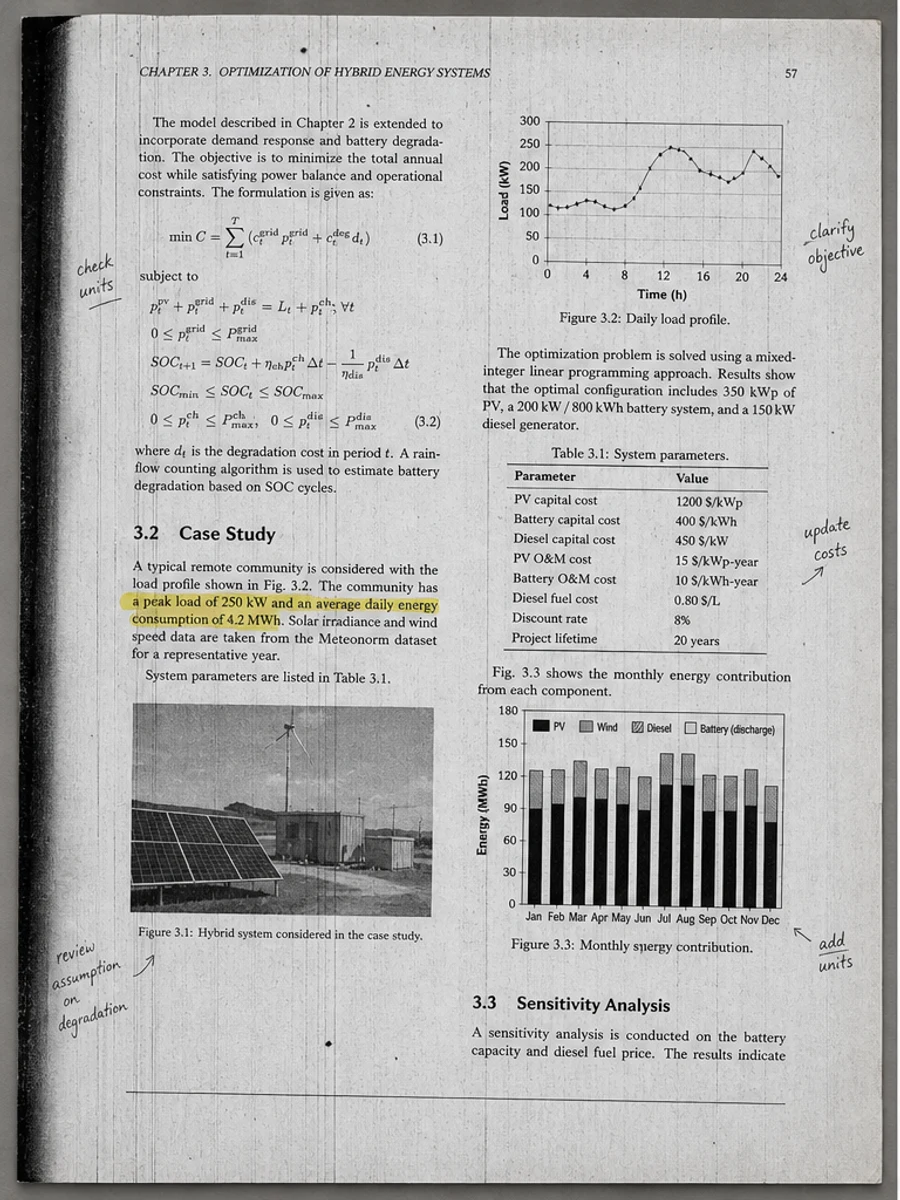
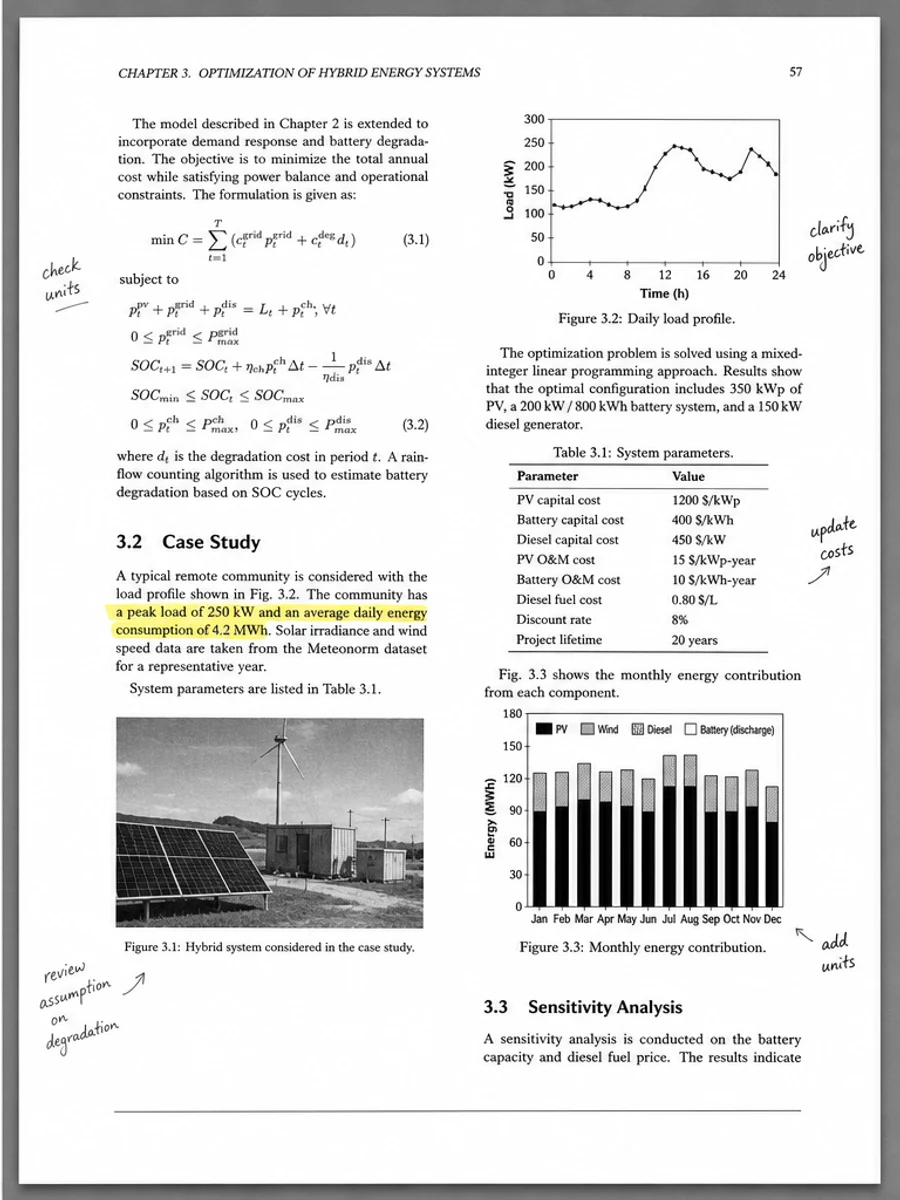
Inline before and after example: Enhance an academic paper scan
Step-by-step tutorial
- Clean one page before OCR.
- Reduce gray background.
- Improve text contrast.
- Straighten if needed.
- Run OCR separately.
- Review OCR errors.
Prompts you can paste
01Prepare this scanned PDF for OCR by reducing gray background, darkening text, preserving layout, and keeping tables and diagrams intact.
02Clean the scan image before OCR. Improve contrast and remove shadows, but do not create a text layer or rewrite content.
03Use conservative OCR preparation: reduce noise, keep small text and column structure visible, and preserve the original page geometry.
When RedesignPDF is a good fit
- Gray or low-contrast pages before OCR
- Academic scans with small text
- Tables that need clearer lines before recognition
When it is not the right tool
- Creating OCR text inside RedesignPDF
- Guaranteeing searchable output
- Fixing OCR errors after recognition
Common mistakes
- Treating cleanup as if it already made the PDF searchable.
- Running OCR without checking if small text survived cleanup.
- Deleting the original scan before reviewing OCR errors.
Related reading
FAQ
Does RedesignPDF run OCR?
No. It prepares and cleans the visible scan image. Run OCR separately if you need searchable text.
Can cleanup improve OCR accuracy?
It can help when OCR is struggling with gray backgrounds, shadows, or low contrast, but OCR output still needs manual review.
Should I keep the original scan?
Yes. Keep it for comparison because cleanup and OCR can both introduce mistakes.
Conclusion
If your goal is a clearer scanned PDF while keeping the original layout, start with a conservative prompt, process one page, and review text, tables, numbers, handwriting, and stamps before exporting. If you need editable text, PDF-to-Word conversion, form filling, or precise text-layer editing, use OCR, a PDF editor, or a better rescan instead.
Upload scanned PDF