What readers usually run into
- Angled pages
- Side shadows
- Motion blur
- Uneven light
What makes phone scans difficult
Phone scans often include side shadows, curved paper, perspective distortion, motion blur, and lighting that changes across the page. Those issues make the scan look unprofessional and can make small text or handwriting hard to verify.
Use a page-specific prompt
Tell RedesignPDF what is visible: shadows near the edge, curled paper, low contrast, or a dark background. Ask it to clean those issues while keeping the page layout and all handwriting, stamps, and marks unchanged.
When cleanup helps
Cleanup is useful when the phone scan is readable but messy. It is a good fit for quick forms, classroom documents, receipts, field notes, and paperwork that cannot be rescanned easily.
When to reshoot instead
If the page is cropped, text is out of focus, or motion blur hides characters, take a new photo when possible. Better source capture beats any cleanup workflow.
Before and after checks for phone scans
The after image should reduce the obvious phone-capture artifacts while keeping the page believable. Shadows should no longer cover text, paper tone should be more even, and handwriting should remain recognizable. Be careful with perspective correction: if the page becomes visually straighter but small labels look distorted, the result may be less useful than the original.
How to prompt for shadows and lighting
Name where the shadow appears. A prompt like "reduce the dark shadow along the left edge" is more useful than "clean this scan." If the paper is curled, mention uneven lighting and page curl. If the phone flash created glare, ask to reduce glare while preserving text and stamps. Specific visual defects help the generation avoid broad, risky edits.
What RedesignPDF should not be used for
Do not use visual cleanup to change the content of a photographed form, repair missing page edges, or certify that a phone scan is equivalent to a flatbed scan. If a document will be used in a formal process, rescan it properly when possible. Use the cleaned version as a readable copy, not as evidence that the capture was perfect.
Quick capture fixes before uploading
If you still have the paper, try a better capture before relying on cleanup. Move away from direct overhead shadows, flatten the page with a clean weight outside the content area, and retake the photo with the camera parallel to the paper. Check the corners and the smallest text before making a PDF. These steps often produce a cleaner result than any after-the-fact correction.
Example prompt for phone scans
Use a prompt that describes the capture problem: "Reduce the dark side shadow, even out lighting, improve text contrast, and preserve handwriting, stamps, form fields, and the original layout." If the page is angled, add "make the page easier to read without inventing missing edges." This keeps the output grounded in what is actually visible instead of asking for a perfect scan from an imperfect photo.
Related example to compare
A phone-scan example is most helpful when you inspect the shadowed edge and the smallest handwriting. If the example after image keeps those details readable, use the same conservative language. If your source photo is more blurred or cropped than the example, reshooting may be the better path. Do not let cleanup hide capture mistakes; fix the source when you can, then clean the better scan.
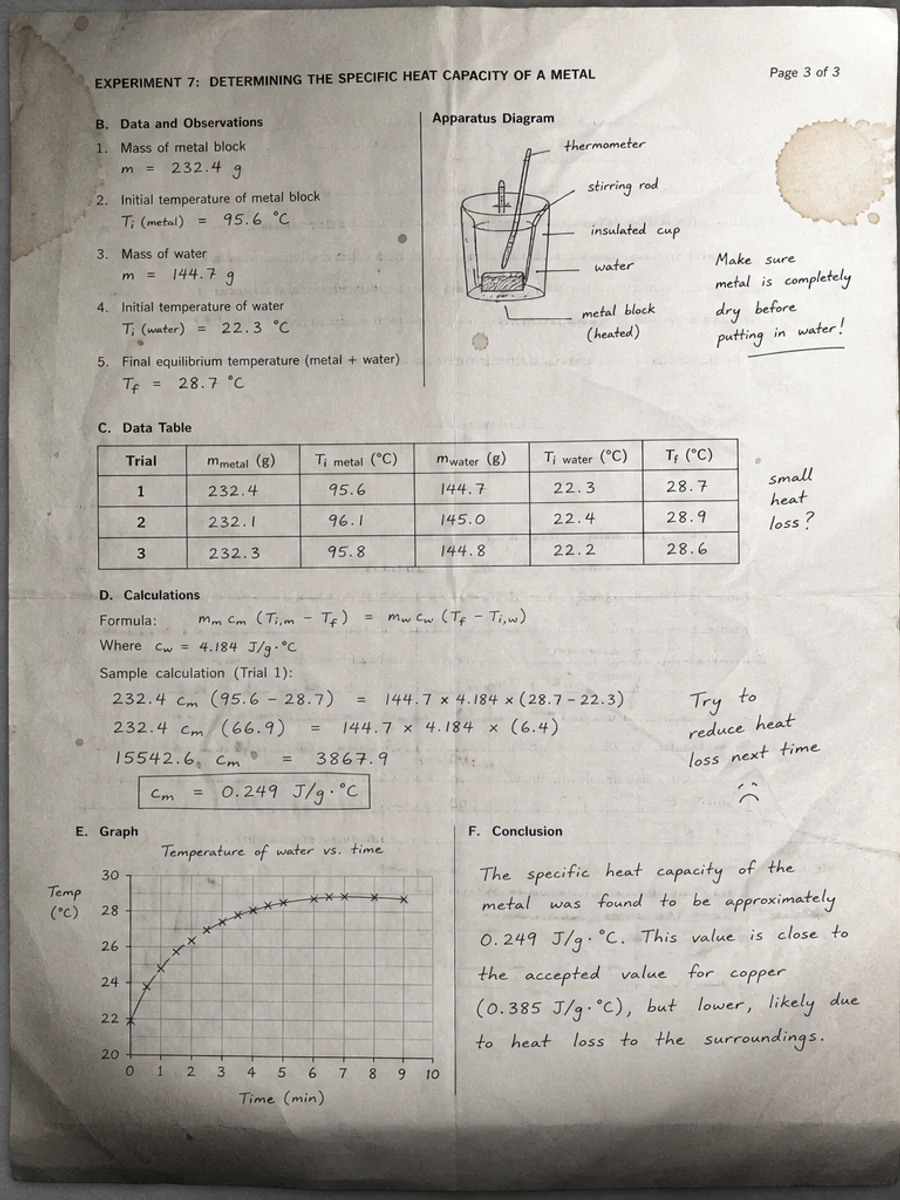
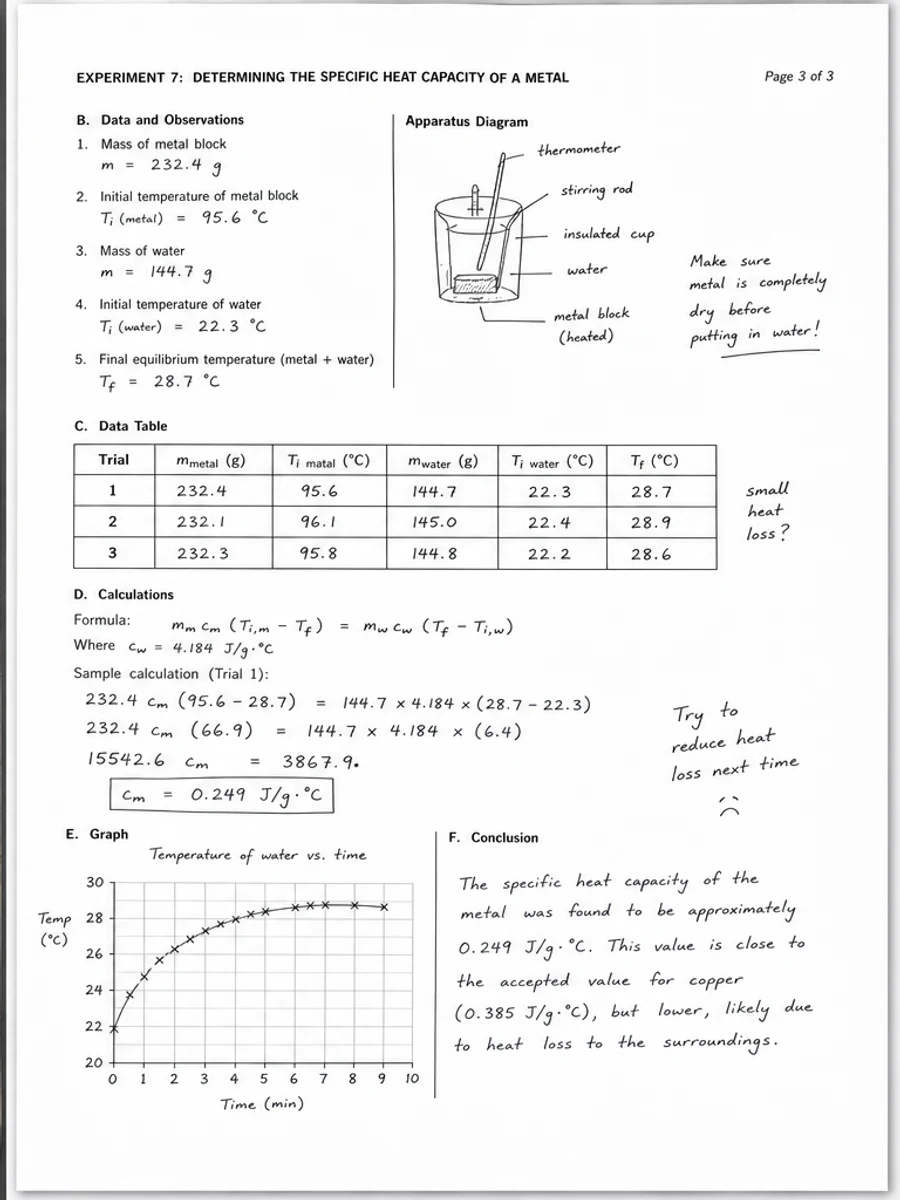
Inline before and after example: Clean a phone-scanned PDF page
Step-by-step tutorial
- Pick the most shadowed page.
- Ask for perspective and shadow cleanup.
- Keep the original layout.
- Check handwriting.
- Avoid over-sharpening.
- Export a reviewed copy.
Prompts you can paste
01Clean this phone-scanned PDF page: reduce side shadows, even out lighting, improve text contrast, and keep the original layout unchanged.
02Fix the visible phone capture artifacts while preserving handwriting, stamps, form fields, tables, and all document marks.
03Use conservative cleanup for this phone scan. Do not invent missing edges or text; only improve the visible page for review.
When RedesignPDF is a good fit
- Readable phone scans with shadows
- Curled or unevenly lit pages
- Forms and notes that need a cleaner copy
When it is not the right tool
- Severely blurred photos
- Cropped pages with missing text
- Perfect perspective reconstruction for archival use
Common mistakes
- Trying to rescue a photo where text is out of focus.
- Over-sharpening until letters look jagged.
- Ignoring edge shadows that hide handwritten notes.
Related reading
FAQ
Can RedesignPDF fix a blurry phone scan?
It can improve mild blur and contrast, but it cannot reliably recover text that was never captured clearly.
Should I rescan with better lighting?
Yes, if you still have the document. Rescanning is usually better for cropped, dark, or badly blurred pages.
Will it deskew the page perfectly?
It can visually improve the page, but you should not rely on it for precise geometric correction.
Conclusion
If your goal is a clearer scanned PDF while keeping the original layout, start with a conservative prompt, process one page, and review text, tables, numbers, handwriting, and stamps before exporting. If you need editable text, PDF-to-Word conversion, form filling, or precise text-layer editing, use OCR, a PDF editor, or a better rescan instead.
Upload scanned PDF