Darken the faded scanned text and keep the original layout unchanged.
Try this editMake scanned PDF pages easier to read
Upload one scanned PDF page and test visual cleanup for faded text, gray backgrounds, shadows, stains, noise, and low contrast. RedesignPDF improves the page image; it does not create OCR text or an editable PDF.
RedesignPDF edits the selected PDF page like an image, then exports it back into a PDF.
Works for
Faded scans, gray backgrounds, phone shadows, and low-contrast pages
Not for
OCR, selectable text, exact text edits, or editable PDF conversion
AI regenerates the selected page image. Review important information before exporting or sharing.
Before / After
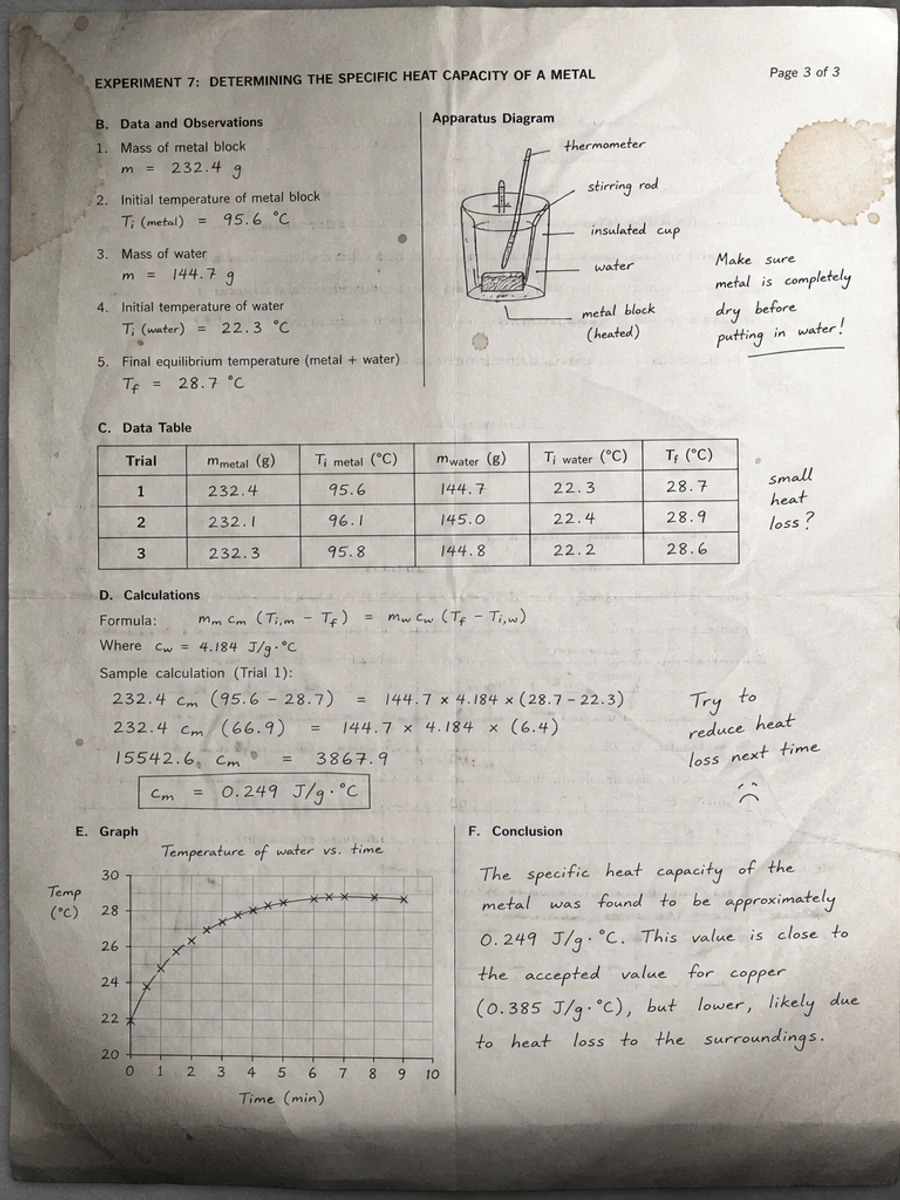
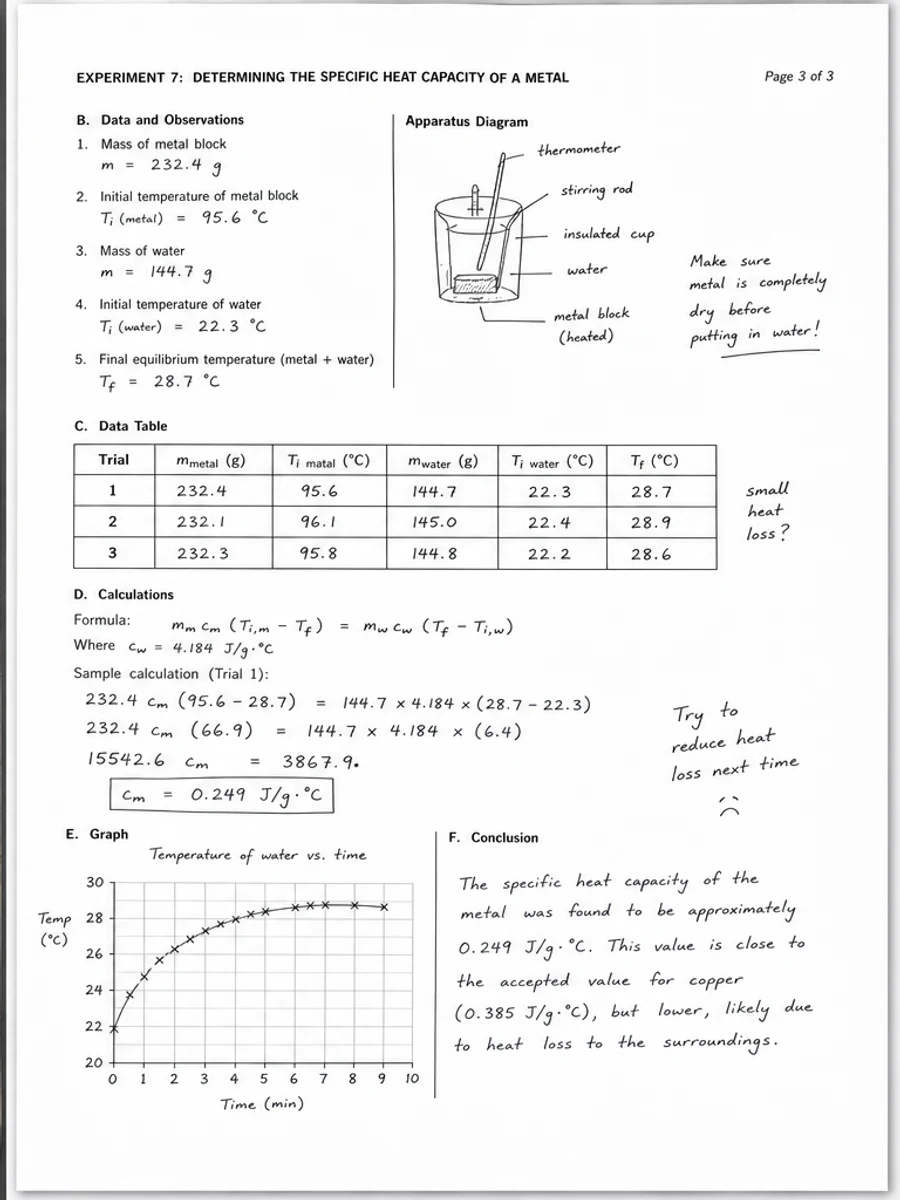
Edit scanned PDF · Darken faded text · Remove gray backgrounds · Clean shadows and stains · No OCR required · Export image-based PDF
How it works
- Upload scanned PDF
- Choose one page
- Describe the cleanup
- Generate and export
Upload scanned PDF → choose one page → describe the cleanup → generate and export
Example prompts for cleaning scanned PDFs
Specific instructions work better than broad requests. Tell AI whether to darken text, remove gray background, clean shadows, reduce stains, or improve readability.
Remove the gray scanner background and make the page easier to read.
Try this editClean the gray scan background, remove stains, and improve contrast while keeping the text readable.
Try this editClean shadows, stains, scan noise, and fold marks without changing the page structure.
Try this editEnhance text clarity and readability while preserving the original page layout.
Try this editMake this scanned handout easier to read while keeping the same information structure.
Try this editRedesignPDF vs OCR vs Acrobat
Scanned PDF editing is not one single workflow. Choose based on whether you need visual page edits, selectable text, or structured PDF objects.
Tool
Best for
Limitation
Cleaning, darkening, and enhancing scanned, flattened, image-based, and non-editable PDF pages.
Exports an image-based PDF. Review important text before use.
Extracting selectable text from a scan or making text searchable.
OCR can break layout and does not automatically redesign or fix the page image.
PDFs with editable text layers, forms, annotations, and structured objects.
Scanned or flattened PDFs may still require OCR, reconstruction, or manual cleanup.
Use cases
- Darken faded scanned text and improve readability.
- Clean shadows, stains, or messy scan backgrounds.
- Remove gray backgrounds, scan noise, fold marks, and low contrast while preserving the page layout.
What RedesignPDF does
RedesignPDF works on the rendered scanned page image instead of the original PDF text layer.
AI can clean gray backgrounds, shadows, stains, scan noise, fold marks, and low-contrast text.
It can work without OCR because it does not require a selectable text layer.
Important limitations
- This is not OCR text-layer editing.
- The exported PDF is image-based, so text is not selectable or searchable.
- It is not for exact text, logo, signature, date, or character-level editing.
FAQ
Can I clean and enhance text in a scanned PDF?
Yes. RedesignPDF can darken faded scanned text, reduce gray backgrounds, clean shadows or stains, and improve readability. It is not OCR and does not perform exact text replacement.
Is this OCR?
No. RedesignPDF does not convert the scan into an editable text layer; it edits the rendered page visually.
Will the exported PDF have selectable text?
No. The exported PDF is image-based, so text is not selectable or searchable.
Can I clean a scanned PDF without Adobe Acrobat?
Yes. Upload the PDF, choose a page, describe the cleanup or enhancement you need, generate a new image-based page, and export the result.
Can I keep the original layout?
You can ask RedesignPDF to keep the original layout. It works best for cleanup, darkening, and readability enhancement, but final details still need review.
Is it safe for exact document edits?
No. Do not use it for exact legal, tax, signature, date, logo, or character-level editing.