What readers usually run into
- Copier haze
- Yellow paper cast
- Print waste
- Weak OCR results
Why the background turns gray
Gray background usually comes from copier haze, old paper color, scanner exposure, shadows near the spine, or a PDF made from multiple photocopy generations. The page may look wasteful when printed and OCR may perform poorly because the software sees background texture as noise.
Clean background separately from text
The safest prompt asks for reduced gray background and darker text at the same time. If you only ask to whiten the page, thin table rules, pencil marks, formulas, and light stamps can disappear. A good cleanup preserves meaningful marks while lowering the visual weight of the paper tone.
Best documents for this cleanup
This works well for office scans, academic handouts, photocopied worksheets, contracts copied in grayscale, and old documents where text is present but buried in haze. It is not a replacement for OCR correction, PDF compression, merging, or form filling.
How to review the result
Inspect small characters, tables, borders, and low-contrast annotations. If the page looks artificially white or details vanish, regenerate with a prompt that says to preserve fine lines and use light background cleanup.
Before and after signs to look for
A good after image should have calmer paper tone and stronger text without looking like a new document. The best signs are simple: paragraphs become readable at normal zoom, background haze no longer competes with letters, table rules are still present, and diagrams or formulas keep their shape. A bad result often looks bright at first but removes pale information. That is why the review step should include details, not just the overall page color.
Why aggressive whitening can backfire
Many gray-background scans contain real content that is also light gray: pencil notes, signatures, stamps, pale grid lines, scanned illustrations, and old paper texture. If the prompt says only "remove gray background," the output may treat those details as noise. Add instructions such as "preserve thin marks" and "do not erase annotations" when the document includes anything beyond plain dark text on white paper.
When OCR is part of the plan
If the next step is OCR, clean for legibility rather than perfection. OCR generally benefits from higher contrast and less background noise, but it can still misread numbers, punctuation, and table structure. Export the visually cleaned PDF, run OCR in a separate tool, and compare the recognized text with the original scan. RedesignPDF should be the image cleanup step, not the text verification step.
Printing and sharing considerations
Gray backgrounds often become more annoying when the document is printed or shared in a small preview. A cleaner background can reduce ink use and make the page feel less muddy, but the exported PDF should still be checked on the medium you care about. If you plan to print, inspect margins and pale lines. If you plan to email the file, open the exported PDF and confirm that the page remains readable at common preview sizes.
Recommended conservative prompt
A good prompt for this topic is explicit but restrained: "Reduce the gray scanner background and copier haze, darken faded text slightly, preserve thin lines, diagrams, handwritten notes, stamps, and the original layout." This tells the model what to improve and what not to touch. If the result still looks too gray, increase cleanup gradually rather than jumping to an extreme whitening instruction that may damage real content.
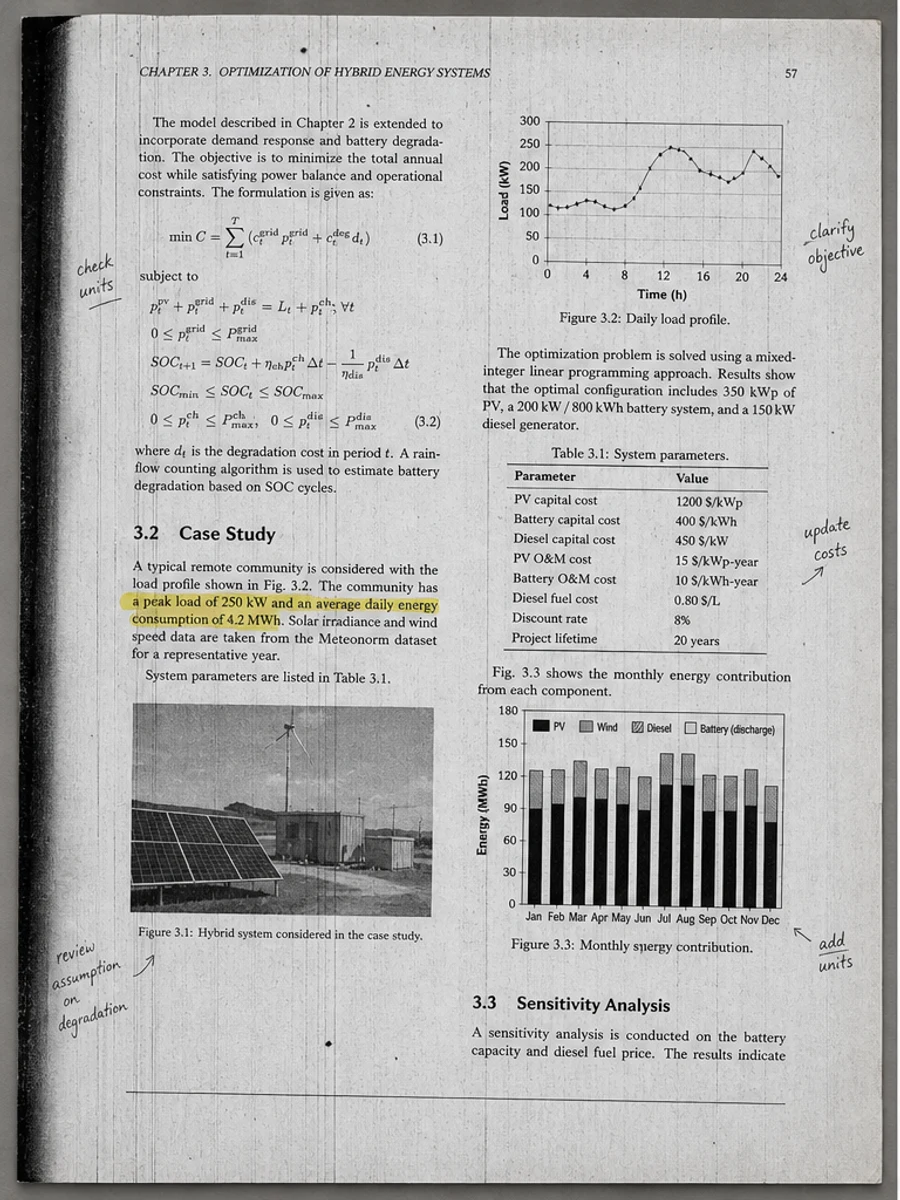
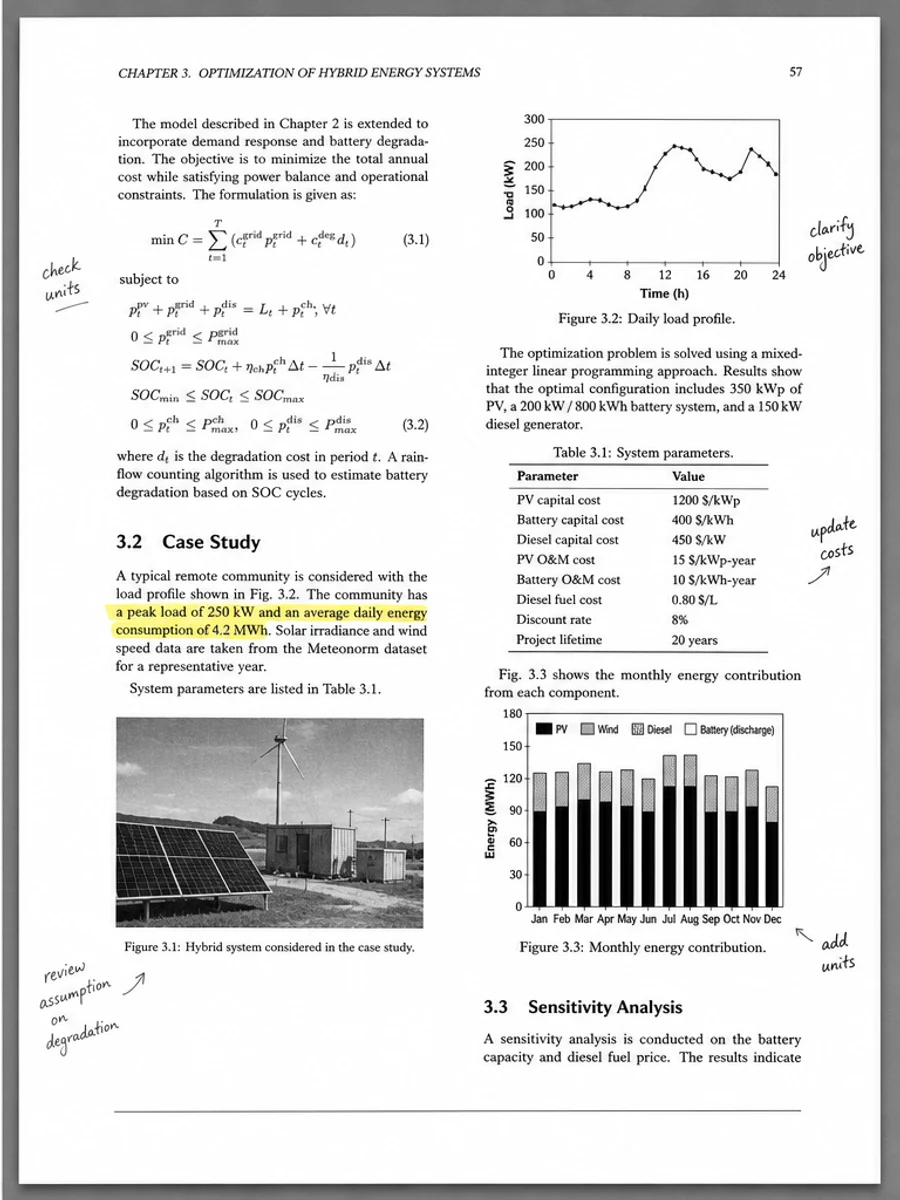
Inline before and after example: Remove gray background from a scanned PDF
Step-by-step tutorial
- Check whether the gray tone is background or content.
- Start with one sample page.
- Ask for background cleanup and layout preservation.
- Avoid aggressive whitening.
- Review thin lines and tables.
- Export after checking readability.
Prompts you can paste
01Reduce the gray scanner background, darken faded text, keep thin lines and diagrams visible, and preserve the original layout.
02Clean the copier haze and uneven paper tone without removing handwritten marks, stamps, table rules, or light annotations.
03Use a conservative gray-background cleanup. Do not over-whiten the page, do not change text, and keep all document structure unchanged.
When RedesignPDF is a good fit
- Office scans with gray scanner haze
- Photocopied pages with readable text
- Documents where thin lines still need to be preserved
When it is not the right tool
- Removing real page content that looks like gray artwork
- Guaranteed OCR accuracy
- Changing typed text or rebuilding the PDF structure
Common mistakes
- Whitening the entire page until pale table lines vanish.
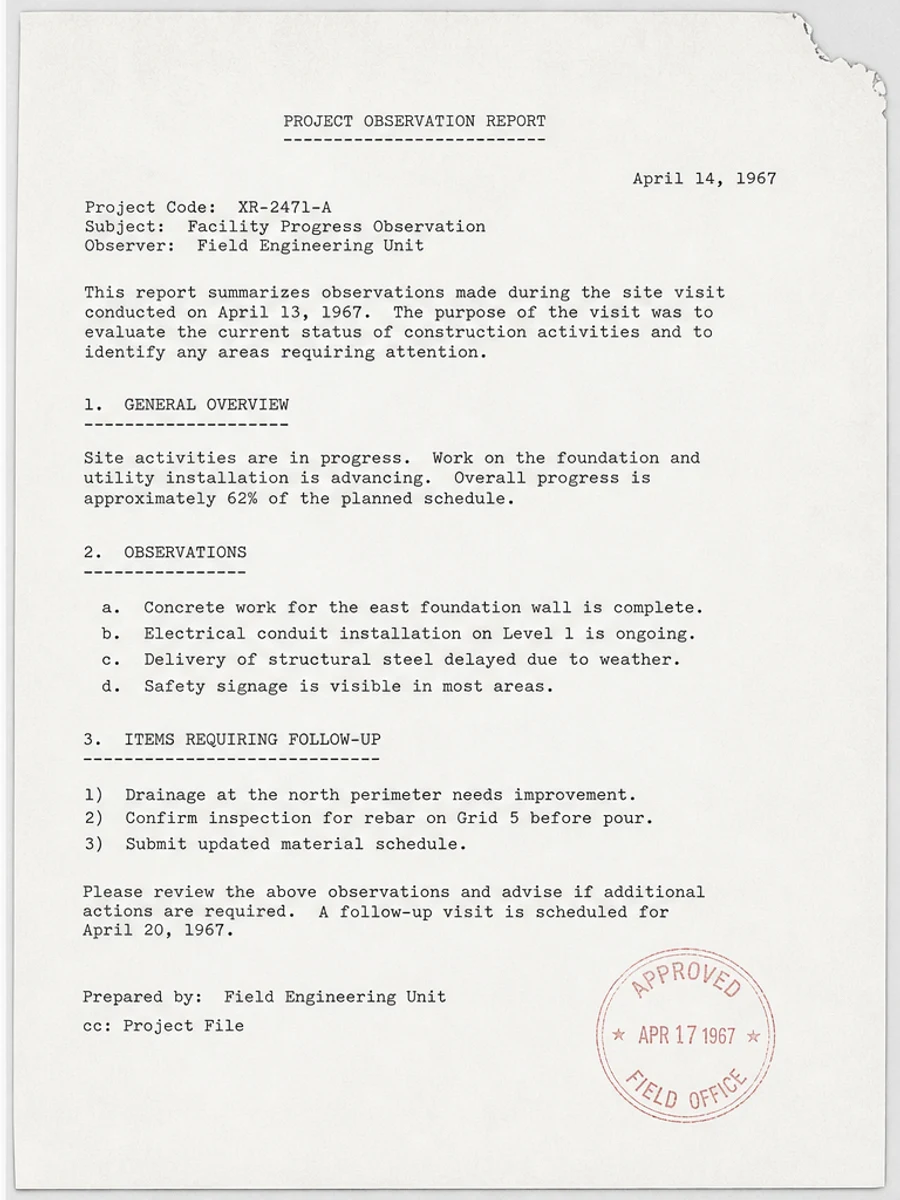
- Ignoring yellow paper tone that is part of an old archive document.
- Exporting before checking formulas, footnotes, or small labels.
Related reading
FAQ
Can I remove gray background without losing lines?
Usually, if the prompt explicitly asks to preserve fine lines, diagrams, table rules, and annotations. You still need to review the result.
Will this improve OCR?
It can make a page more OCR-friendly by reducing noise, but RedesignPDF itself is not an OCR engine.
Should I use this on old archive scans?
Use a conservative prompt. Some paper tone, stamps, and aging marks may be important context and should not be erased aggressively.
Conclusion
If your goal is a clearer scanned PDF while keeping the original layout, start with a conservative prompt, process one page, and review text, tables, numbers, handwriting, and stamps before exporting. If you need editable text, PDF-to-Word conversion, form filling, or precise text-layer editing, use OCR, a PDF editor, or a better rescan instead.
Upload scanned PDF