Scanned PDF example

Clean a phone-scanned PDF page

Reduce side shadows, uneven lighting, perspective distortion, and blur from phone-scanned PDF pages.
Upload scanned PDF

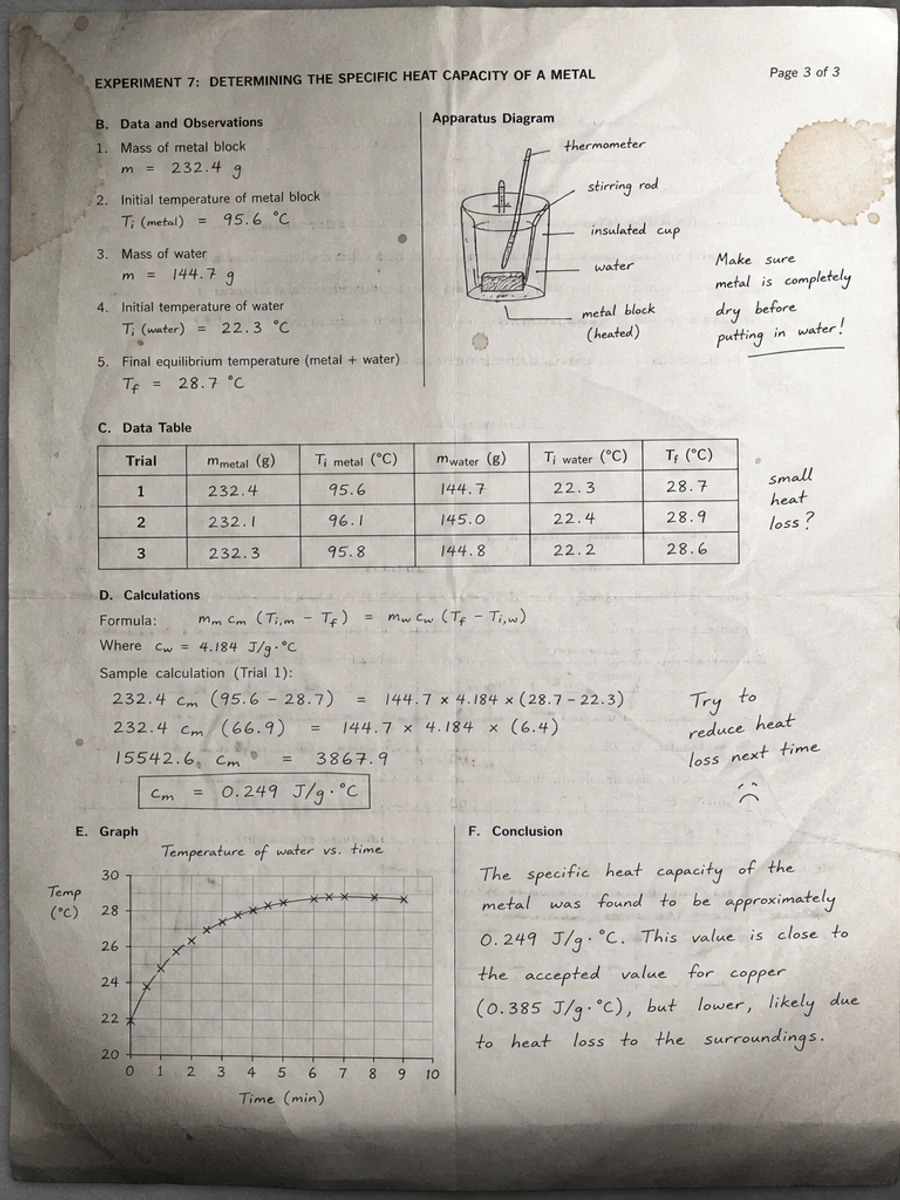
Before: The phone scan has side shadows, uneven lighting, blur, and perspective distortion.
Before
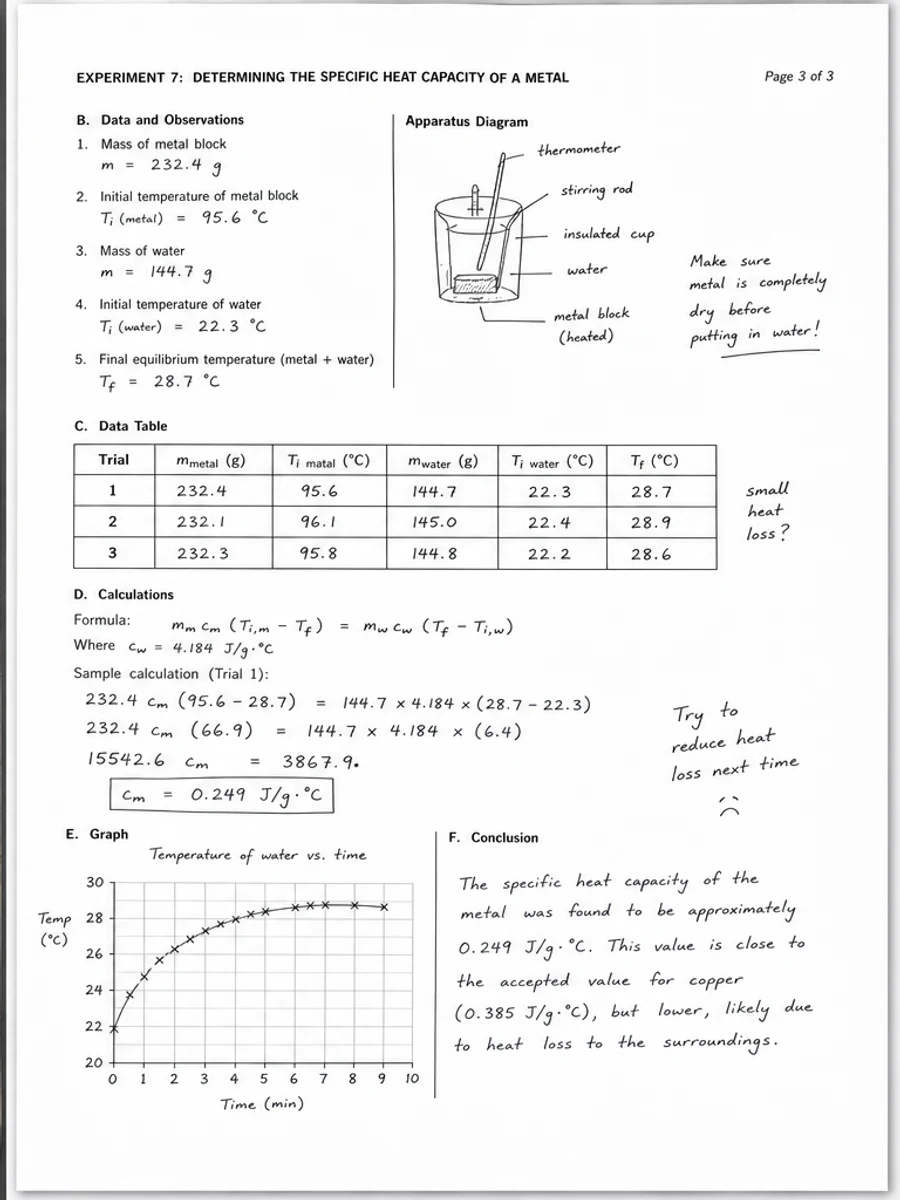
After: Brighter page, Less shadow, Clearer handwriting, More even paper tone
After

Original scan problem

The phone scan has side shadows, uneven lighting, blur, and perspective distortion.

What improved

  • Brighter page
  • Less shadow
  • Clearer handwriting
  • More even paper tone

Best for

  • Forms photographed by phone
  • Quick document captures
  • Class notes
  • Field reports

Not for

  • Unreadably blurry photos
  • Missing page edges
  • Extreme perspective distortion

Recommended prompts

  • Correct the perspective, reduce side shadows, brighten the page, sharpen handwriting and printed fields, and keep the form layout unchanged.
  • Clean this phone-scanned PDF page so it looks more like a flat scan.
  • Apply a conservative cleanup: improve readability, reduce scanner artifacts, and preserve the original layout, handwriting, stamps, tables, and marks.

FAQ

Can RedesignPDF help with clean a phone-scanned pdf page?

Yes, when the page is a scanned or image-based PDF and the goal is visual readability cleanup. Review the result before export.

Will this create selectable OCR text?

No. RedesignPDF improves the visible page image. Use OCR separately if you need searchable or selectable text.

What should I check before exporting?

Check important text, numbers, dates, handwriting, stamps, tables, and any details that must stay accurate.