What readers usually run into
- Black borders
- Feeder streaks
- Punched holes
- Gray copy background
Why photocopies degrade
Old photocopies often carry artifacts from the copier itself: dark margins, dust, streaks, punched-hole shadows, crooked placement, and repeated contrast loss. A scan of that photocopy captures all of those problems as part of the page image.
Clean artifacts without erasing context
Ask for copier artifact cleanup rather than a perfect white page. Notes, stamps, diagrams, underlines, and marginal marks may be part of the document. The goal is to lower distraction while keeping content traceable.
Best use cases
This workflow fits worksheets, office copies, archive packets, manuals, handouts, and forms that are readable but visually noisy. It is not appropriate for claiming a document has been officially restored or authenticated.
Batch cautiously
Photocopied packets often vary from page to page. Test one representative page, review the result, then reuse the same style only on pages with similar artifacts.
What a good cleanup preserves
A good after image should still look like the same document. It may have less border noise, fewer streaks, and clearer text, but the notes, diagrams, page order cues, and original spacing should remain. If a worksheet has boxes or a manual has thin illustration lines, those details are part of the content. The cleanup should reduce distractions around them, not erase them.
How to handle mixed-quality packets
Old photocopied packets often include pages from different sources. One page may have black borders, another may have pale text, and another may be skewed. Do not assume one prompt fits every page. Group similar pages, test one page from each group, and keep prompts specific: border cleanup for one group, faded text darkening for another, and streak reduction for feeder-scanned pages.
When to stop cleaning
Stop when the document becomes easier to read and key details remain stable. More cleanup is not always better. If the page starts to lose margin notes, gray pencil marks, or faint diagram labels, the next prompt should reduce intensity. For old copies, a little visible age can be acceptable if the content is clearer and trustworthy.
Common review points for photocopies
Photocopied pages often fail around the edges first. Check headers, page numbers, punched holes, footers, and any content close to the margin. Then inspect the center of the page for feeder streaks or copy noise that crosses text. If the cleanup reduces those distractions without changing the content, the page is ready to export. If it removes marks that identify the source, keep the original and use a lighter cleanup.
Example prompt for old photocopies
Try a prompt such as: "Reduce photocopy haze, dark borders, feeder streaks, fold shadows, and background noise. Preserve typed text, handwritten notes, diagrams, page numbers, punched-hole marks, and the original layout." This prompt avoids pretending the document is new. It asks for a cleaner reading copy while still respecting the artifacts that may help identify where the photocopy came from.
Related example to compare
Use a photocopied worksheet or dirty scan example as a reference, not as a promise that every old copy will behave the same way. If your document has marginal notes, stamps, or punched holes, make those preservation requirements explicit. The best result is a cleaner reading page, not a document stripped of all source clues. Review one enlarged corner and one dense paragraph before accepting the export. Keep the original nearby too.
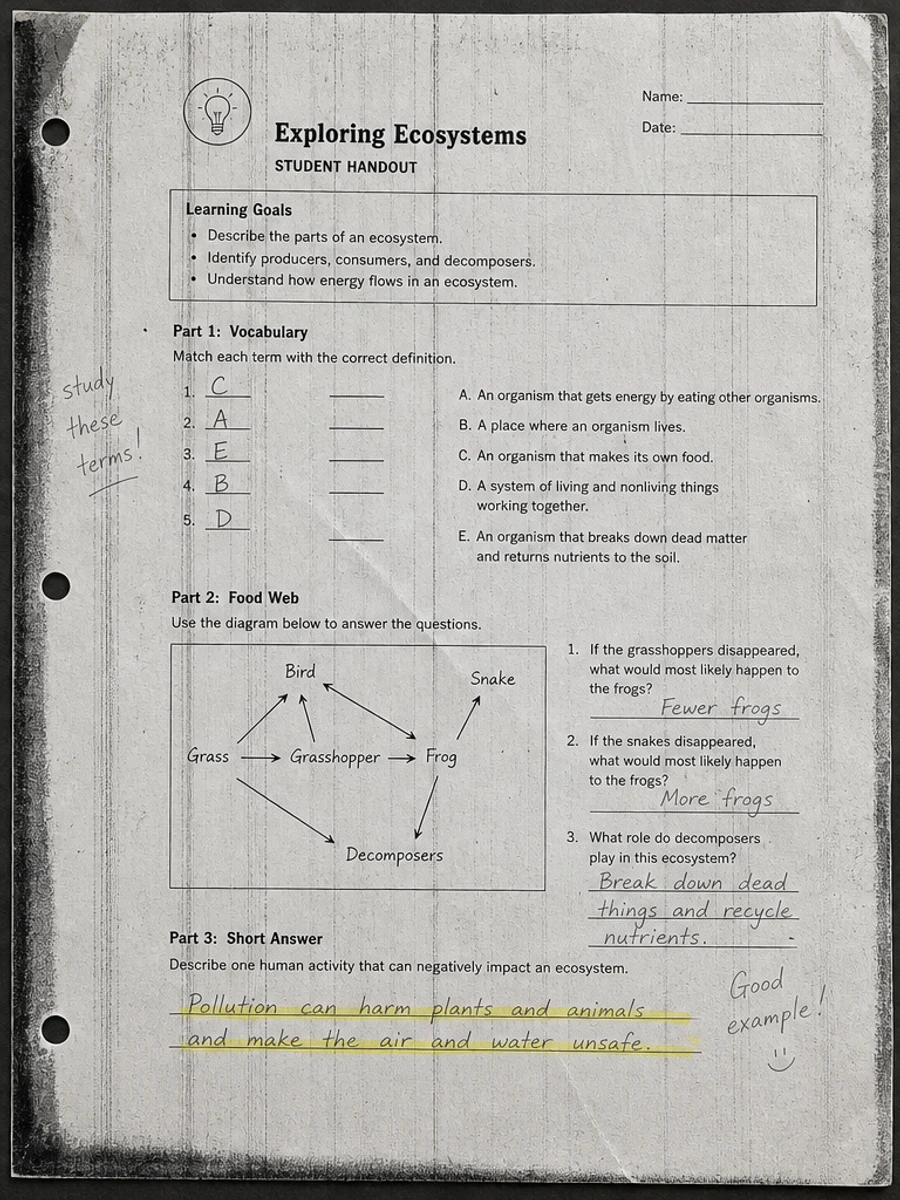
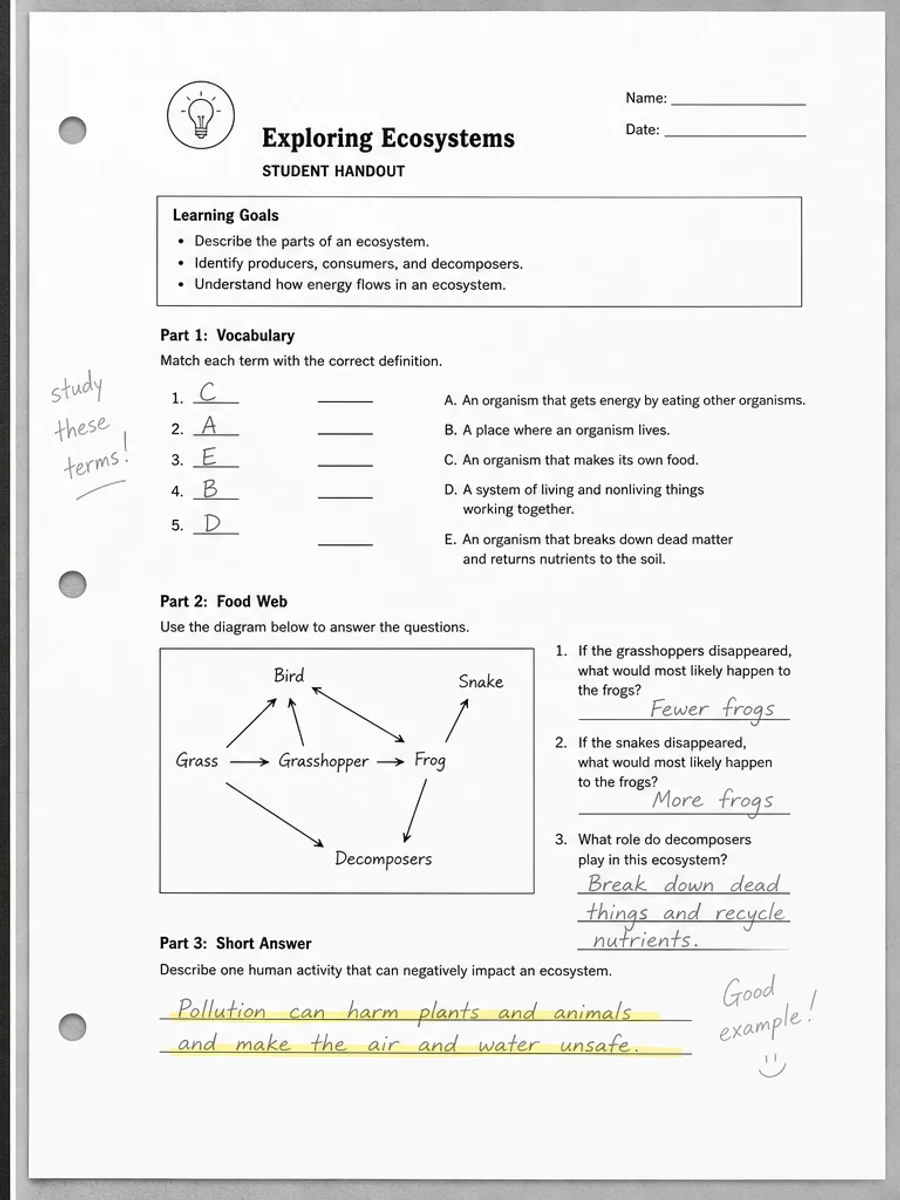
Inline before and after example: Clean a photocopied worksheet scan
Step-by-step tutorial
- Choose a representative photocopied page.
- Ask for copier artifact cleanup.
- Preserve notes and diagrams.
- Check page alignment.
- Repeat on similar pages.
- Export after review.
Prompts you can paste
01Clean copier haze, black borders, feeder streaks, and fold shadows while preserving text, notes, diagrams, and the original layout.
02Reduce photocopy artifacts on this scanned document without removing handwritten marks, stamps, or meaningful marginal details.
03Use conservative cleanup for an old photocopy. Keep the document authentic-looking, improve readability, and do not rewrite content.
When RedesignPDF is a good fit
- Readable photocopies with distracting copier artifacts
- Old worksheets and handouts
- Office scans with borders, streaks, and gray haze
When it is not the right tool
- Authenticating historical documents
- Removing meaningful annotations
- Reconstructing missing or cropped text
Common mistakes
- Cropping or whitening away marginal notes.
- Applying one aggressive prompt to a mixed packet.
- Ignoring punched holes or dark edges that affect readability.
Related reading
FAQ
Can RedesignPDF remove black photocopy borders?
It can reduce visible borders and copier artifacts when they are part of the scanned page image, but you should review margins after generation.
Will it restore missing text?
No. It can improve visible content, but it should not be treated as a way to recreate missing or cropped information.
Should I remove archive marks?
Not automatically. Some marks may be important, so use a conservative prompt and review the result.
Conclusion
If your goal is a clearer scanned PDF while keeping the original layout, start with a conservative prompt, process one page, and review text, tables, numbers, handwriting, and stamps before exporting. If you need editable text, PDF-to-Word conversion, form filling, or precise text-layer editing, use OCR, a PDF editor, or a better rescan instead.
Upload scanned PDF