Scanned PDF example

Clean a dirty scanned PDF page

Reduce dust, scratches, feeder streaks, wrinkles, copier borders, and background noise on a dirty scanned PDF page.
Upload scanned PDF

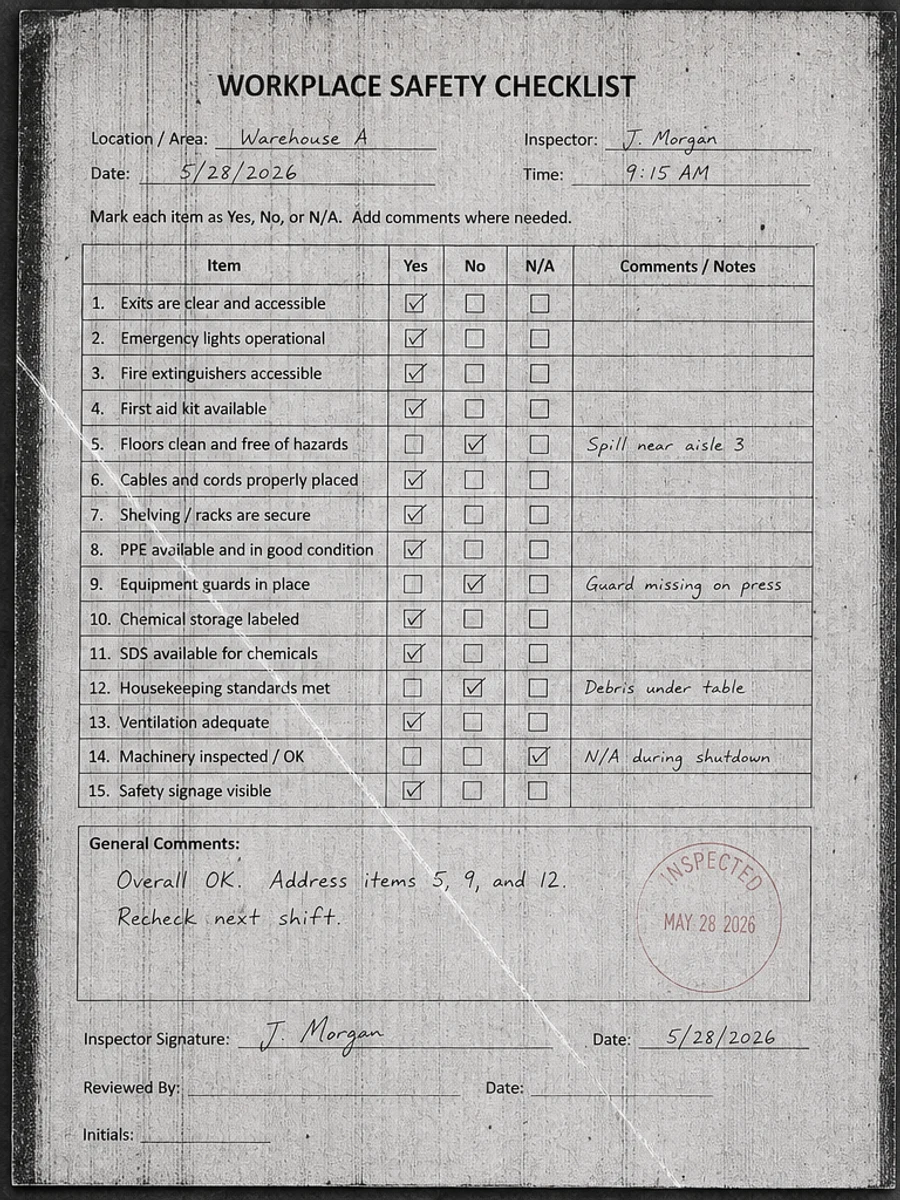
Before: Dust, scratches, feeder streaks, wrinkles, and copier borders distract from the checklist content.
Before
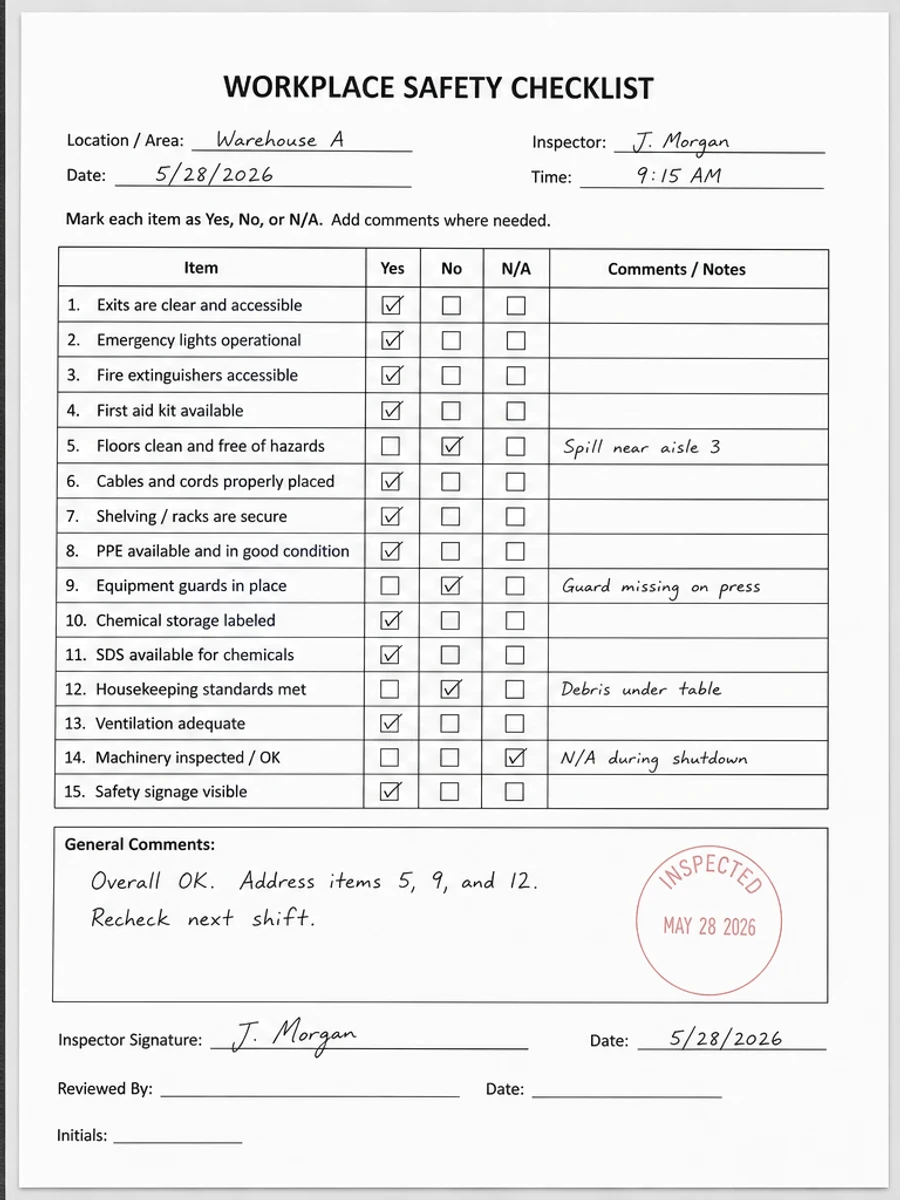
After: Fewer speckles, Reduced scan streaks, Cleaner background, Clearer checkboxes and handwriting
After

Original scan problem

Dust, scratches, feeder streaks, wrinkles, and copier borders distract from the checklist content.

What improved

  • Fewer speckles
  • Reduced scan streaks
  • Cleaner background
  • Clearer checkboxes and handwriting

Best for

  • Checklists
  • Office copies
  • Printer feeder scans
  • Maintenance forms

Not for

  • Pages where marks are evidence
  • Forensic document review
  • Severely obscured text

Recommended prompts

  • Clean this dirty feeder-scanned page, remove dust speckles, streaks, wrinkles, and gray background, and preserve text, checkboxes, handwriting, and stamps.
  • Reduce scan noise and copier marks while keeping all checklist content readable.
  • Apply a conservative cleanup: improve readability, reduce scanner artifacts, and preserve the original layout, handwriting, stamps, tables, and marks.

FAQ

Can RedesignPDF help with clean a dirty scanned pdf page?

Yes, when the page is a scanned or image-based PDF and the goal is visual readability cleanup. Review the result before export.

Will this create selectable OCR text?

No. RedesignPDF improves the visible page image. Use OCR separately if you need searchable or selectable text.

What should I check before exporting?

Check important text, numbers, dates, handwriting, stamps, tables, and any details that must stay accurate.