What readers usually run into
- Text is not selectable
- OCR output is messy
- Scanned PDF cannot be edited
- Layout changes after conversion
What a scanned PDF contains
A basic scanned PDF behaves like a picture. You can zoom, print, or crop it, but you usually cannot select words because the PDF does not know where letters are. The page may include shadows, gray backgrounds, skew, and compression from the capture process.
What OCR adds
OCR analyzes the image and tries to place searchable text over it. That can make text selectable, but it may introduce recognition errors, broken reading order, bad columns, and mistakes in tables. Poor scan quality often leads to poor OCR output.
Where RedesignPDF fits
Use RedesignPDF when the scan image itself needs to look cleaner before reading, sharing, printing, or running OCR elsewhere. It is a visual cleanup step, not a text extraction step, so you should keep OCR expectations separate.
Choosing the right workflow
If you need a human-readable image-based PDF, clean and export. If you need searchable text, clean the page first when needed, then use a dedicated OCR tool and review the recognized text against the scan.
How to tell which PDF you have
Open the PDF and try selecting a word. If the selection grabs letters and you can copy them into a text editor, the file probably has a text layer. If the entire page behaves like one image, it is probably a scanned PDF. Some files are mixed: they show a scan image but also have an OCR layer hidden above it. In those cases, the page may still look dirty even though search works.
Why cleanup and OCR are often confused
People often search for OCR when the real pain is readability. They cannot read the scan comfortably, so they assume searchable text is the solution. Sometimes it is, but many workflows only need a cleaner visual copy for review, printing, or sharing. RedesignPDF addresses that visual problem. It makes the page image clearer; it does not promise that every word becomes editable or searchable.
A safe combined workflow
When both readability and searchable text matter, keep the steps separate. First, clean the scan conservatively and export a readable image-based PDF. Second, run OCR in a dedicated OCR tool. Third, check OCR output against the original and cleaned page, especially for numbers, names, columns, and punctuation. This keeps visual enhancement from being mistaken for text verification.
Decision rule for choosing cleanup or OCR first
If the page is hard for a person to read, clean the scan image first. If the page is already visually clear but you need search, copy, or screen-reader access, go directly to OCR. If you need to change words, fill form fields, or edit a PDF text layer, neither visual cleanup nor basic OCR is enough by itself. Choosing the job correctly prevents unrealistic prompts and avoids exporting a file that solves the wrong problem.
What to tell stakeholders
When sharing the output, describe it accurately. Say that the PDF page image was cleaned for readability, not that it was converted into an editable document. If OCR was performed later, mention that OCR results were reviewed separately. This distinction matters in teams because one person may expect a readable PDF, another may expect searchable text, and another may expect editable layout. The file type alone does not answer those expectations.
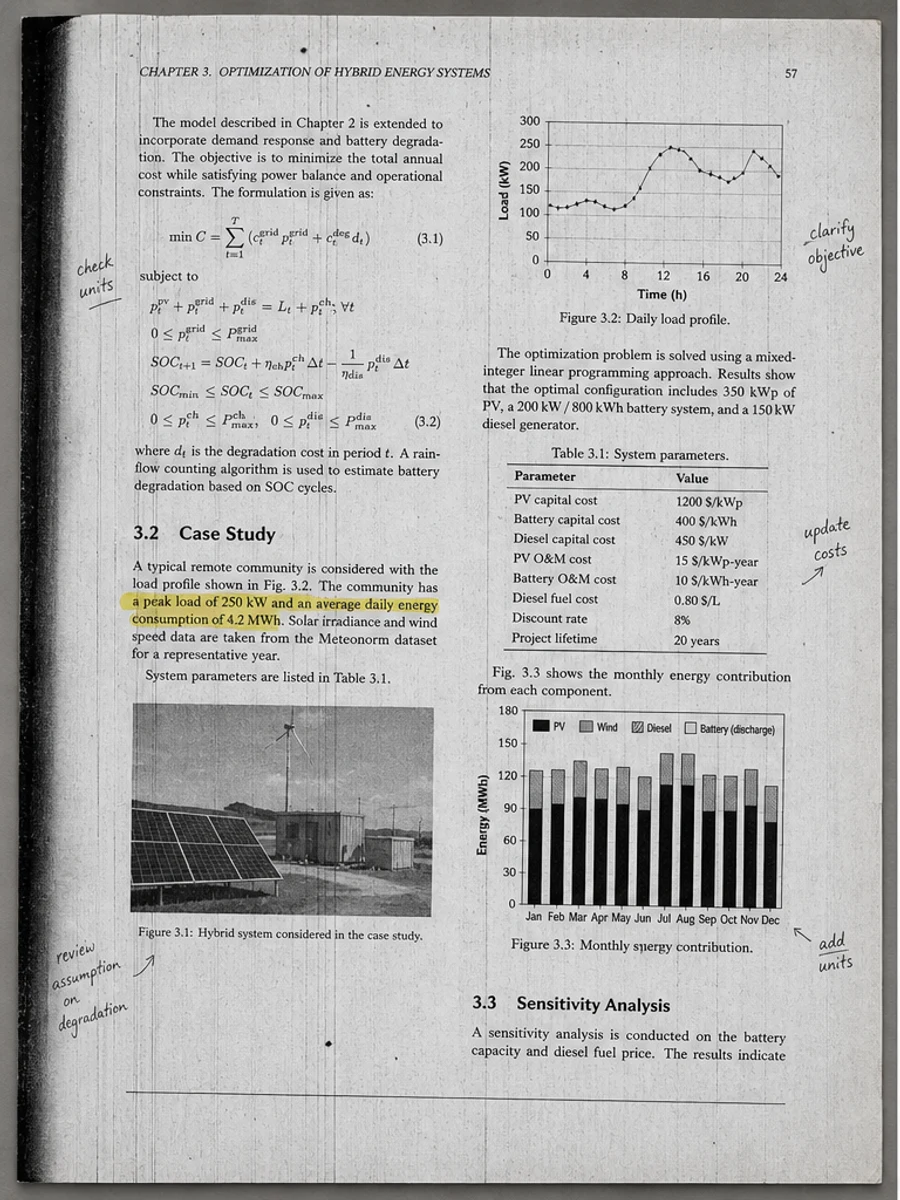
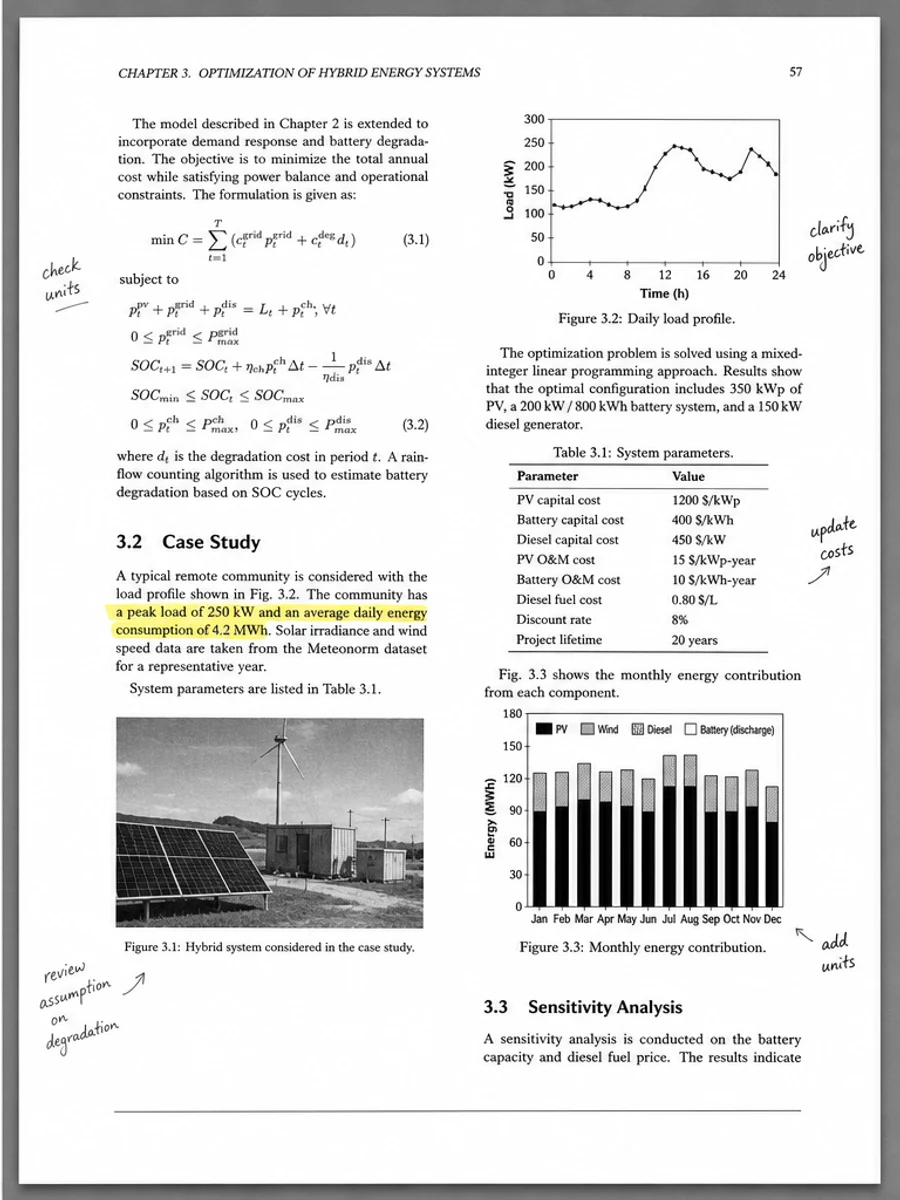
Inline before and after example: Enhance an academic paper scan
Step-by-step tutorial
- Check whether text is selectable.
- Decide whether you need visual cleanup or OCR.
- Improve scan quality first.
- Run OCR separately if needed.
- Review OCR results.
- Keep the original scan for reference.
Prompts you can paste
01Improve this scanned page for readability before OCR: reduce gray background, darken text, preserve layout, and keep tables and diagrams intact.
02Clean the visible scan image only. Do not create searchable text, do not rewrite text, and keep the original page structure unchanged.
03Prepare this scanned PDF for later OCR by improving contrast and reducing noise while preserving all visible content for review.
When RedesignPDF is a good fit
- Understanding why scanned PDF text is not selectable
- Cleaning page images before OCR
- Choosing between visual cleanup and text extraction
When it is not the right tool
- Creating a searchable PDF inside RedesignPDF
- Guaranteeing OCR reading order
- Editing recognized text after OCR
Common mistakes
- Expecting visual cleanup to produce selectable text.
- Deleting the original scan before checking OCR output.
- Using OCR on gray, skewed, low-contrast pages without cleanup.
Related reading
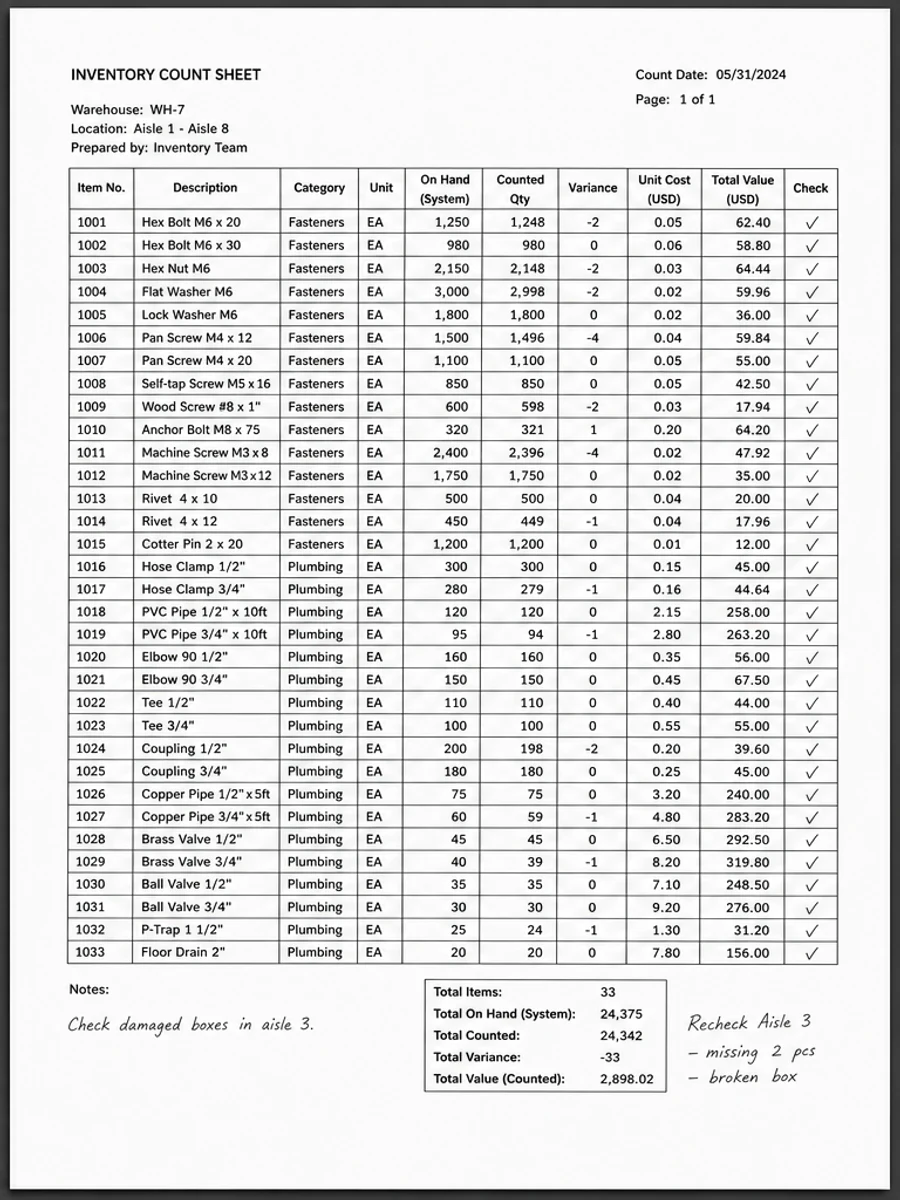
FAQ
Does RedesignPDF create OCR PDFs?
No. It exports cleaned visual pages. Use a separate OCR tool if you need searchable or selectable text.
Should I clean a scan before OCR?
Often yes, especially when the page is gray, shadowed, skewed, or low contrast. OCR results still need review.
Can an OCR PDF still look bad?
Yes. OCR may add text search while leaving the original page image gray, dirty, or hard to read.
Conclusion
If your goal is a clearer scanned PDF while keeping the original layout, start with a conservative prompt, process one page, and review text, tables, numbers, handwriting, and stamps before exporting. If you need editable text, PDF-to-Word conversion, form filling, or precise text-layer editing, use OCR, a PDF editor, or a better rescan instead.
Upload scanned PDF