What readers usually run into
- Yellowing
- Foxing spots
- Water damage
- Weak type
Why archive scans are different
Old documents may contain yellowing, foxing, water marks, folds, stamps, marginal notes, and fragile paper texture. Some of those marks are noise for readability, but some are context. A prompt that removes every imperfection can make the result misleading.
Use a preservation-first prompt
Ask for darker readable text and reduced background distraction, but explicitly preserve stamps, handwriting, signatures, margin notes, and document structure. The cleaned page should remain recognizable as the same archive scan.
Good fits
This works for old letters, typed archive pages, family documents, historical packets, and scans where readability matters more than pristine appearance. It should not be used to claim professional conservation or forensic restoration.
Keep originals
Always keep the original scan. Use the cleaned PDF as a reading copy, and compare it with the original before quoting names, dates, places, or archival details.
How to decide what counts as noise
Archive scans are not ordinary office scans. Foxing, stamps, folds, water marks, and paper tone can be part of the document story. Before cleanup, decide what you want to reduce and what must remain. A good prompt can say "reduce distracting stains" while also saying "preserve stamps, notes, signatures, and paper character." That balance is more honest than asking for a perfectly clean page.
Before and after review for old documents
Review proper names, dates, place names, marginal notes, seals, and faint type. These details are often exactly what makes an archive page valuable. If the after image improves paragraph readability but weakens a stamp or handwritten note, decide which matters more for the use case. For research or family history, preserving context may be more important than visual neatness.
What not to claim
Do not describe the cleaned result as restored, authenticated, or historically corrected. It is a generated visual improvement for reading. If the document has legal, archival, or scholarly importance, keep the original scan attached to your workflow and label the cleaned copy as an enhanced reading version. That avoids overstating what visual cleanup can prove.
How to document the enhanced copy
For archives, family records, or research notes, keep a simple record of what changed: background reduced, text darkened, stains softened, or shadows cleaned. Store the original and enhanced PDF together. This makes it clear that the cleaned version is a reading aid. It also protects future readers from assuming that faint marks, missing details, or generated contrast choices are part of the original document.
Example prompt for archive scans
Use preservation language: "Conservatively improve readability, darken weak type, reduce distracting stains, and preserve paper tone, stamps, signatures, marginal notes, folds, and layout." Avoid words like "restore perfectly" or "remove all aging." Old document scans need a balance between readability and context. The cleaned copy should help someone read the page while still making it obvious that the source is historical.
Related example to compare
An old-document example should be judged by trust, not just cleanliness. The after image may reduce yellowing and make text easier to read, but stamps, folds, and marginal clues should remain. If the cleaned page looks disconnected from the original artifact, the prompt has gone too far. Preserve context even when reducing distraction, and keep the untouched scan beside it for citation, review, future comparison, and source transparency over time, especially in research, archives, or family records. Label the enhanced copy clearly before sharing it publicly.
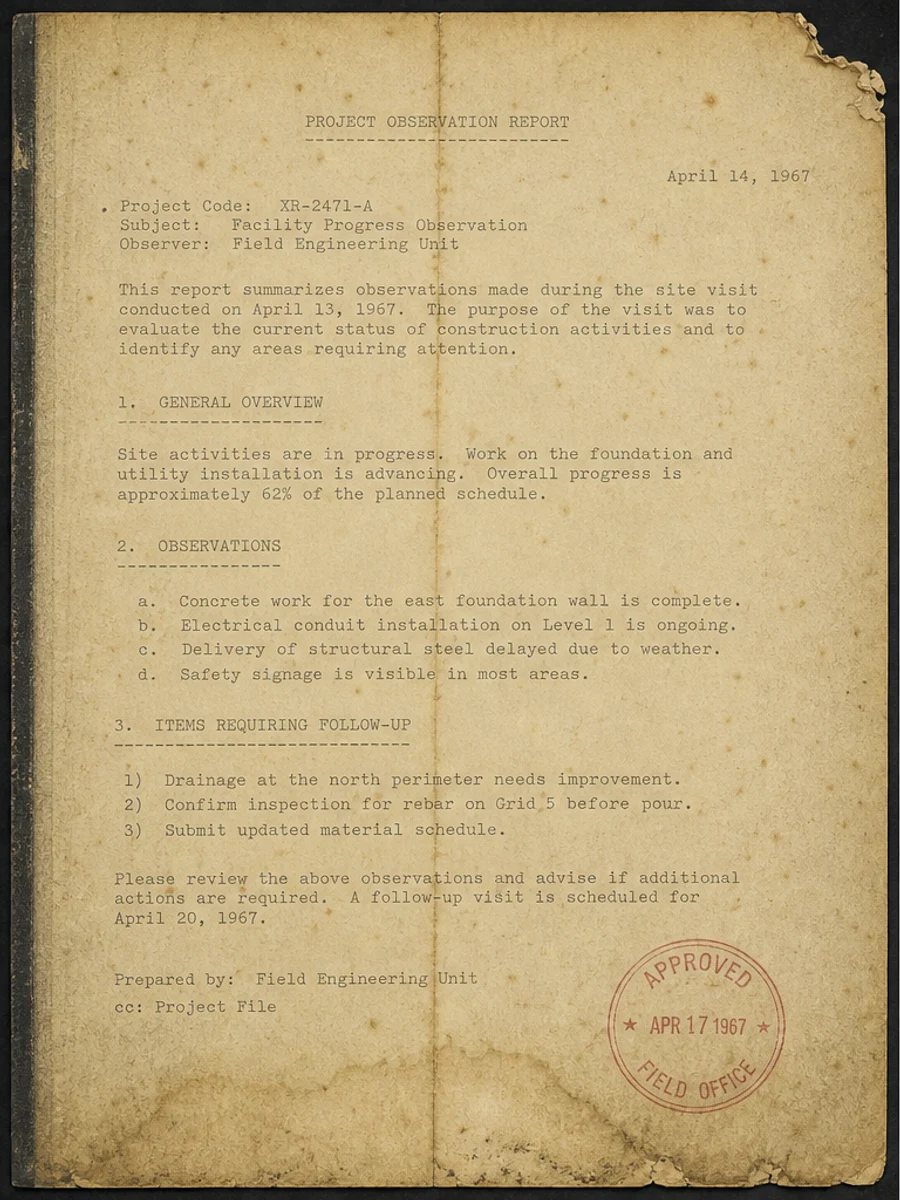
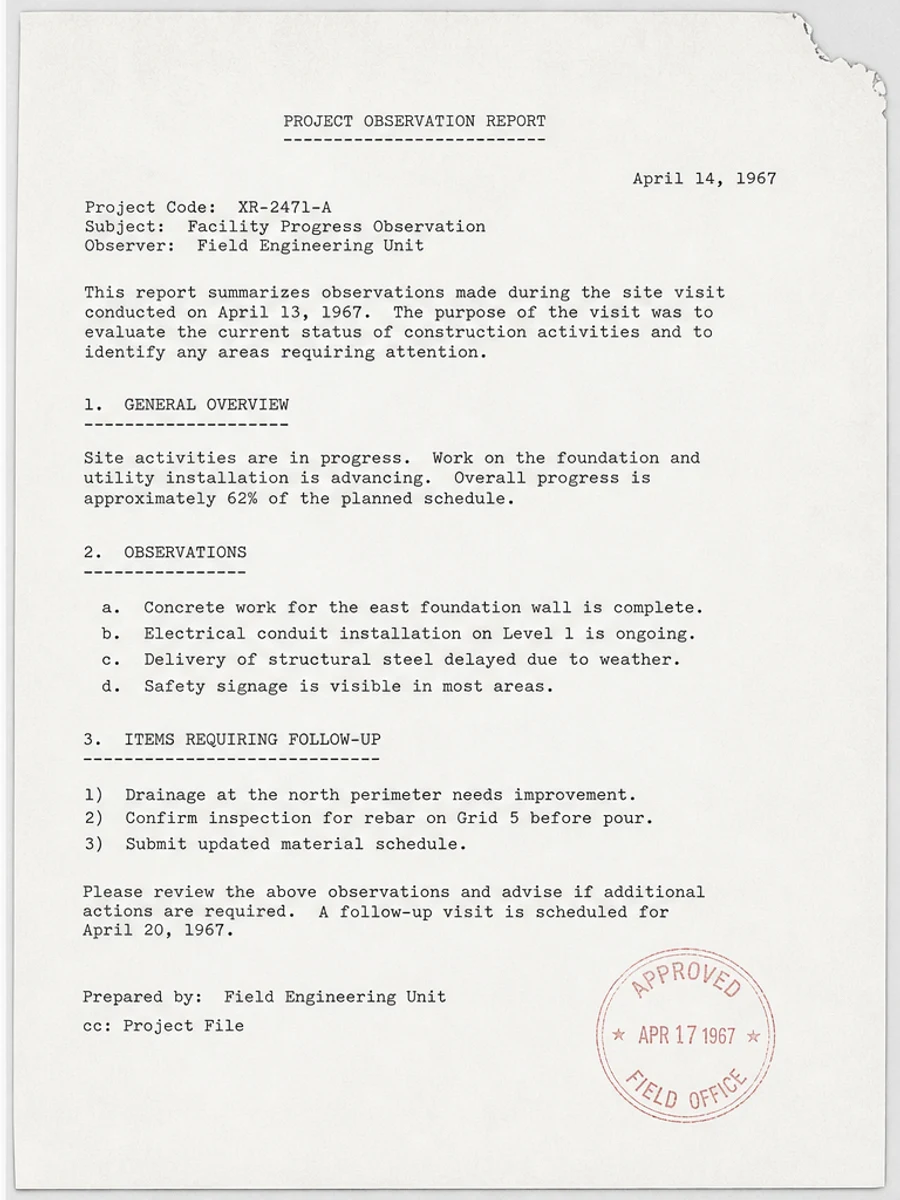
Inline before and after example: Improve an old document scan
Step-by-step tutorial
- Keep the original file.
- Choose conservative cleanup.
- Preserve archive marks.
- Darken weak text.
- Review historical details.
- Export a readable copy.
Prompts you can paste
01Conservatively improve this old document scan: darken weak text, reduce distracting stains, and preserve stamps, notes, paper character, and layout.
02Create a clearer reading copy of this archive scan without erasing meaningful aging marks, handwriting, seals, or marginal details.
03Use light cleanup only. Do not modernize the page, do not invent missing text, and keep all historical markings visible.
When RedesignPDF is a good fit
- Old typed pages with visible text
- Archive scans needing a readable copy
- Documents where marks should be preserved
When it is not the right tool
- Certified restoration
- Removing historically meaningful marks
- Recovering text from missing or destroyed areas
Common mistakes
- Making old paper look artificially new.
- Removing stamps or marginal notes as if they were noise.
- Using the cleaned copy without keeping the original scan.
Related reading
FAQ
Is this certified restoration?
No. RedesignPDF is for readability cleanup and should not be presented as certified archival restoration.
Should aging marks be removed?
Only if they distract from reading and are not meaningful. Use prompts that preserve stamps, notes, and important marks.
Can it recover missing text?
No. It can improve visible text, but missing or destroyed content should not be invented.
Conclusion
If your goal is a clearer scanned PDF while keeping the original layout, start with a conservative prompt, process one page, and review text, tables, numbers, handwriting, and stamps before exporting. If you need editable text, PDF-to-Word conversion, form filling, or precise text-layer editing, use OCR, a PDF editor, or a better rescan instead.
Upload scanned PDF