What readers usually run into
- Shadows from phones
- Low scan resolution
- Curled pages
- Aggressive compression
Start with capture quality
Cleanup cannot fully compensate for cropped edges, severe blur, or missing text. Place the document flat, avoid strong side light, and keep the camera or scanner parallel to the page. For phone captures, use even lighting and check focus before saving.
Avoid preventable artifacts
Many cleanup problems come from shadows, curled paper, glossy reflections, low scan resolution, or heavy compression. Fixing those before upload is faster than trying to repair every page later.
Scan one test page
Before scanning a large packet, test one page and inspect small text, margins, signatures, and tables. If the test page looks gray or blurry, adjust lighting, resolution, or page position before continuing.
Use RedesignPDF where it helps most
After you have the best available scan, use RedesignPDF for pages that still have gray background, faded text, stains, or shadows. Do not use cleanup as a substitute for OCR, form filling, compression, or merging.
Phone scanning setup
If you use a phone, place the document on a flat surface with light coming from both sides or from a broad source above the page. Keep your hand and phone shadow away from the text. Hold the phone parallel to the page, tap to focus, and check the corners before saving. A few seconds spent on capture can remove several minutes of cleanup later.
Flatbed or office scanner setup
For a scanner, clean the glass, align the page, and avoid settings that create tiny compressed files at the cost of legibility. If the document has faint pencil or light type, preview one page and make sure those marks remain visible. If the scanner creates a gray background, you can still clean it later, but the best source file should retain as much real detail as possible.
After scanning, choose the right tool
Use RedesignPDF when the page image needs visual cleanup. Use OCR when you need searchable text. Use merge, split, or compression tools when the file structure or size is the problem. Separating those jobs prevents unrealistic prompts and gives better results. A clean scan is the starting point; the next tool depends on whether you need reading, search, editing, or file management.
A final pre-cleanup checklist
Before uploading, ask four questions: is the whole page visible, is the smallest text in focus, is the lighting even, and is the file not overly compressed? If the answer is no, fix the scan if possible. If the answer is yes but the page still has gray background, shadows, stains, or faded text, then visual cleanup is a sensible next step. This keeps RedesignPDF focused on the problems it is actually designed to solve.
Example prompt after a good scan
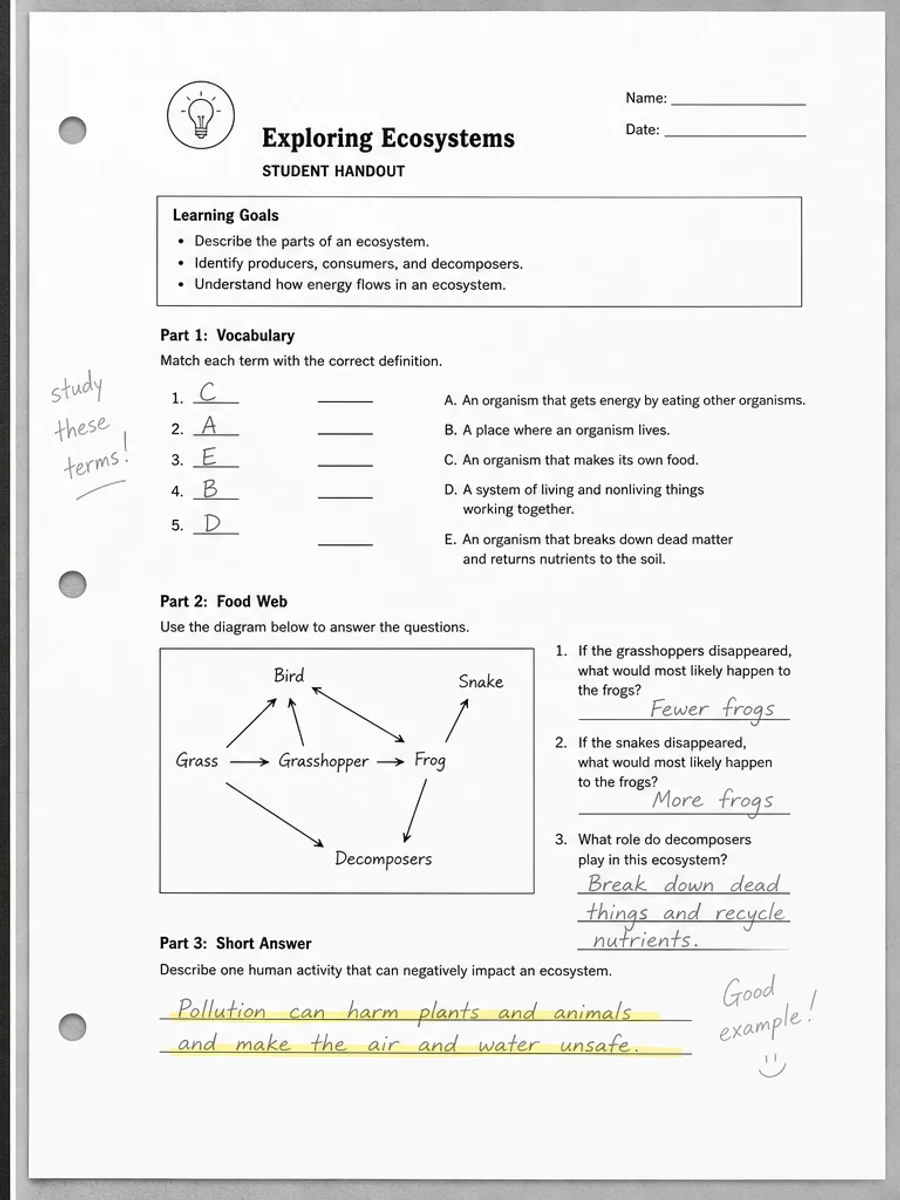
Once the capture is good, the prompt can stay simple: "Clean remaining scan artifacts, reduce gray background and shadows, improve text contrast, and preserve handwriting, stamps, tables, margins, and document structure." This prompt assumes the scan already contains the needed detail. It asks RedesignPDF to improve readability without turning cleanup into OCR, form filling, compression, or a general PDF utility workflow.
Related example to compare
Before scanning a large batch, compare your test page with a phone-scan or photocopy cleanup example. If your source has fewer shadows and sharper text than the example, cleanup should be straightforward. If it looks worse, improve the capture first instead of expecting post-processing to solve everything.
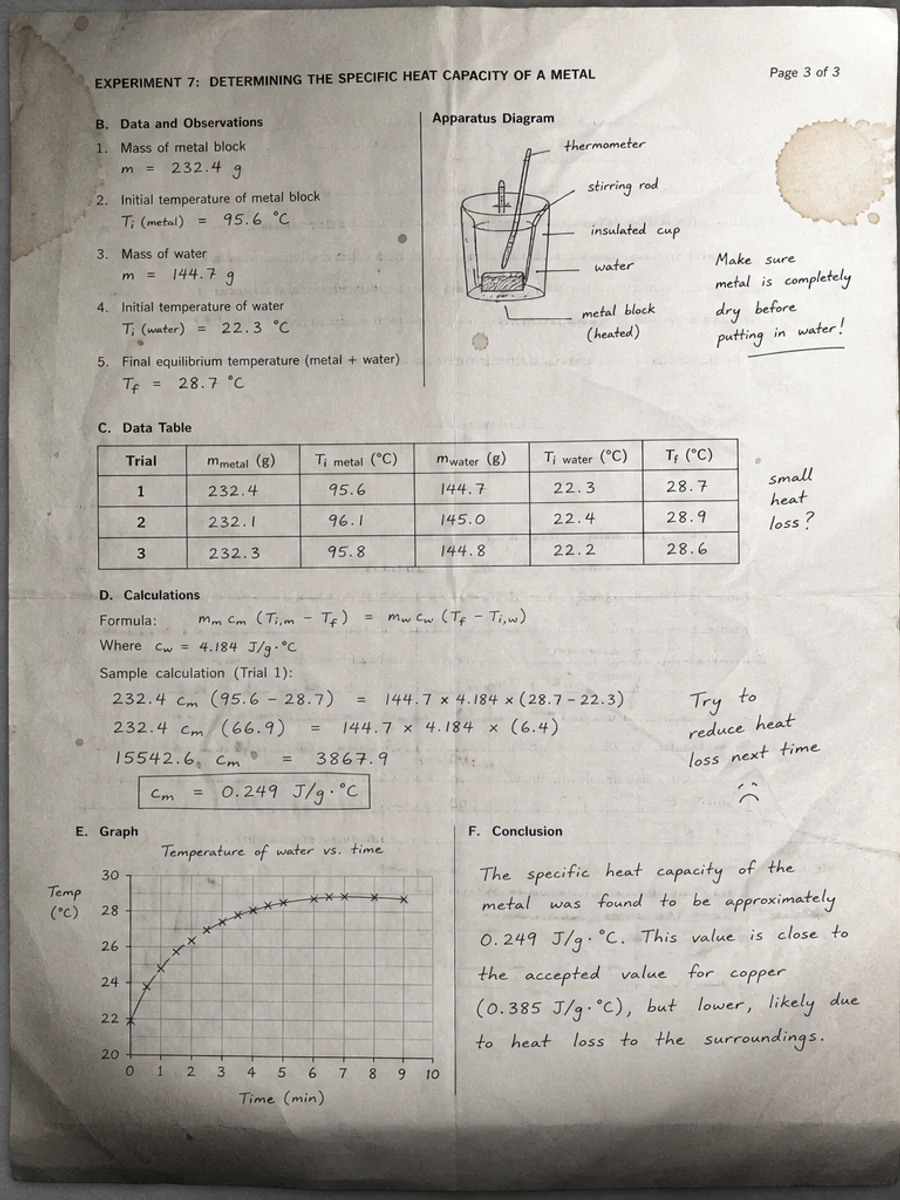
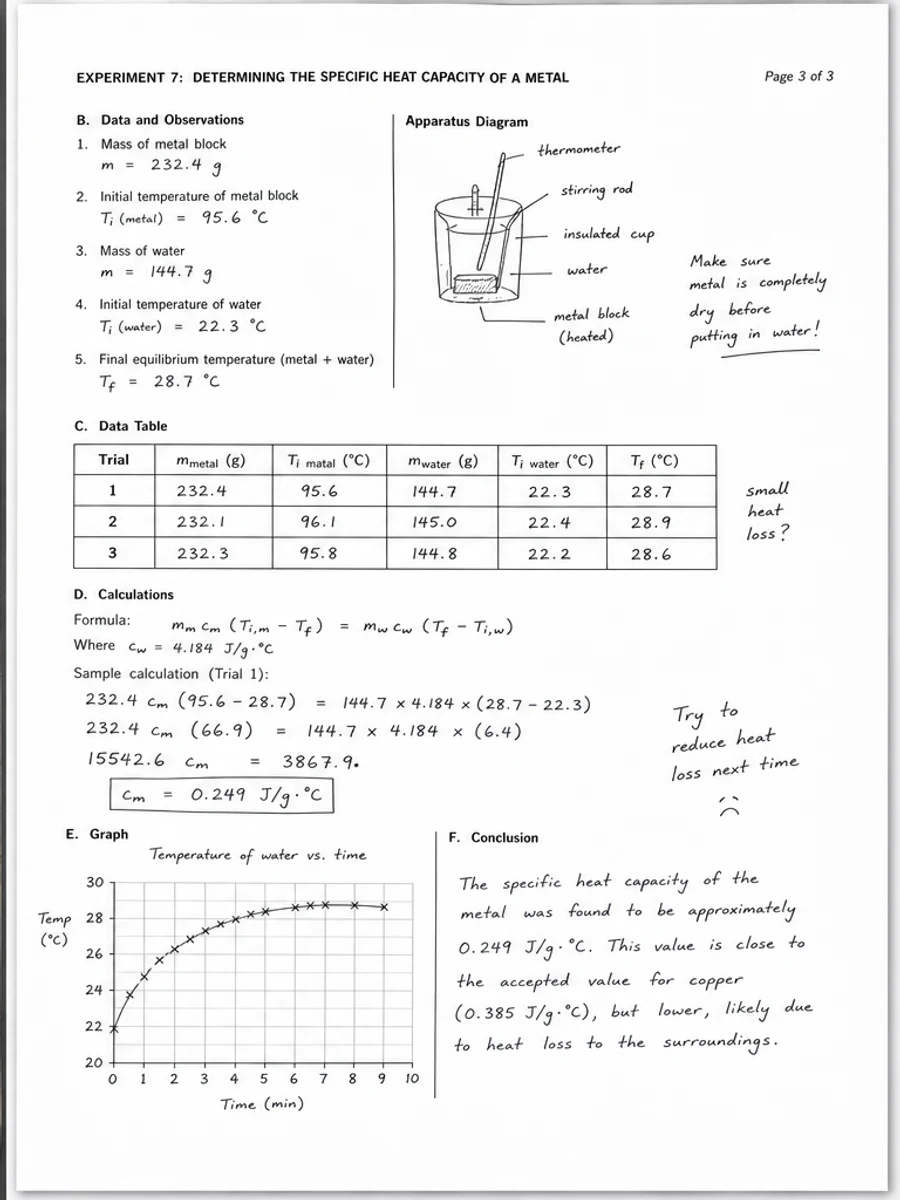
Inline before and after example: Clean a phone-scanned PDF page
Step-by-step tutorial
- Use flat lighting.
- Keep pages flat.
- Scan at enough resolution.
- Avoid heavy compression.
- Check one page before scanning all pages.
- Use RedesignPDF cleanup only where needed.
Prompts you can paste
01After scanning, clean remaining shadows and gray background, improve text contrast, and preserve the original page layout.
02Use RedesignPDF only for residual scan artifacts: faded text, light stains, shadows, and uneven paper tone. Do not rewrite content.
03Create a clearer image-based PDF from this scan while preserving handwriting, stamps, tables, margins, and document structure.
When RedesignPDF is a good fit
- Users preparing paper documents for cleanup
- Phone scanning workflows
- Large packets where a bad first scan would waste time
When it is not the right tool
- Fixing already-missing content
- Choosing legal record retention rules
- Replacing OCR, compression, or merge tools
Common mistakes
- Scanning a whole packet before checking the first page.
- Using heavy compression that creates blocky text.
- Letting curved pages cast shadows across important fields.
Related reading
FAQ
What resolution should I scan at?
Use enough resolution for small text to remain clear. The exact setting depends on your scanner, but avoid low-resolution or heavily compressed output.
Is rescanning better than cleanup?
If the original capture is cropped, badly blurred, or too dark, rescanning is usually better than trying to repair it.
Can RedesignPDF merge or compress PDFs?
No. It focuses on visual page cleanup and image-based export, not merge, compression, or OCR utilities.
Conclusion
If your goal is a clearer scanned PDF while keeping the original layout, start with a conservative prompt, process one page, and review text, tables, numbers, handwriting, and stamps before exporting. If you need editable text, PDF-to-Word conversion, form filling, or precise text-layer editing, use OCR, a PDF editor, or a better rescan instead.
Upload scanned PDF