Scanned PDF example

Clean a scanned receipt

Make faded, curled, shadowed, or wrinkled scanned receipts easier to read while preserving totals and layout.
Upload scanned PDF

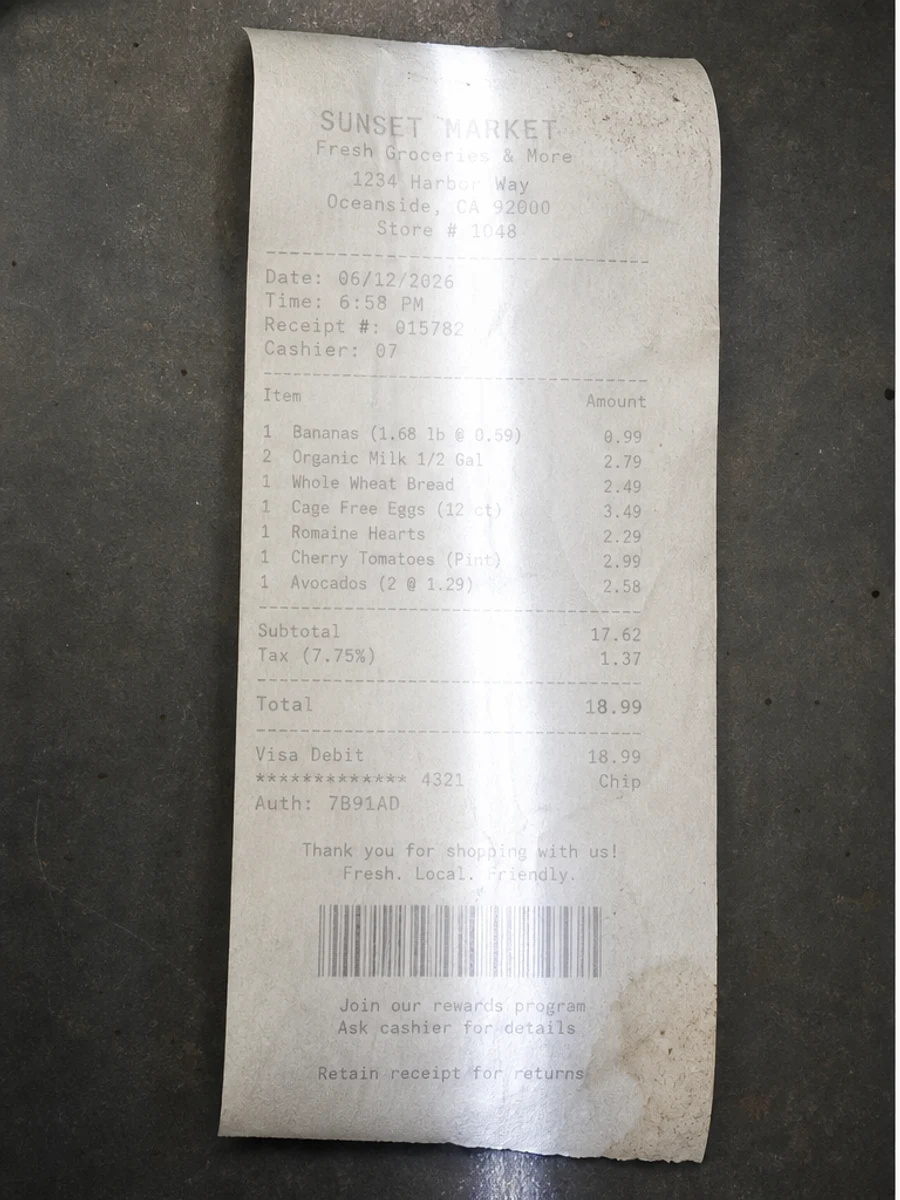
Before: The thermal receipt is curled, faded, wrinkled, and partly shadowed.
Before
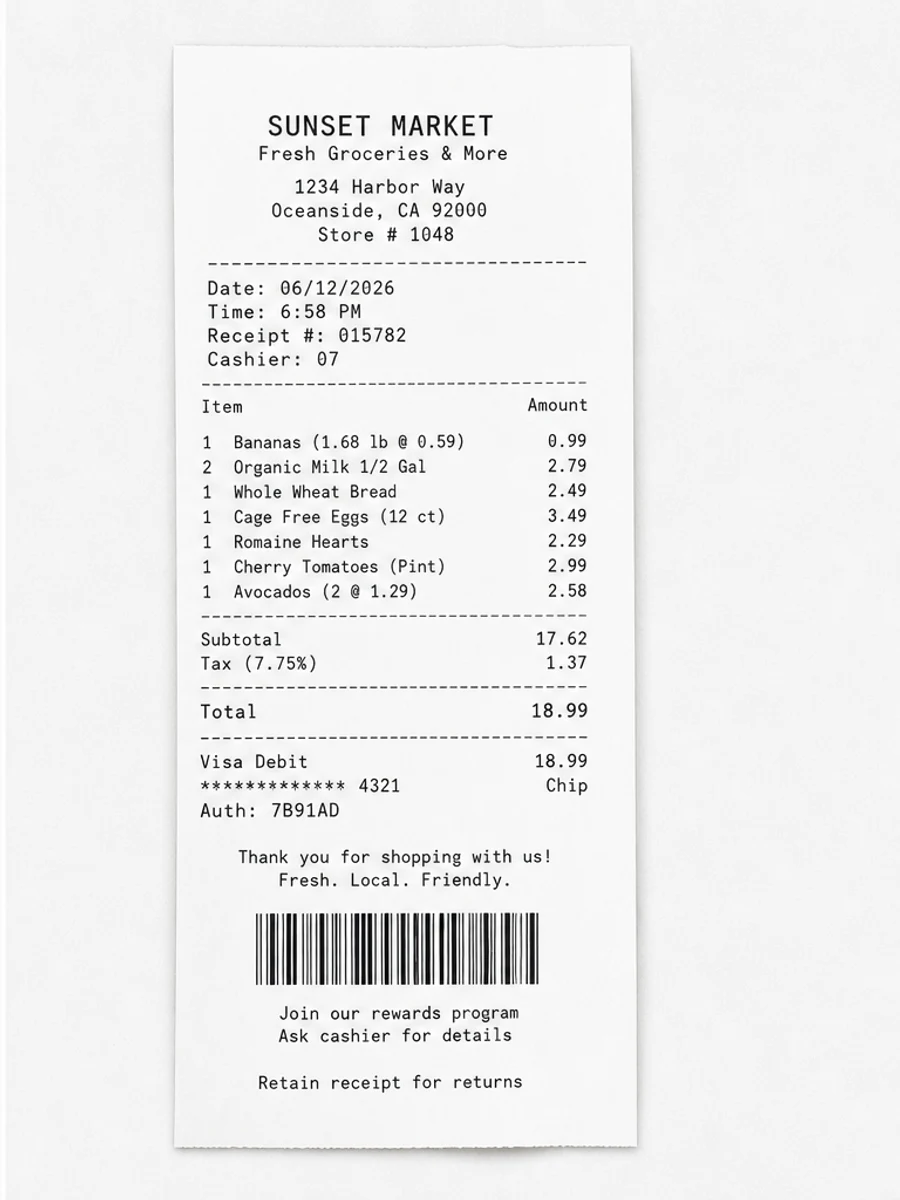
After: Straighter receipt, Darker line items, Clearer total area, Reduced counter shadows
After

Original scan problem

The thermal receipt is curled, faded, wrinkled, and partly shadowed.

What improved

  • Straighter receipt
  • Darker line items
  • Clearer total area
  • Reduced counter shadows

Best for

  • Expense receipts
  • Faded thermal receipts
  • Phone-captured receipts
  • Wrinkled small documents

Not for

  • Audited records with uncertain values
  • Missing receipt text
  • Financial claims without original review

Recommended prompts

  • Straighten this curled receipt, darken faded line items and totals, improve barcode clarity, and reduce wrinkles, smudges, and shadows.
  • Make the scanned receipt easier to read while preserving all numbers and the original receipt layout.
  • Apply a conservative cleanup: improve readability, reduce scanner artifacts, and preserve the original layout, handwriting, stamps, tables, and marks.

FAQ

Can RedesignPDF help with clean a scanned receipt?

Yes, when the page is a scanned or image-based PDF and the goal is visual readability cleanup. Review the result before export.

Will this create selectable OCR text?

No. RedesignPDF improves the visible page image. Use OCR separately if you need searchable or selectable text.

What should I check before exporting?

Check important text, numbers, dates, handwriting, stamps, tables, and any details that must stay accurate.