حالات شائعة
- ضباب النسخ
- اصفرار الورق
- هدر الحبر عند الطباعة
- نتائج OCR ضعيفة
Why the background turns gray
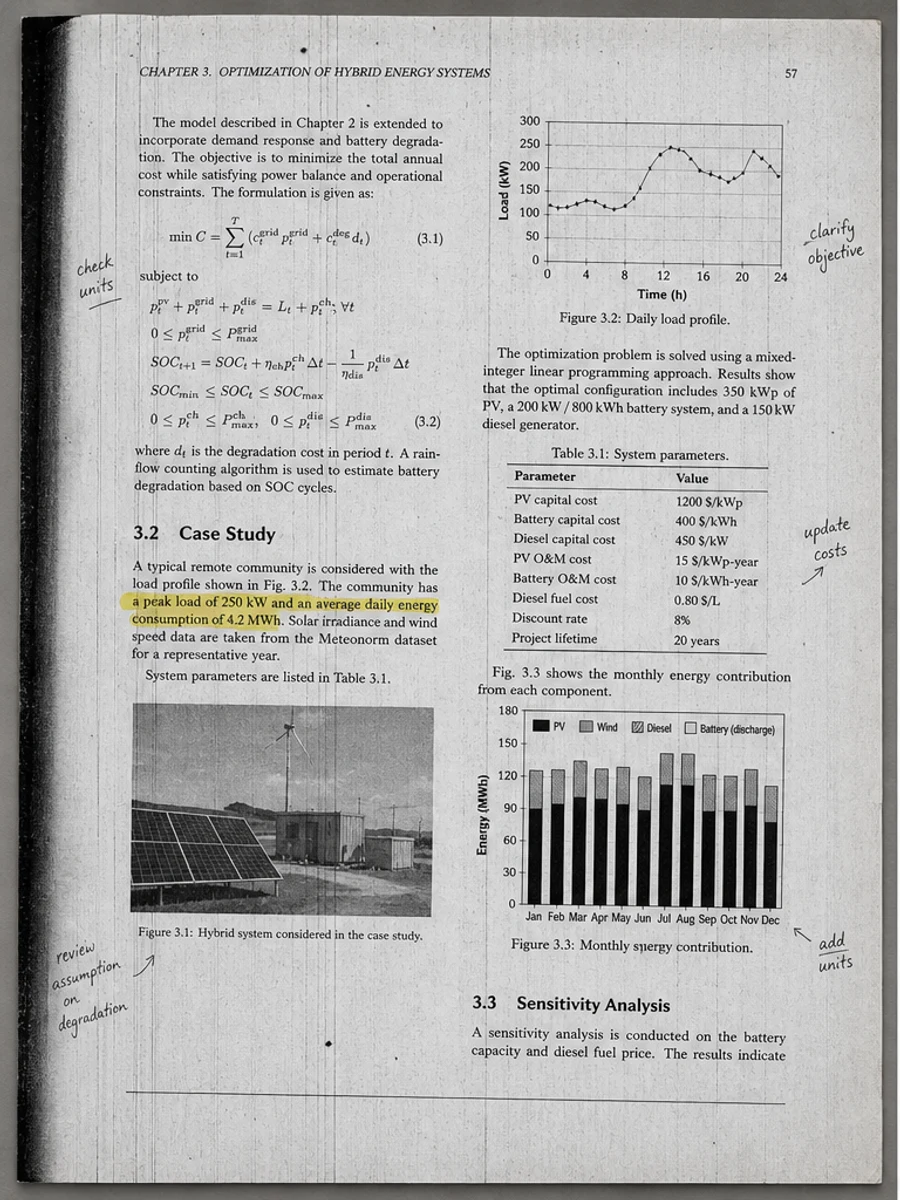
Gray background usually comes from copier haze, old paper color, scanner exposure, shadows near the spine, or a PDF made from multiple photocopy generations. The page may look wasteful when printed and OCR may perform poorly because the software sees background texture as noise.
Clean background separately from text
The safest prompt asks for reduced gray background and darker text at the same time. If you only ask to whiten the page, thin table rules, pencil marks, formulas, and light stamps can disappear. A good cleanup preserves meaningful marks while lowering the visual weight of the paper tone.
Best documents for this cleanup
This works well for office scans, academic handouts, photocopied worksheets, contracts copied in grayscale, and old documents where text is present but buried in haze. It is not a replacement for OCR correction, PDF compression, merging, or form filling.
How to review the result
Inspect small characters, tables, borders, and low-contrast annotations. If the page looks artificially white or details vanish, regenerate with a prompt that says to preserve fine lines and use light background cleanup.
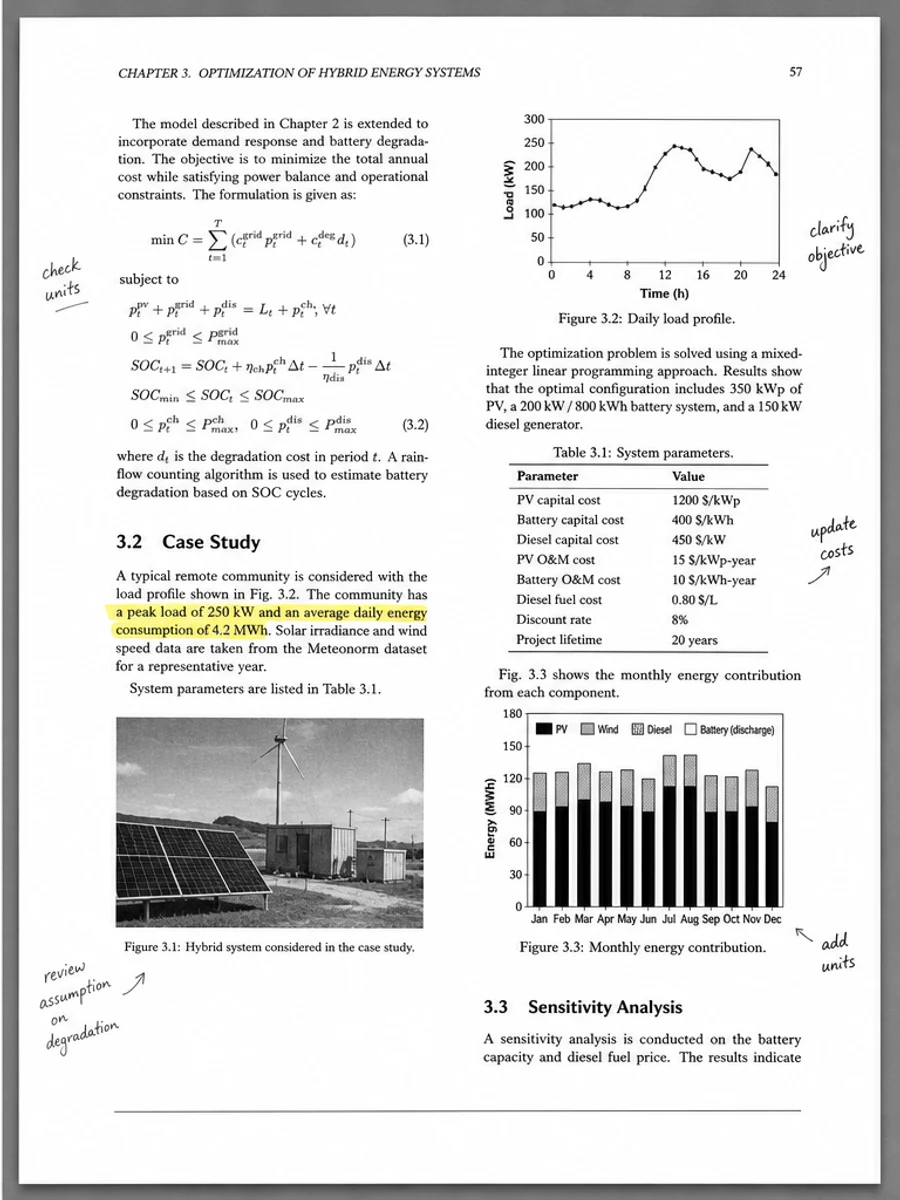
Before and after signs to look for
A good after image should have calmer paper tone and stronger text without looking like a new document. The best signs are simple: paragraphs become readable at normal zoom, background haze no longer competes with letters, table rules are still present, and diagrams or formulas keep their shape. A bad result often looks bright at first but removes pale information. That is why the review step should include details, not just the overall page color.
Why aggressive whitening can backfire
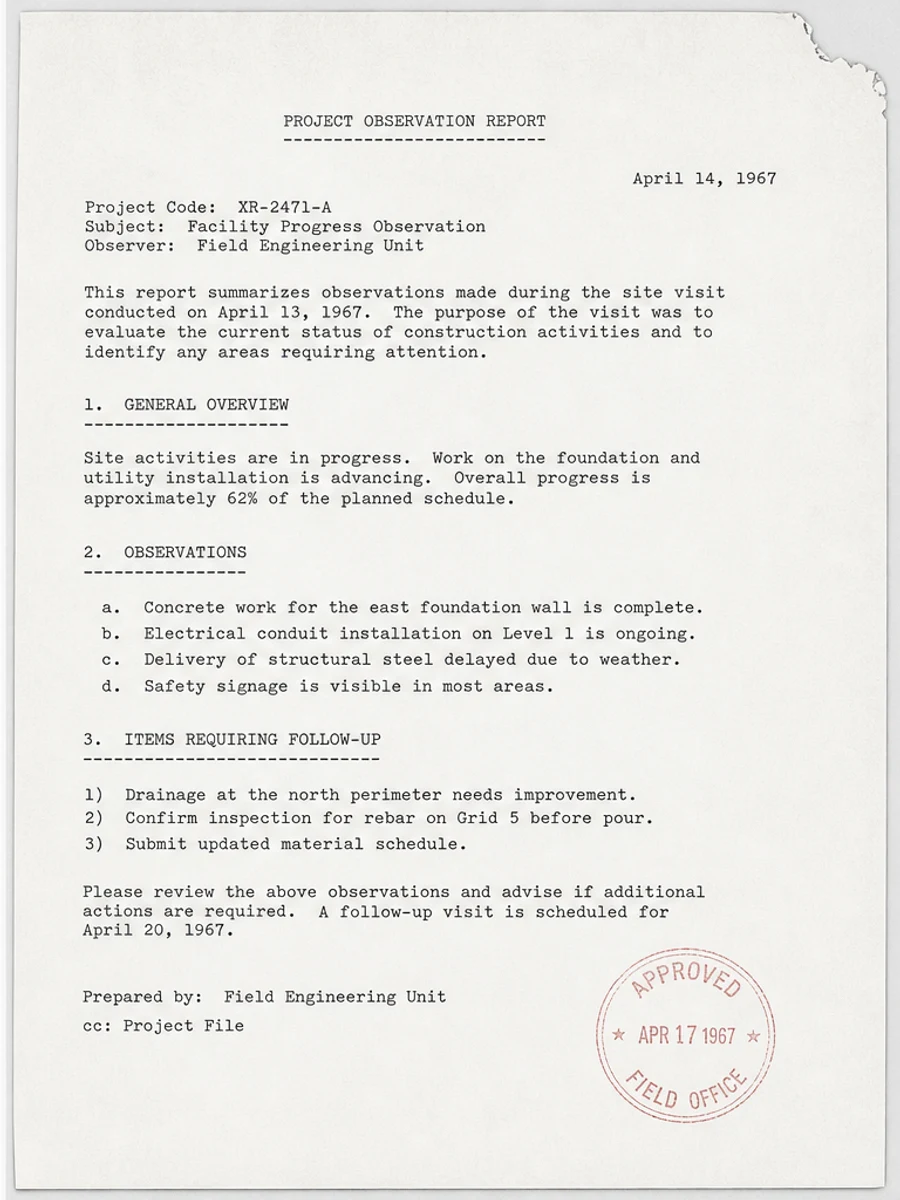
Many gray-background scans contain real content that is also light gray: pencil notes, signatures, stamps, pale grid lines, scanned illustrations, and old paper texture. If the prompt says only "remove gray background," the output may treat those details as noise. Add instructions such as "preserve thin marks" and "do not erase annotations" when the document includes anything beyond plain dark text on white paper.
When OCR is part of the plan
If the next step is OCR, clean for legibility rather than perfection. OCR generally benefits from higher contrast and less background noise, but it can still misread numbers, punctuation, and table structure. Export the visually cleaned PDF, run OCR in a separate tool, and compare the recognized text with the original scan. RedesignPDF should be the image cleanup step, not the text verification step.
Printing and sharing considerations
Gray backgrounds often become more annoying when the document is printed or shared in a small preview. A cleaner background can reduce ink use and make the page feel less muddy, but the exported PDF should still be checked on the medium you care about. If you plan to print, inspect margins and pale lines. If you plan to email the file, open the exported PDF and confirm that the page remains readable at common preview sizes.
Recommended conservative prompt
A good prompt for this topic is explicit but restrained: "Reduce the gray scanner background and copier haze, darken faded text slightly, preserve thin lines, diagrams, handwritten notes, stamps, and the original layout." This tells the model what to improve and what not to touch. If the result still looks too gray, increase cleanup gradually rather than jumping to an extreme whitening instruction that may damage real content.
خطوات العمل
- افتح ملف PDF الممسوح ضوئيا.
- اختر الصفحة التي يظهر فيها «إزالة الخلفية الرمادية من ملف PDF ممسوح ضوئيًا» بوضوح.
- استخدم أمر تحسين متحفظ للوضوح.
- قارن الصفحة قبل المعالجة وبعدها.
- تحقق من النصوص والأرقام والتواريخ والجداول المهمة.
- صدّر الملف بعد التأكد من النتيجة.
أوامر جاهزة للاستخدام
01نظّف صفحة PDF الممسوحة ضوئيا مع التركيز على إزالة الخلفية الرمادية من ملف PDF ممسوح ضوئيًا، وقلّل الخلفية الرمادية والظلال والبقع، واحتفظ بالتخطيط الأصلي كما هو.
02حسّن الوضوح بشكل متحفظ: قوِّ النص الباهت ونظّف الخلفية، مع الحفاظ على الكتابة اليدوية والأختام والجداول والعلامات.
03أعد إنتاج هذه الصفحة الممسوحة ضوئيا بصورة أوضح، دون تغيير النصوص أو الأرقام أو مواضع العناصر.
متى يناسبك RedesignPDF
- صفحات PDF الممسوحة ضوئيا التي ما زال نصها مقروءا.
- المستندات المصورة التي تحتاج وضوحا بصريا أكبر.
- الملفات التي يكون الهدف منها تحسين القراءة لا تعديل النص.
متى لا يناسبك RedesignPDF
- تعديل طبقة النص في PDF بدقة.
- تحويل PDF إلى Word أو استخراج بيانات آلي.
- المستندات الرسمية التي تحتاج تحققا قانونيا أو أرشيفيا.
Common mistakes
- المبالغة في التبييض حتى تختفي الخطوط الرفيعة والعلامات الفاتحة.
- الخلط بين التنظيف البصري وتحويل OCR.
- التصدير قبل مراجعة الأرقام والتواريخ والجداول والكتابة اليدوية.
اقرأ أيضا
FAQ
هل يمكن لـ RedesignPDF معالجة إزالة الخلفية الرمادية من ملف PDF ممسوح ضوئيًا؟
نعم، عندما تكون الصفحة صورة ممسوحة ضوئيا والهدف تحسين الوضوح البصري. راجع النتيجة قبل التصدير.
هل يصبح النص قابلا للتحديد بعد المعالجة؟
لا. يعمل المحرر على صورة الصفحة ويصدّر ملف PDF مصورا؛ النص يبقى غير قابل للتحديد، وهذه ليست أداة OCR.
ما الذي يجب التحقق منه قبل التصدير؟
راجع النصوص والأرقام والتواريخ والجداول والكتابة اليدوية والأختام، لأن إعادة الإنتاج بالذكاء الاصطناعي قد تغيّر تفاصيل دقيقة.
الخلاصة
إذا كان هدفك أن تصبح الصفحة الممسوحة ضوئيا أوضح وأسهل قراءة مع الحفاظ على التخطيط الأصلي، ابدأ بصفحة واحدة وبأمر متحفظ، ثم راجع النصوص والجداول والأرقام والكتابة اليدوية قبل التصدير. أما إذا كنت تحتاج إلى تعديل طبقة النص أو تحويل PDF إلى Word أو تعبئة نماذج بدقة، فاستخدم أداة OCR أو محررا متخصصا أو أعد المسح.
ارفع ملف PDF