حالات شائعة
- نص باهت
- خلفية رمادية
- ظلال الهاتف
- تباين منخفض
Start by diagnosing the scan, not the tool
A scanned PDF can be hard to read for different reasons, and each reason needs a different fix. If the letters are visible but pale, contrast cleanup can help. If the page has a gray scanner background, copier haze, or phone shadows, background cleanup may help. If the photo is out of focus, cropped, or too compressed, no cleanup tool can reliably recover missing detail. Spend one minute zooming into the worst page before doing anything else. Ask: are the characters actually present, or am I hoping software will guess them?
When a rescan is the better answer
The best SEO article answer is not always 'use our tool.' Rescan when the photo is blurred, a corner is cut off, the page is curved near the spine, or important numbers are already unreadable. Use flat lighting, keep the camera parallel to the page, and scan before compressing the file. A better source scan usually beats an aggressive cleanup pass.
When visual cleanup makes sense
Visual cleanup is useful when the scan contains the needed information but is unpleasant to read: faded text, gray paper tone, dirty photocopy marks, mild shadows, speckles, or low contrast. In that case, the goal is not to make a new document. The goal is to make the same page easier for a human to read. RedesignPDF is designed for this image-based cleanup workflow: darken visible text, reduce distracting background artifacts, preserve layout, and export a cleaner image-based PDF.
Do not confuse cleanup with OCR
OCR and visual cleanup solve different problems. OCR tries to recognize text and create a searchable or selectable text layer. Visual cleanup improves the page image itself. If OCR is failing because the scan is dirty or low contrast, clean the scan first, then run OCR in a separate tool. But do not treat a cleaner-looking PDF as proof that OCR will be perfect. Dates, amounts, names, tables, and handwritten notes still need review.
Use one representative page first
Do not batch-process a whole document on the first try. Pick the grayest page, the page with the weakest text, or the page with the worst shadow. Work on that page, compare the result, and only then decide whether the prompt is suitable for the rest of the file.
Write the prompt like a repair note
A useful prompt names both the defect and the boundary. Instead of 'make this PDF better,' write what you see: 'darken faded text,' 'reduce the gray scanner background,' 'clean the side shadow,' or 'reduce speckles.' Then add what must not change: layout, table lines, handwriting, stamps, checkboxes, and spacing.
Review the result like a reader would
After cleanup, read the document at normal zoom. If you have to zoom in to understand every paragraph, readability has not improved enough. Then inspect fragile parts: small numbers, dates, footnotes, totals, table values, signed marks, handwritten entries, and stamps. Good cleanup reduces distraction while keeping small details stable.
If the result looks too artificial
Over-cleaned scans are easy to spot: paper becomes unnaturally white, faint annotations vanish, table rules break, or stains turn into hard dots. If that happens, regenerate with a more conservative instruction such as 'light cleanup,' 'preserve fine lines,' and 'do not over-whiten the page.'
A practical workflow
First, inspect the source and decide whether a rescan is needed. Second, choose one representative page. Third, apply a conservative cleanup prompt. Fourth, compare before and after at normal and close zoom. Fifth, adjust the prompt if lines, notes, or values are weakened.
What a good final result looks like
A good cleaned scan should feel boring in the best way: same page, same structure, easier reading. Text has stronger contrast, background noise distracts less, shadows are reduced, and important marks remain. It should not look rewritten, redesigned, or converted into an editable document.
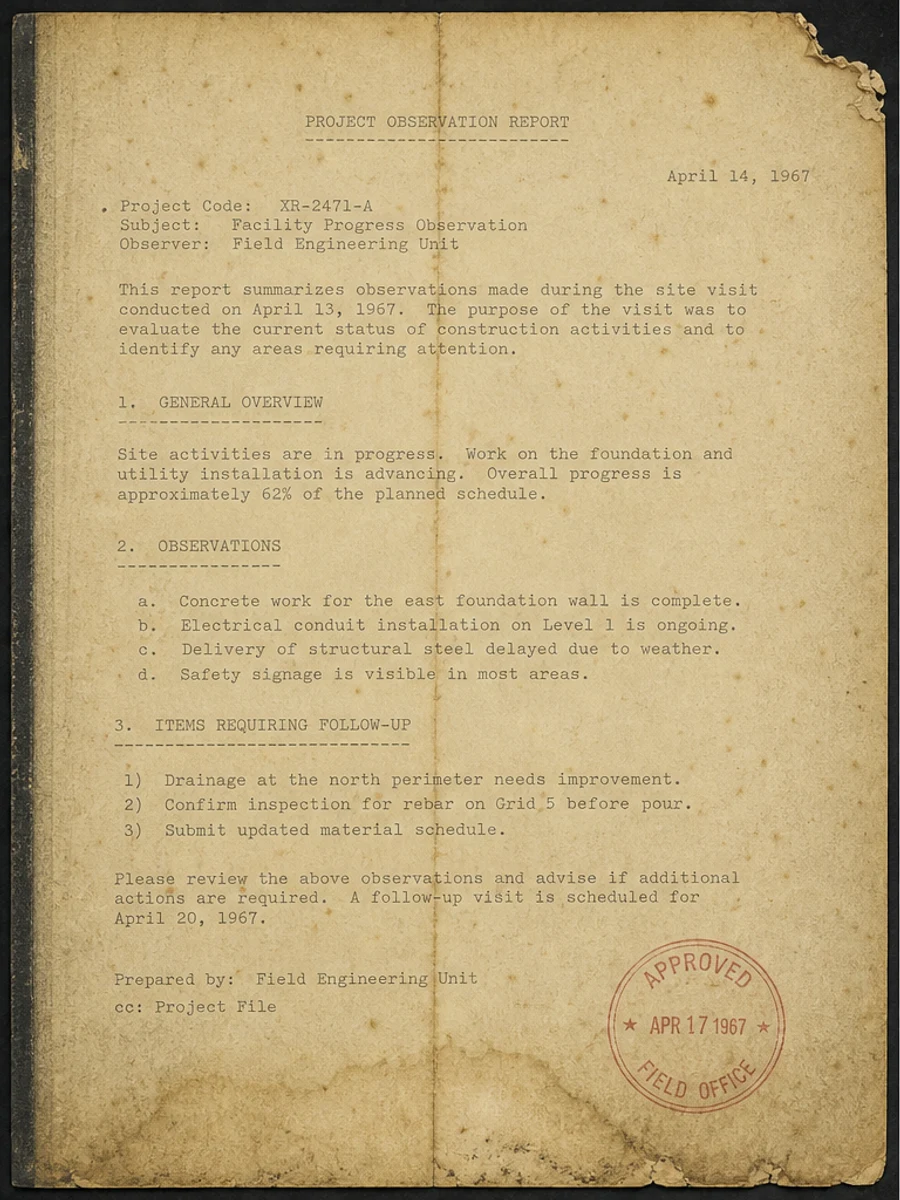
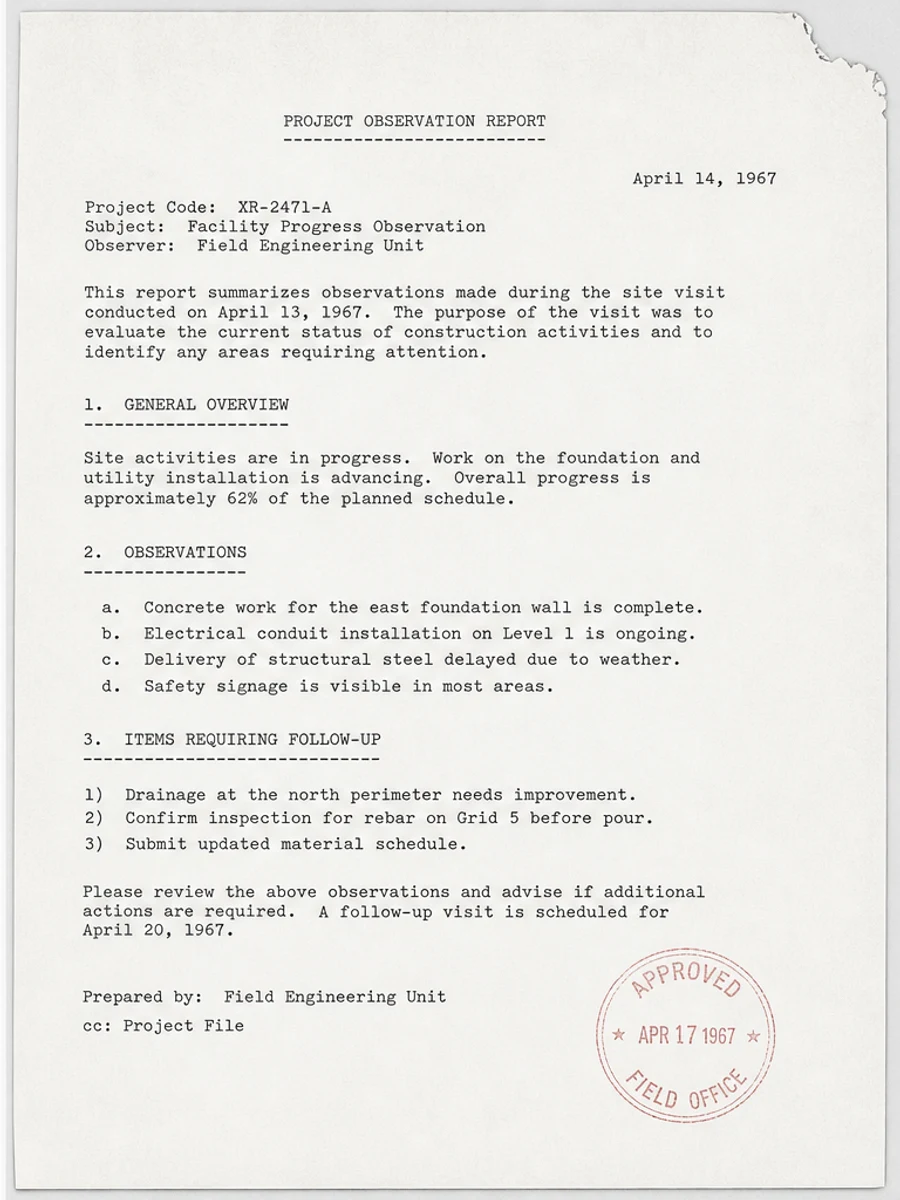
قبل وبعد: Fix a faded scanned PDF page
خطوات العمل
- افتح ملف PDF الممسوح ضوئيا.
- اختر الصفحة التي يظهر فيها «جعل ملف PDF الممسوح ضوئيًا أسهل في القراءة» بوضوح.
- استخدم أمر تحسين متحفظ للوضوح.
- قارن الصفحة قبل المعالجة وبعدها.
- تحقق من النصوص والأرقام والتواريخ والجداول المهمة.
- صدّر الملف بعد التأكد من النتيجة.
أوامر جاهزة للاستخدام
01نظّف صفحة PDF الممسوحة ضوئيا مع التركيز على جعل ملف PDF الممسوح ضوئيًا أسهل في القراءة، وقلّل الخلفية الرمادية والظلال والبقع، واحتفظ بالتخطيط الأصلي كما هو.
02حسّن الوضوح بشكل متحفظ: قوِّ النص الباهت ونظّف الخلفية، مع الحفاظ على الكتابة اليدوية والأختام والجداول والعلامات.
03أعد إنتاج هذه الصفحة الممسوحة ضوئيا بصورة أوضح، دون تغيير النصوص أو الأرقام أو مواضع العناصر.
متى يناسبك RedesignPDF
- صفحات PDF الممسوحة ضوئيا التي ما زال نصها مقروءا.
- المستندات المصورة التي تحتاج وضوحا بصريا أكبر.
- الملفات التي يكون الهدف منها تحسين القراءة لا تعديل النص.
متى لا يناسبك RedesignPDF
- تعديل طبقة النص في PDF بدقة.
- تحويل PDF إلى Word أو استخراج بيانات آلي.
- المستندات الرسمية التي تحتاج تحققا قانونيا أو أرشيفيا.
Common mistakes
- المبالغة في التبييض حتى تختفي الخطوط الرفيعة والعلامات الفاتحة.
- الخلط بين التنظيف البصري وتحويل OCR.
- التصدير قبل مراجعة الأرقام والتواريخ والجداول والكتابة اليدوية.
اقرأ أيضا
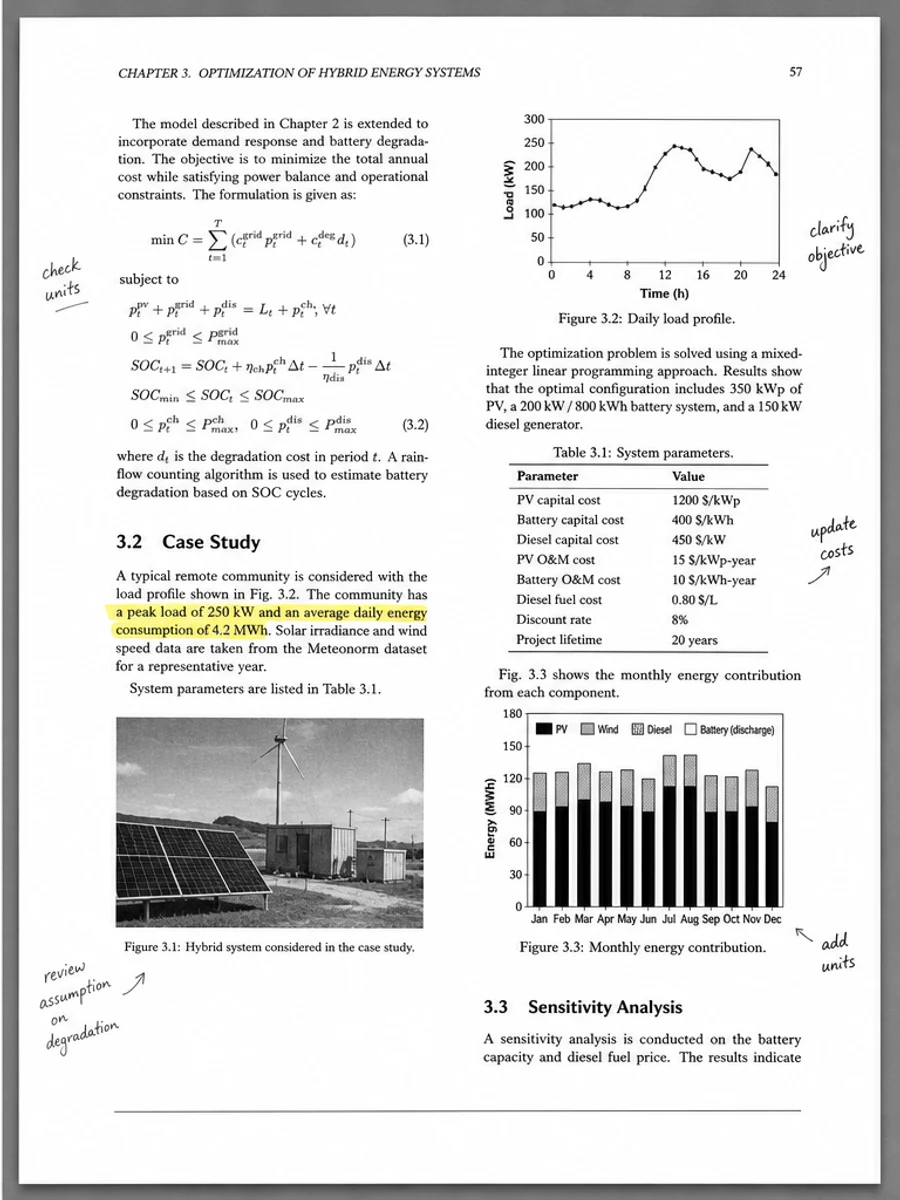
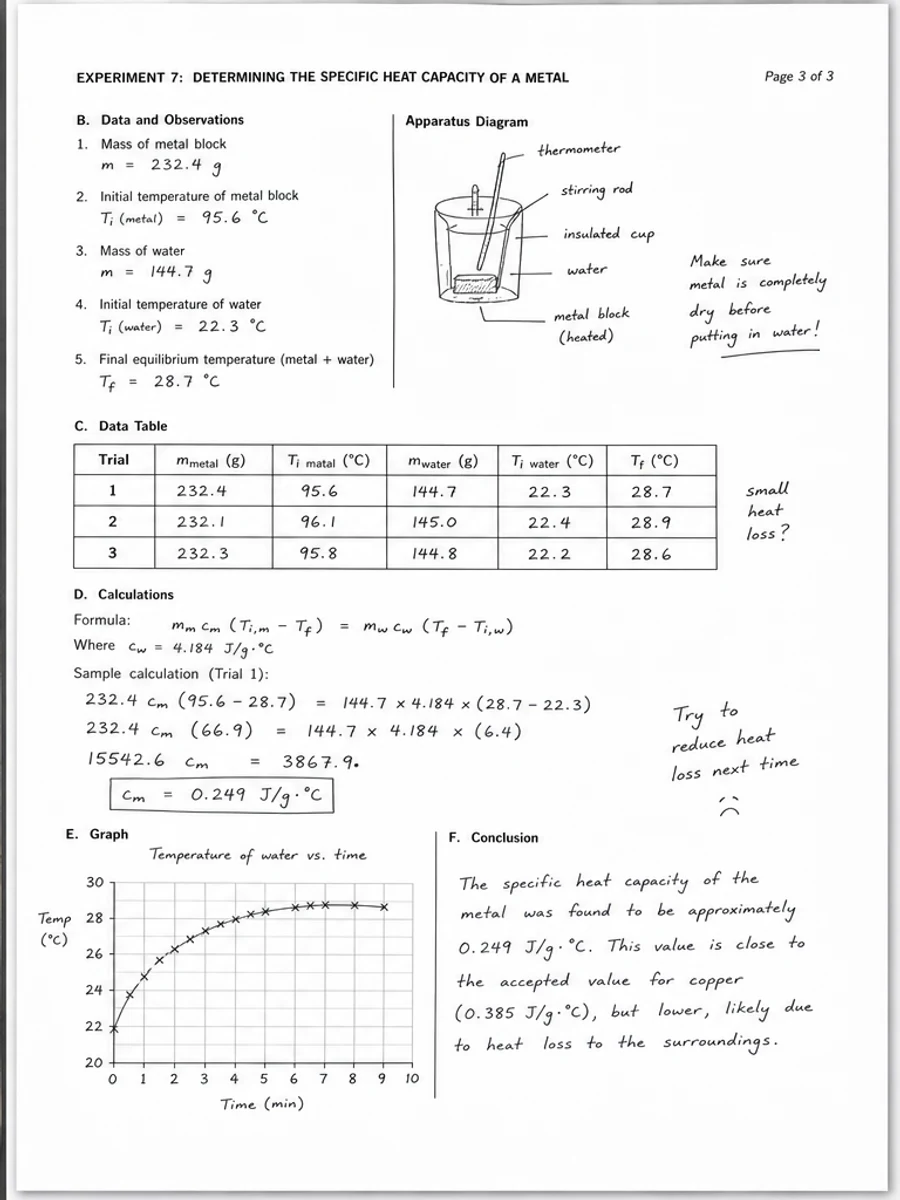
FAQ
هل يمكن لـ RedesignPDF معالجة جعل ملف PDF الممسوح ضوئيًا أسهل في القراءة؟
نعم، عندما تكون الصفحة صورة ممسوحة ضوئيا والهدف تحسين الوضوح البصري. راجع النتيجة قبل التصدير.
هل يصبح النص قابلا للتحديد بعد المعالجة؟
لا. يعمل المحرر على صورة الصفحة ويصدّر ملف PDF مصورا؛ النص يبقى غير قابل للتحديد، وهذه ليست أداة OCR.
ما الذي يجب التحقق منه قبل التصدير؟
راجع النصوص والأرقام والتواريخ والجداول والكتابة اليدوية والأختام، لأن إعادة الإنتاج بالذكاء الاصطناعي قد تغيّر تفاصيل دقيقة.
الخلاصة
إذا كان هدفك أن تصبح الصفحة الممسوحة ضوئيا أوضح وأسهل قراءة مع الحفاظ على التخطيط الأصلي، ابدأ بصفحة واحدة وبأمر متحفظ، ثم راجع النصوص والجداول والأرقام والكتابة اليدوية قبل التصدير. أما إذا كنت تحتاج إلى تعديل طبقة النص أو تحويل PDF إلى Word أو تعبئة نماذج بدقة، فاستخدم أداة OCR أو محررا متخصصا أو أعد المسح.
ارفع ملف PDF