حالات شائعة
- نص غير قابل للتحديد
- مخرجات OCR غير مرتبة
- ملف ممسوح غير قابل للتعديل
- تغيّر التخطيط بعد التحويل
What a scanned PDF contains
A basic scanned PDF behaves like a picture. You can zoom, print, or crop it, but you usually cannot select words because the PDF does not know where letters are. The page may include shadows, gray backgrounds, skew, and compression from the capture process.
What OCR adds
OCR analyzes the image and tries to place searchable text over it. That can make text selectable, but it may introduce recognition errors, broken reading order, bad columns, and mistakes in tables. Poor scan quality often leads to poor OCR output.
Where RedesignPDF fits
Use RedesignPDF when the scan image itself needs to look cleaner before reading, sharing, printing, or running OCR elsewhere. It is a visual cleanup step, not a text extraction step, so you should keep OCR expectations separate.
Choosing the right workflow
If you need a human-readable image-based PDF, clean and export. If you need searchable text, clean the page first when needed, then use a dedicated OCR tool and review the recognized text against the scan.
How to tell which PDF you have
Open the PDF and try selecting a word. If the selection grabs letters and you can copy them into a text editor, the file probably has a text layer. If the entire page behaves like one image, it is probably a scanned PDF. Some files are mixed: they show a scan image but also have an OCR layer hidden above it. In those cases, the page may still look dirty even though search works.
Why cleanup and OCR are often confused
People often search for OCR when the real pain is readability. They cannot read the scan comfortably, so they assume searchable text is the solution. Sometimes it is, but many workflows only need a cleaner visual copy for review, printing, or sharing. RedesignPDF addresses that visual problem. It makes the page image clearer; it does not promise that every word becomes editable or searchable.
A safe combined workflow
When both readability and searchable text matter, keep the steps separate. First, clean the scan conservatively and export a readable image-based PDF. Second, run OCR in a dedicated OCR tool. Third, check OCR output against the original and cleaned page, especially for numbers, names, columns, and punctuation. This keeps visual enhancement from being mistaken for text verification.
Decision rule for choosing cleanup or OCR first
If the page is hard for a person to read, clean the scan image first. If the page is already visually clear but you need search, copy, or screen-reader access, go directly to OCR. If you need to change words, fill form fields, or edit a PDF text layer, neither visual cleanup nor basic OCR is enough by itself. Choosing the job correctly prevents unrealistic prompts and avoids exporting a file that solves the wrong problem.
What to tell stakeholders
When sharing the output, describe it accurately. Say that the PDF page image was cleaned for readability, not that it was converted into an editable document. If OCR was performed later, mention that OCR results were reviewed separately. This distinction matters in teams because one person may expect a readable PDF, another may expect searchable text, and another may expect editable layout. The file type alone does not answer those expectations.
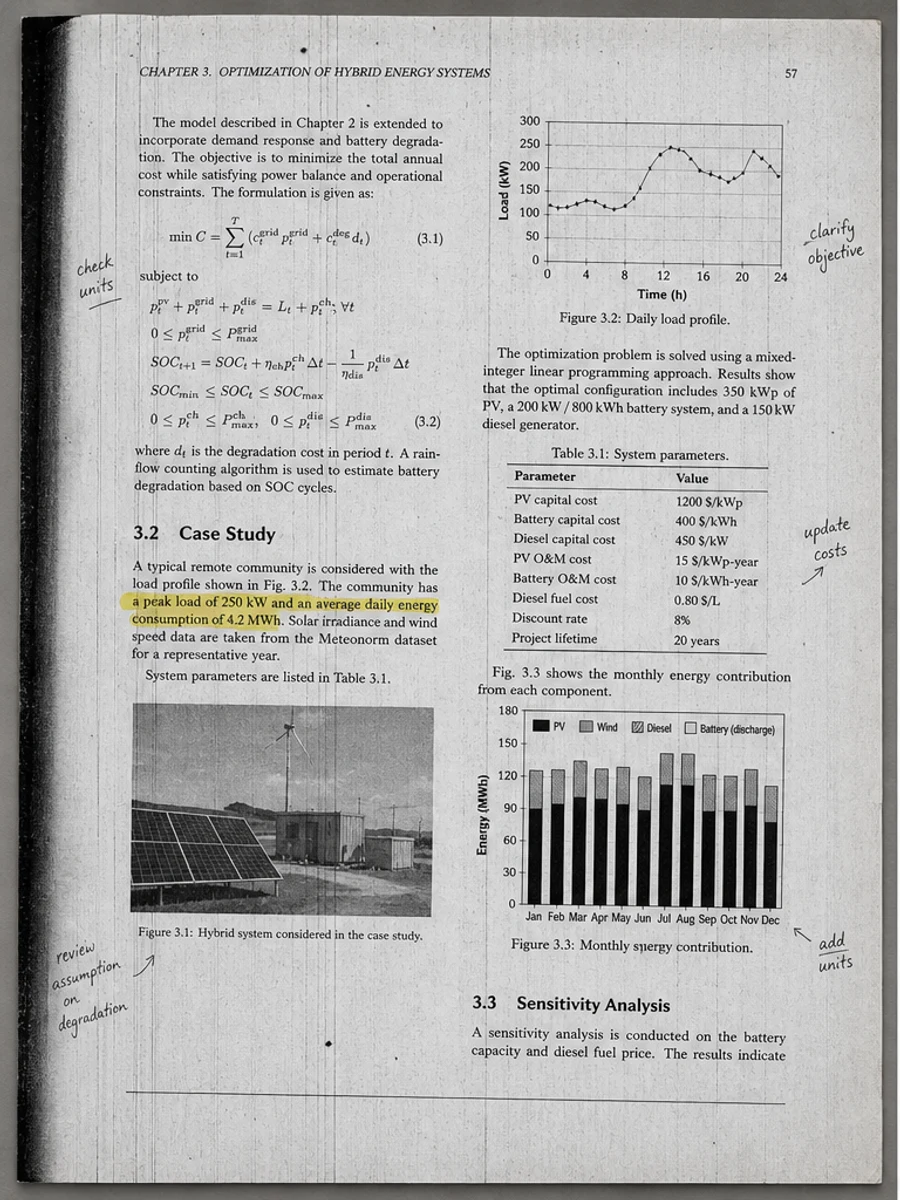
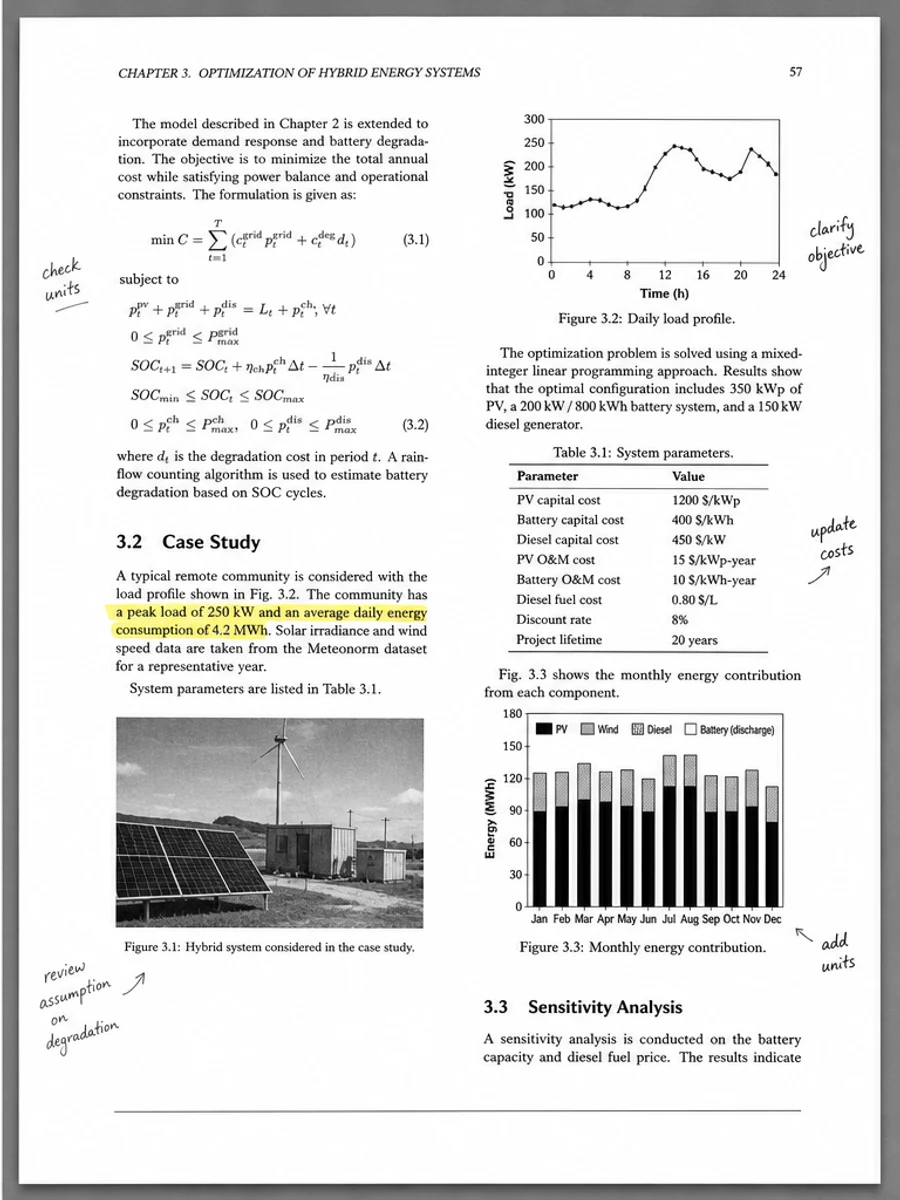
قبل وبعد: Enhance an academic paper scan
خطوات العمل
- افتح ملف PDF الممسوح ضوئيا.
- اختر الصفحة التي يظهر فيها «الفرق بين ملف PDF الممسوح وملف OCR» بوضوح.
- استخدم أمر تحسين متحفظ للوضوح.
- قارن الصفحة قبل المعالجة وبعدها.
- تحقق من النصوص والأرقام والتواريخ والجداول المهمة.
- صدّر الملف بعد التأكد من النتيجة.
أوامر جاهزة للاستخدام
01نظّف صفحة PDF الممسوحة ضوئيا مع التركيز على الفرق بين ملف PDF الممسوح وملف OCR، وقلّل الخلفية الرمادية والظلال والبقع، واحتفظ بالتخطيط الأصلي كما هو.
02حسّن الوضوح بشكل متحفظ: قوِّ النص الباهت ونظّف الخلفية، مع الحفاظ على الكتابة اليدوية والأختام والجداول والعلامات.
03أعد إنتاج هذه الصفحة الممسوحة ضوئيا بصورة أوضح، دون تغيير النصوص أو الأرقام أو مواضع العناصر.
متى يناسبك RedesignPDF
- صفحات PDF الممسوحة ضوئيا التي ما زال نصها مقروءا.
- المستندات المصورة التي تحتاج وضوحا بصريا أكبر.
- الملفات التي يكون الهدف منها تحسين القراءة لا تعديل النص.
متى لا يناسبك RedesignPDF
- تعديل طبقة النص في PDF بدقة.
- تحويل PDF إلى Word أو استخراج بيانات آلي.
- المستندات الرسمية التي تحتاج تحققا قانونيا أو أرشيفيا.
Common mistakes
- المبالغة في التبييض حتى تختفي الخطوط الرفيعة والعلامات الفاتحة.
- الخلط بين التنظيف البصري وتحويل OCR.
- التصدير قبل مراجعة الأرقام والتواريخ والجداول والكتابة اليدوية.
اقرأ أيضا
FAQ
هل يمكن لـ RedesignPDF معالجة الفرق بين ملف PDF الممسوح وملف OCR؟
نعم، عندما تكون الصفحة صورة ممسوحة ضوئيا والهدف تحسين الوضوح البصري. راجع النتيجة قبل التصدير.
هل يصبح النص قابلا للتحديد بعد المعالجة؟
لا. يعمل المحرر على صورة الصفحة ويصدّر ملف PDF مصورا؛ النص يبقى غير قابل للتحديد، وهذه ليست أداة OCR.
ما الذي يجب التحقق منه قبل التصدير؟
راجع النصوص والأرقام والتواريخ والجداول والكتابة اليدوية والأختام، لأن إعادة الإنتاج بالذكاء الاصطناعي قد تغيّر تفاصيل دقيقة.
الخلاصة
إذا كان هدفك أن تصبح الصفحة الممسوحة ضوئيا أوضح وأسهل قراءة مع الحفاظ على التخطيط الأصلي، ابدأ بصفحة واحدة وبأمر متحفظ، ثم راجع النصوص والجداول والأرقام والكتابة اليدوية قبل التصدير. أما إذا كنت تحتاج إلى تعديل طبقة النص أو تحويل PDF إلى Word أو تعبئة نماذج بدقة، فاستخدم أداة OCR أو محررا متخصصا أو أعد المسح.
ارفع ملف PDF