حالات شائعة
- صفحات رمادية بعد المسح
- نص شاحب
- مسحة صفراء
- إضاءة غير متساوية
Common causes
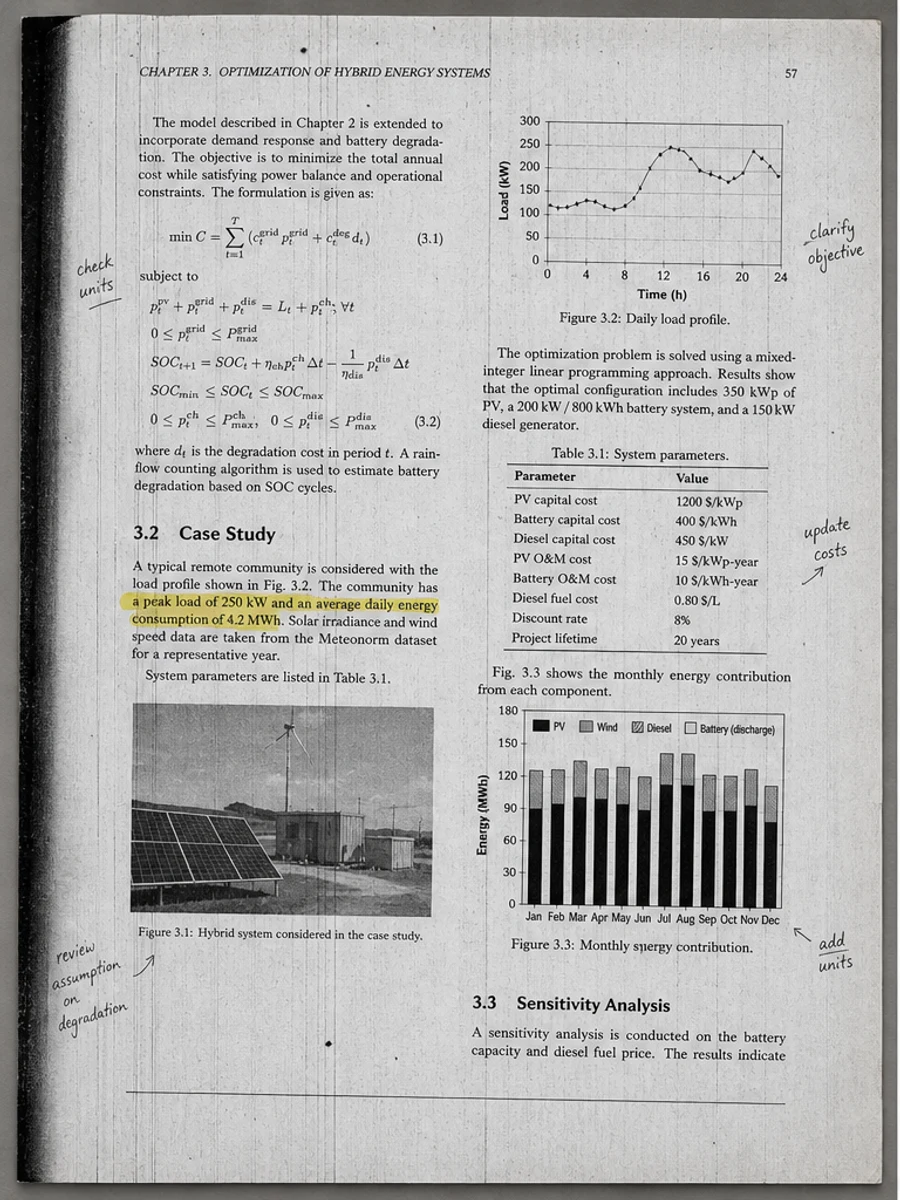
A scanner may expose for the whole page instead of the text, making old paper or the scanner bed appear gray. Phone scans add uneven light and hand shadows. Photocopies lose contrast with each generation, so a scan of a copy often starts with weak text and heavy background.
Why OCR struggles
OCR software looks for character shapes. When background noise, paper texture, and text share similar contrast, OCR may split letters, miss punctuation, or read table borders as characters. Improving visual contrast first can help, but OCR still needs a separate tool and manual review.
How visual cleanup helps
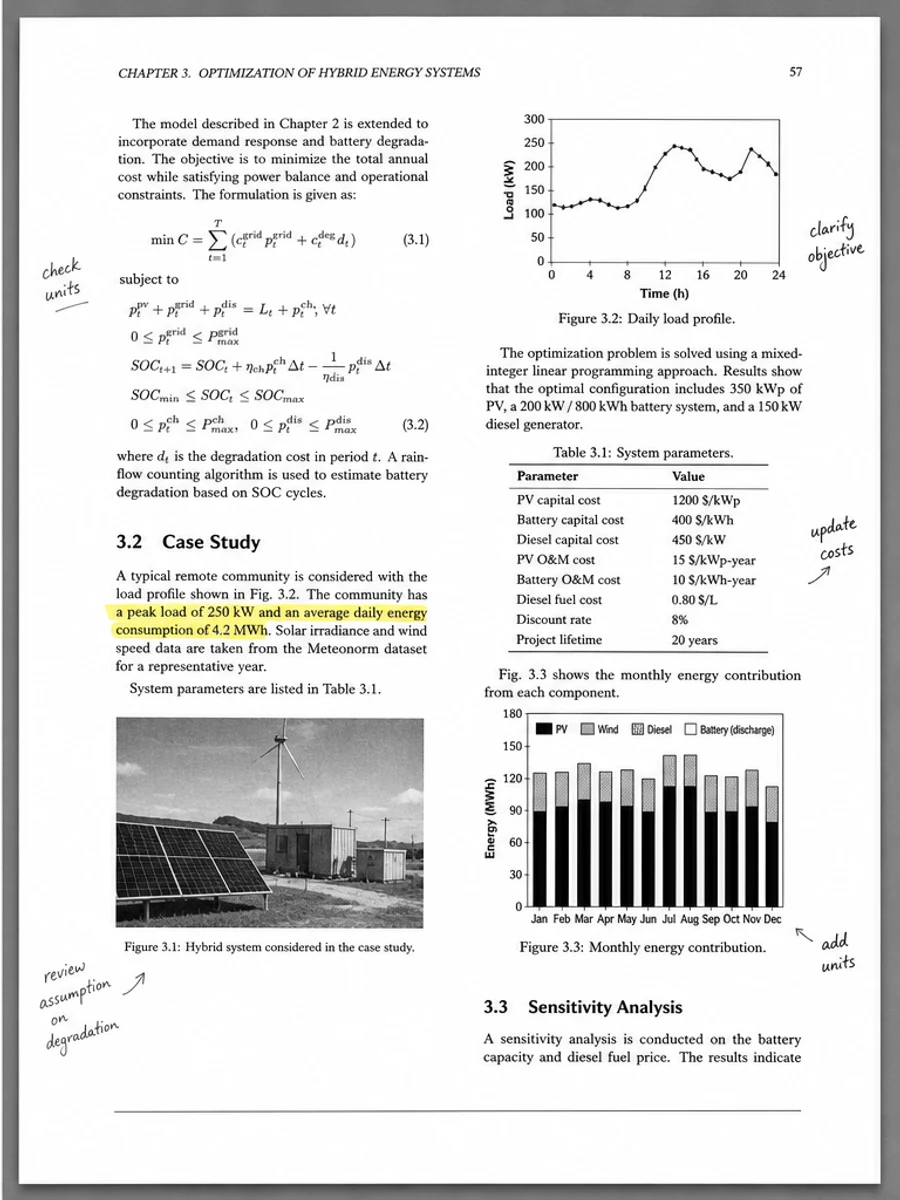
A useful cleanup reduces background haze, darkens faded strokes, and keeps the layout stable. The goal is not to make the page look new; it is to make real content easier to read while leaving meaningful marks alone.
When not to over-correct
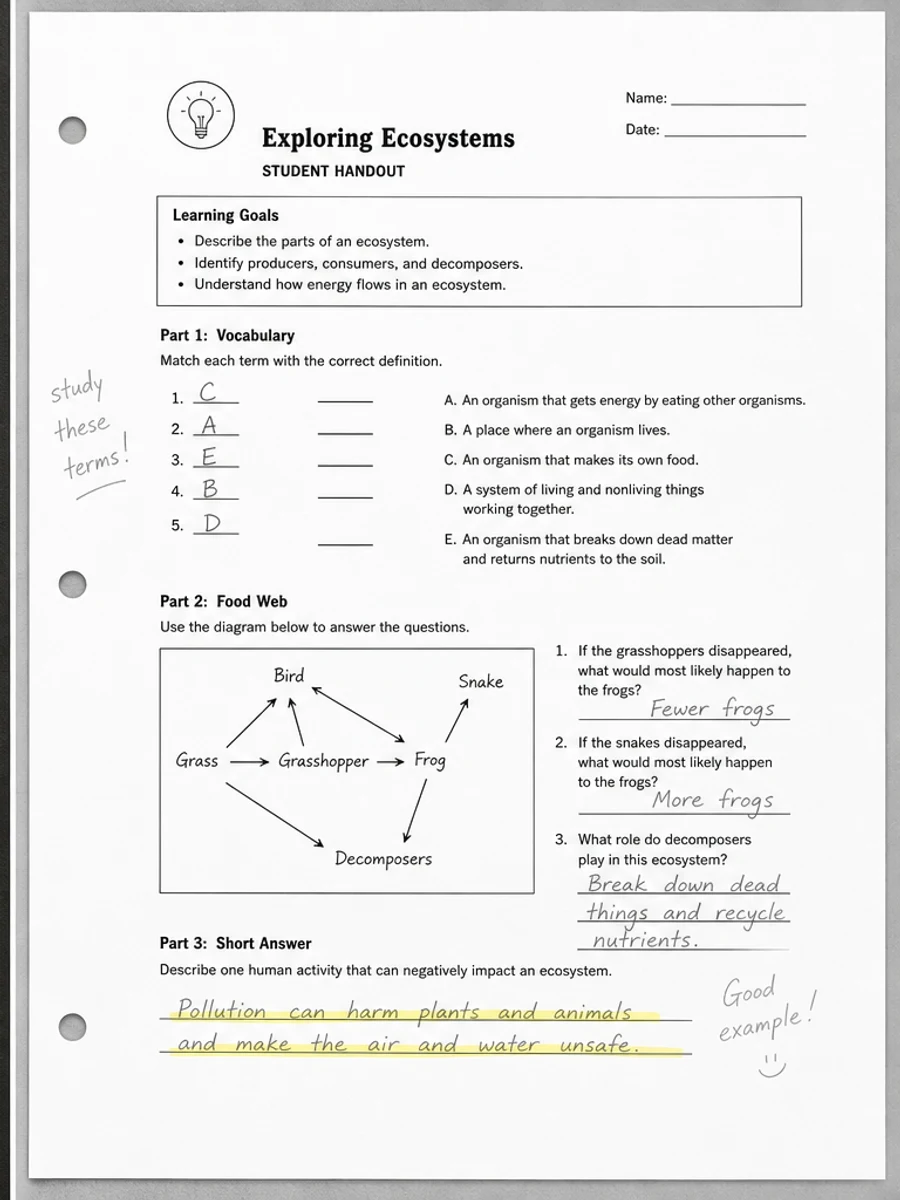
Old archive scans, signed forms, and marked-up documents may contain faint context that matters. If the scan includes annotations, stamps, or pale diagrams, avoid prompts that ask for a perfectly white page.
How to diagnose the visible problem
Look at where the gray or washed-out effect appears. If the whole page is gray, scanner exposure or paper tone is likely involved. If one edge is darker, the source may be a phone shadow or book spine shadow. If text looks thin everywhere, the original copy may already be weak. Naming the pattern helps the prompt target the right cleanup instead of applying a generic brightness change.
Why the same scan can fail in different ways
A page can look washed out to a human but still have enough contrast for OCR, or it can look acceptable on screen but print poorly because gray background wastes ink. The user problem matters. For reading, darker text and calmer background are usually enough. For OCR preparation, small characters and punctuation need special attention. For printing, large gray areas and dark borders may matter more.
How to avoid misleading cleanup
Do not ask the tool to make an old scan look perfect. A realistic cleanup keeps the document recognizable while reducing distractions. If stains, stamps, folds, or paper tone are part of the document context, preserve them or reduce them lightly. A visually cleaner PDF is useful only if it remains faithful enough for the reader to trust what they are seeing.
What users usually mean by washed out
When people describe a scan as washed out, they may mean several different things: the text is too pale, the paper is too gray, the page is too bright, or the contrast between letters and background is weak. Those are not identical problems. A good prompt explains the symptom in plain language and adds the desired outcome: easier reading, preserved layout, and no content rewriting.
Choosing a cleanup direction
If text is pale, ask for stronger text contrast. If the background is gray, ask to reduce paper haze. If lighting is uneven, ask to balance shadows while preserving marks. If the page is compressed, ask to reduce visible noise but keep small details. This diagnosis-first approach creates a better page than a generic "enhance scan" instruction, because each visual defect needs a slightly different balance.
خطوات العمل
- افتح ملف PDF الممسوح ضوئيا.
- اختر الصفحة التي يظهر فيها «ظهور ملفات PDF الممسوحة رمادية أو شاحبة» بوضوح.
- استخدم أمر تحسين متحفظ للوضوح.
- قارن الصفحة قبل المعالجة وبعدها.
- تحقق من النصوص والأرقام والتواريخ والجداول المهمة.
- صدّر الملف بعد التأكد من النتيجة.
أوامر جاهزة للاستخدام
01نظّف صفحة PDF الممسوحة ضوئيا مع التركيز على ظهور ملفات PDF الممسوحة رمادية أو شاحبة، وقلّل الخلفية الرمادية والظلال والبقع، واحتفظ بالتخطيط الأصلي كما هو.
02حسّن الوضوح بشكل متحفظ: قوِّ النص الباهت ونظّف الخلفية، مع الحفاظ على الكتابة اليدوية والأختام والجداول والعلامات.
03أعد إنتاج هذه الصفحة الممسوحة ضوئيا بصورة أوضح، دون تغيير النصوص أو الأرقام أو مواضع العناصر.
متى يناسبك RedesignPDF
- صفحات PDF الممسوحة ضوئيا التي ما زال نصها مقروءا.
- المستندات المصورة التي تحتاج وضوحا بصريا أكبر.
- الملفات التي يكون الهدف منها تحسين القراءة لا تعديل النص.
متى لا يناسبك RedesignPDF
- تعديل طبقة النص في PDF بدقة.
- تحويل PDF إلى Word أو استخراج بيانات آلي.
- المستندات الرسمية التي تحتاج تحققا قانونيا أو أرشيفيا.
Common mistakes
- المبالغة في التبييض حتى تختفي الخطوط الرفيعة والعلامات الفاتحة.
- الخلط بين التنظيف البصري وتحويل OCR.
- التصدير قبل مراجعة الأرقام والتواريخ والجداول والكتابة اليدوية.
اقرأ أيضا
FAQ
هل يمكن لـ RedesignPDF معالجة ظهور ملفات PDF الممسوحة رمادية أو شاحبة؟
نعم، عندما تكون الصفحة صورة ممسوحة ضوئيا والهدف تحسين الوضوح البصري. راجع النتيجة قبل التصدير.
هل يصبح النص قابلا للتحديد بعد المعالجة؟
لا. يعمل المحرر على صورة الصفحة ويصدّر ملف PDF مصورا؛ النص يبقى غير قابل للتحديد، وهذه ليست أداة OCR.
ما الذي يجب التحقق منه قبل التصدير؟
راجع النصوص والأرقام والتواريخ والجداول والكتابة اليدوية والأختام، لأن إعادة الإنتاج بالذكاء الاصطناعي قد تغيّر تفاصيل دقيقة.
الخلاصة
إذا كان هدفك أن تصبح الصفحة الممسوحة ضوئيا أوضح وأسهل قراءة مع الحفاظ على التخطيط الأصلي، ابدأ بصفحة واحدة وبأمر متحفظ، ثم راجع النصوص والجداول والأرقام والكتابة اليدوية قبل التصدير. أما إذا كنت تحتاج إلى تعديل طبقة النص أو تحويل PDF إلى Word أو تعبئة نماذج بدقة، فاستخدم أداة OCR أو محررا متخصصا أو أعد المسح.
ارفع ملف PDF