حالات شائعة
- فشل OCR مع الصفحات الرمادية
- نص مائل
- تباين منخفض
- مسح قديم
Why OCR needs a clean image
OCR depends on character shapes. Gray haze, skew, compression blocks, shadows, and weak contrast all make characters harder to separate from the page. Cleaning the scan can give OCR a better image to analyze, but it does not remove the need to review OCR output.
Prepare one page first
Choose a representative page before processing a whole file. Ask for background reduction, darker text, and layout preservation. If the page contains tables, formulas, columns, or footnotes, tell the prompt to preserve those structures instead of trying to simplify them.
Run OCR separately
After exporting the cleaned image-based PDF, use a dedicated OCR tool if you need searchable text. Keep the original scan and compare OCR text against both the original and the cleaned version.
Know when cleanup is not enough
If the scan is severely blurred, cropped, or photographed at too low a resolution, cleanup may not produce reliable OCR. In that case, rescanning at better quality is usually the better path.
What to clean before OCR
Focus on problems that confuse character recognition: gray backgrounds, shadows across text, skewed lines, feeder streaks, low contrast, and compression blocks. Do not ask the cleanup step to simplify the page or remove content that OCR may need. Tables, formulas, footnotes, captions, and page numbers should remain visible even if they make the page look less minimal.
How to test one page
Pick a page with small text, columns, or tables rather than the cleanest page in the file. Clean it, export it, run OCR, and inspect the output. If OCR still drops punctuation or merges columns, adjust the scan cleanup prompt or rescan. Testing the hard page first prevents wasting time on a whole file that still fails where it matters.
Why review is still required
OCR can produce confident-looking mistakes. It may confuse 0 and O, 1 and l, decimal points, footnote markers, or table columns. A cleaner scan can reduce those errors but cannot eliminate them. Keep the cleanup result, the OCR output, and the original scan available until someone has reviewed the important content.
When to rescan before OCR
Rescan before OCR when the page is cropped, motion-blurred, very low resolution, or photographed at a steep angle. Cleanup can reduce noise, but it cannot create reliable characters from missing pixels. If the paper is available, improve the capture first: flatten the page, increase light, avoid compression, and check small text. RedesignPDF is most useful after you have captured enough real detail for cleanup to preserve.
Example OCR-preparation prompt
A practical prompt is: "Prepare this scanned PDF for OCR by reducing gray background, cleaning shadows, improving text contrast, and preserving columns, tables, footnotes, formulas, and page numbers." That wording keeps the visual page faithful to the original while making it easier for a later OCR tool to analyze. Avoid asking RedesignPDF to produce searchable text; that belongs to the OCR step.
Related example to compare
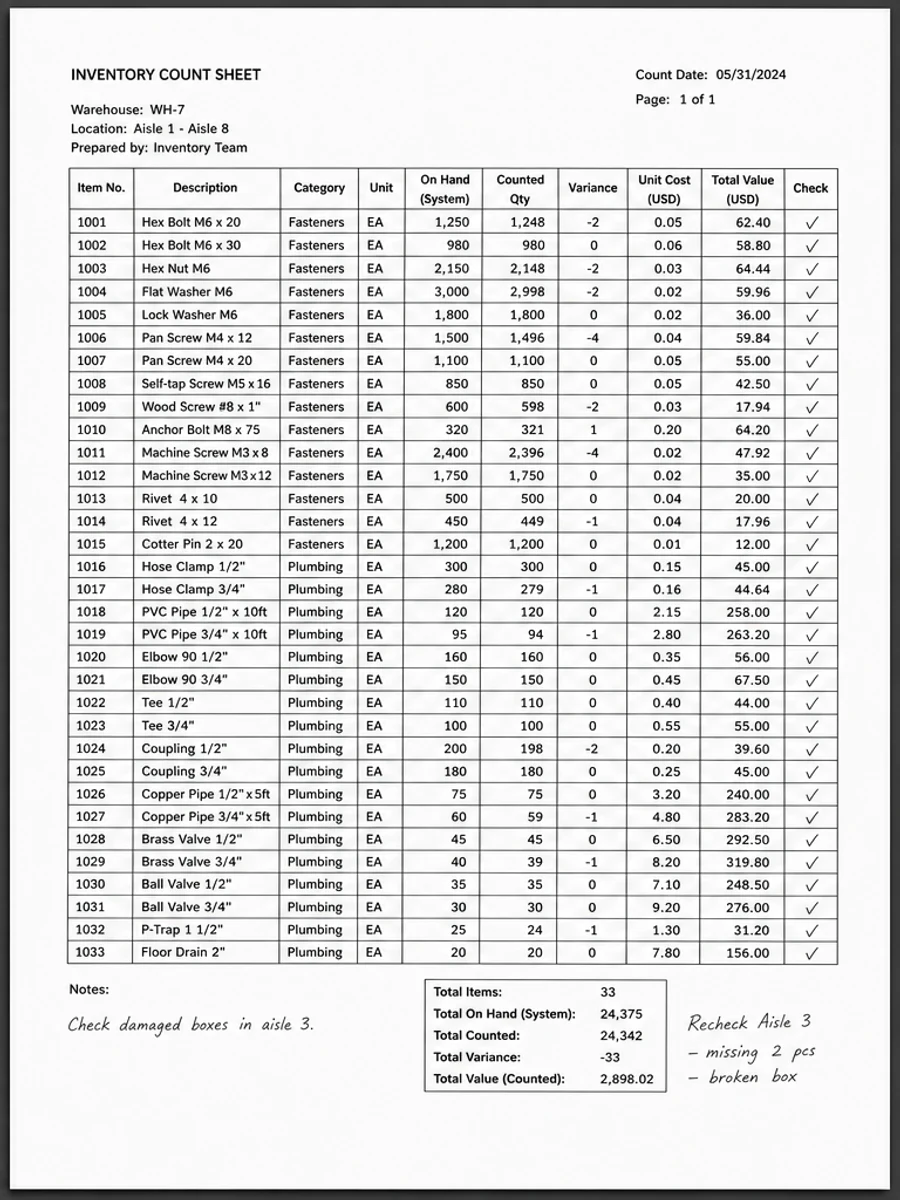
Academic paper and scanned table examples are useful OCR-preparation references because they contain small text, columns, formulas, and structured layouts. If those elements survive cleanup, the workflow is more likely to help a later OCR step. If they become weaker, reduce cleanup strength before processing the rest of the file. Keep the hard page as your benchmark and recheck it after export, not only before OCR begins.
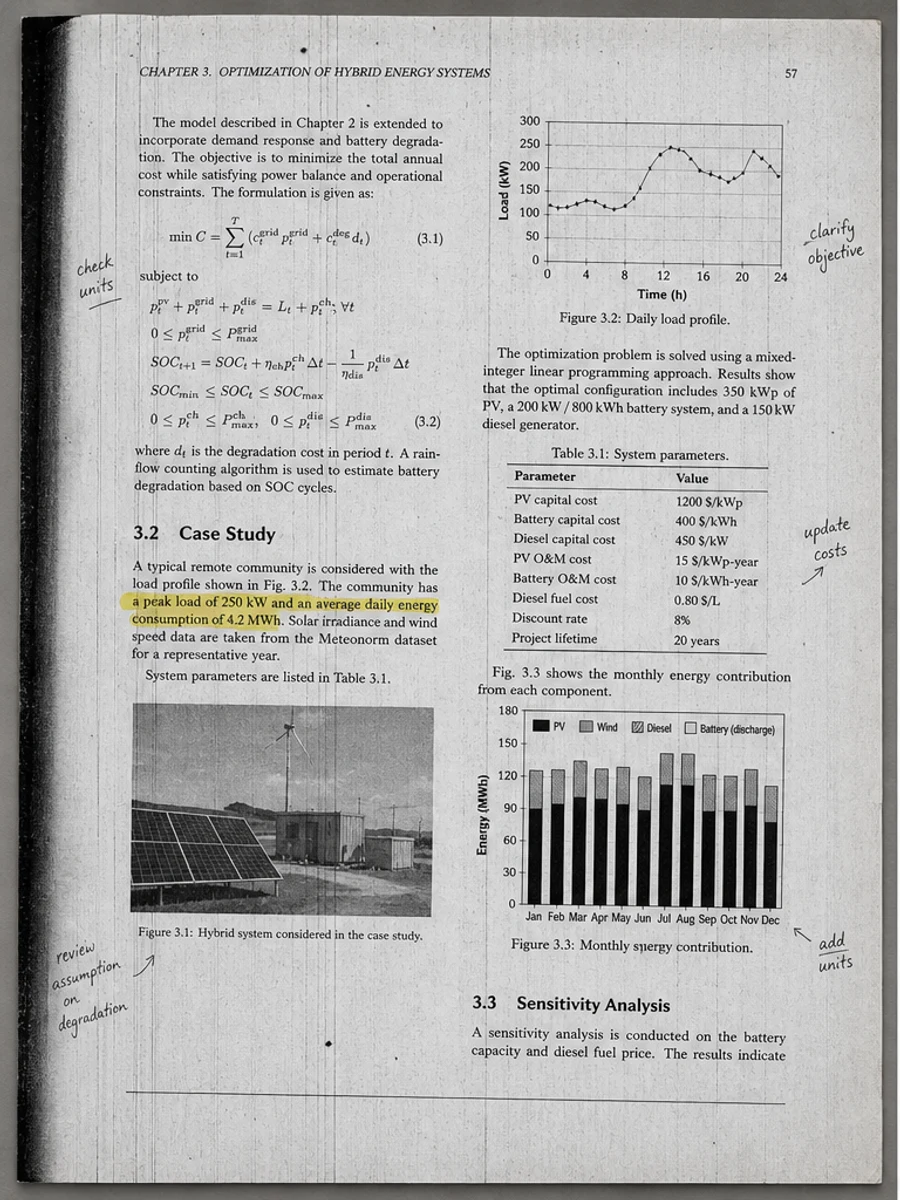
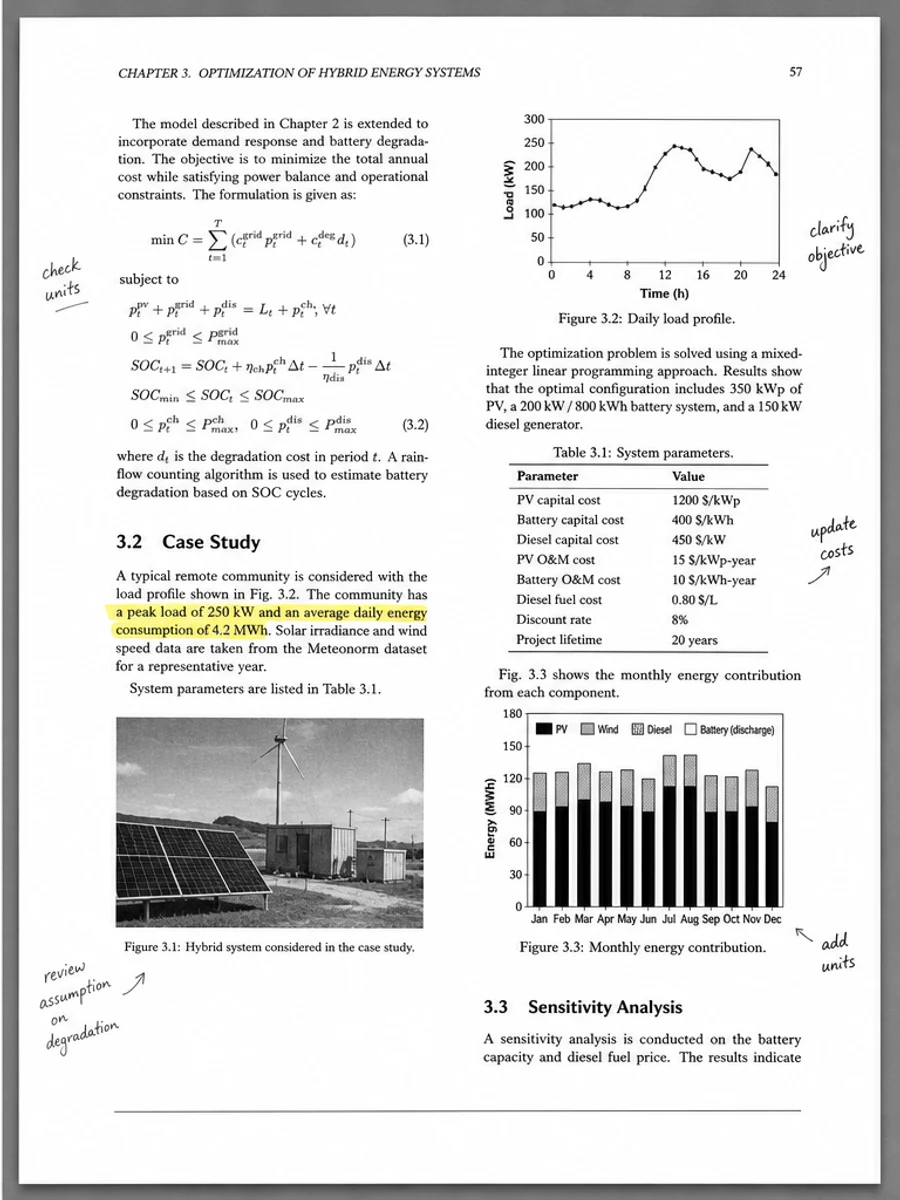
قبل وبعد: Enhance an academic paper scan
خطوات العمل
- افتح ملف PDF الممسوح ضوئيا.
- اختر الصفحة التي يظهر فيها «تجهيز ملفات PDF الممسوحة ضوئيًا قبل OCR» بوضوح.
- استخدم أمر تحسين متحفظ للوضوح.
- قارن الصفحة قبل المعالجة وبعدها.
- تحقق من النصوص والأرقام والتواريخ والجداول المهمة.
- صدّر الملف بعد التأكد من النتيجة.
أوامر جاهزة للاستخدام
01نظّف صفحة PDF الممسوحة ضوئيا مع التركيز على تجهيز ملفات PDF الممسوحة ضوئيًا قبل OCR، وقلّل الخلفية الرمادية والظلال والبقع، واحتفظ بالتخطيط الأصلي كما هو.
02حسّن الوضوح بشكل متحفظ: قوِّ النص الباهت ونظّف الخلفية، مع الحفاظ على الكتابة اليدوية والأختام والجداول والعلامات.
03أعد إنتاج هذه الصفحة الممسوحة ضوئيا بصورة أوضح، دون تغيير النصوص أو الأرقام أو مواضع العناصر.
متى يناسبك RedesignPDF
- صفحات PDF الممسوحة ضوئيا التي ما زال نصها مقروءا.
- المستندات المصورة التي تحتاج وضوحا بصريا أكبر.
- الملفات التي يكون الهدف منها تحسين القراءة لا تعديل النص.
متى لا يناسبك RedesignPDF
- تعديل طبقة النص في PDF بدقة.
- تحويل PDF إلى Word أو استخراج بيانات آلي.
- المستندات الرسمية التي تحتاج تحققا قانونيا أو أرشيفيا.
Common mistakes
- المبالغة في التبييض حتى تختفي الخطوط الرفيعة والعلامات الفاتحة.
- الخلط بين التنظيف البصري وتحويل OCR.
- التصدير قبل مراجعة الأرقام والتواريخ والجداول والكتابة اليدوية.
اقرأ أيضا
FAQ
هل يمكن لـ RedesignPDF معالجة تجهيز ملفات PDF الممسوحة ضوئيًا قبل OCR؟
نعم، عندما تكون الصفحة صورة ممسوحة ضوئيا والهدف تحسين الوضوح البصري. راجع النتيجة قبل التصدير.
هل يصبح النص قابلا للتحديد بعد المعالجة؟
لا. يعمل المحرر على صورة الصفحة ويصدّر ملف PDF مصورا؛ النص يبقى غير قابل للتحديد، وهذه ليست أداة OCR.
ما الذي يجب التحقق منه قبل التصدير؟
راجع النصوص والأرقام والتواريخ والجداول والكتابة اليدوية والأختام، لأن إعادة الإنتاج بالذكاء الاصطناعي قد تغيّر تفاصيل دقيقة.
الخلاصة
إذا كان هدفك أن تصبح الصفحة الممسوحة ضوئيا أوضح وأسهل قراءة مع الحفاظ على التخطيط الأصلي، ابدأ بصفحة واحدة وبأمر متحفظ، ثم راجع النصوص والجداول والأرقام والكتابة اليدوية قبل التصدير. أما إذا كنت تحتاج إلى تعديل طبقة النص أو تحويل PDF إلى Word أو تعبئة نماذج بدقة، فاستخدم أداة OCR أو محررا متخصصا أو أعد المسح.
ارفع ملف PDF