حالات شائعة
- إيصالات حرارية باهتة
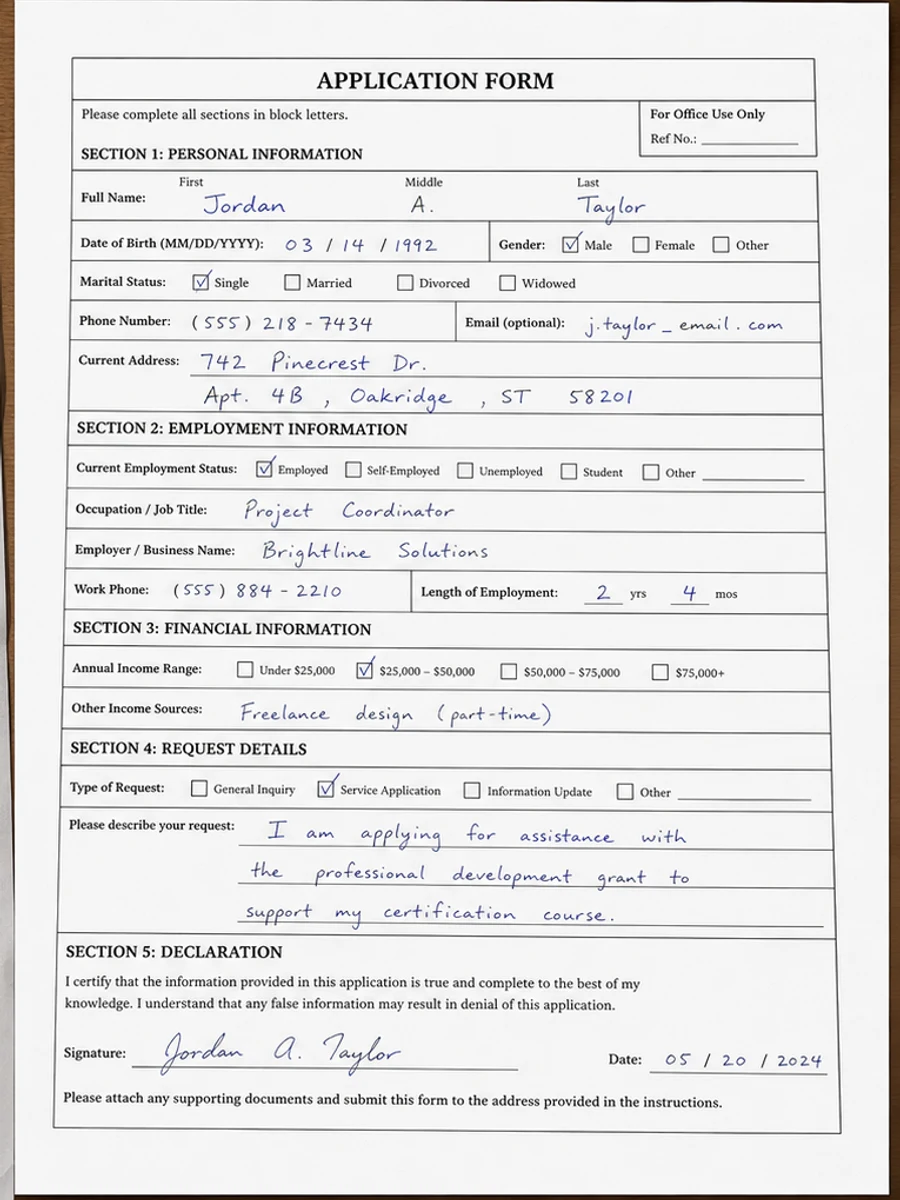
- نماذج مكتوبة بخط اليد
- ظلال الهاتف
- لطخات وتجاعيد
Why receipts and forms are fragile
Thermal receipt text fades, forms pick up wrinkles and shadows, and handwritten fields may be light or inconsistent. A cleanup that is too strong can make totals, dates, checkboxes, or handwritten entries less trustworthy even if the page looks cleaner.
Preserve values first
The prompt should mention totals, dates, line items, field labels, and handwriting. Ask for readability improvement without changing content or moving fields. After generation, review the cleaned page against the original before using it for reimbursement or records.
Good examples
This works for expense receipts, intake forms, signup sheets, maintenance forms, and phone-captured paperwork. It is not meant for filling form fields, editing official values, or replacing accounting review.
Avoid over-cleaning
If a receipt has faint thermal text, over-sharpening can create false-looking characters. If a form has boxes or lines, over-whitening can make boundaries disappear. Use a conservative prompt and check all important fields.
What to inspect after generation
Receipts and forms contain high-risk details: totals, tax, dates, vendor names, checkboxes, account numbers, and handwritten entries. After cleanup, compare those details against the original scan. If a digit becomes ambiguous or a checkbox border fades, regenerate with a lighter prompt. A visually cleaner receipt is not useful if the values become less reliable.
Prompting for forms
For forms, tell the prompt to preserve field boundaries, labels, handwriting, checkmarks, and alignment. If the form was captured by phone, add shadow and perspective cleanup, but avoid asking for a redesigned or flattened layout. The goal is a cleaner scan of the same form, not a new version of the form.
Prompting for receipts
For receipts, emphasize faded thermal text, wrinkles, shadows, and smudges. Ask the tool to darken line items and totals without inventing missing numbers. Barcodes, logos, and store names may also need preservation. If the receipt is too faded to verify, cleanup can help readability but should not be treated as proof of the missing information.
When forms need extra caution
Forms often mix printed labels, handwriting, checkboxes, stamps, and signatures. A cleanup that improves one element can weaken another. Review every filled field, not just the overall page. If the form will support a reimbursement, application, or internal record, compare the cleaned copy against the original scan before sharing it. RedesignPDF can make review easier, but it should not become the authority for what a value says.
Example prompt for receipts and forms
For a receipt, use: "Darken faded thermal print, reduce wrinkles, smudges, and shadows, and preserve totals, dates, line items, barcodes, and layout." For a form, use: "Clean shadows and background noise, preserve field labels, boxes, handwriting, stamps, checkmarks, and alignment." These prompts keep the cleanup focused on readability and prevent the model from treating important filled-in information as removable noise.
Related example to compare
Before exporting, compare the result with a receipt or handwritten form example and then with your original page. The example shows what cleaner contrast can look like; the original tells you whether the values stayed faithful. If those two checks disagree, trust the original and regenerate with a lighter prompt. This is especially important for totals, dates, and checked boxes. Keep the source visible during review and document any uncertainty before sharing the cleaned file with another person, team, finance process, approval workflow, or system. Do not discard the source scan.
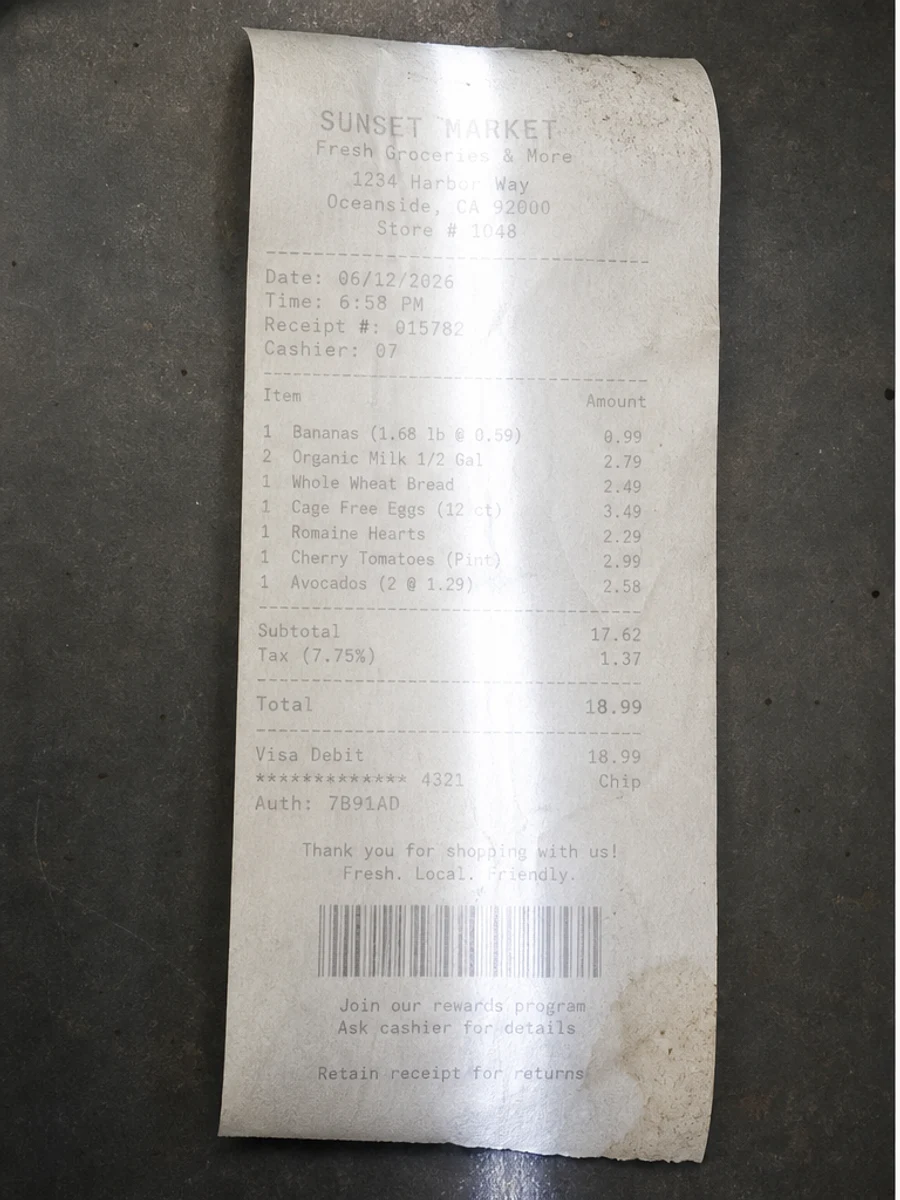
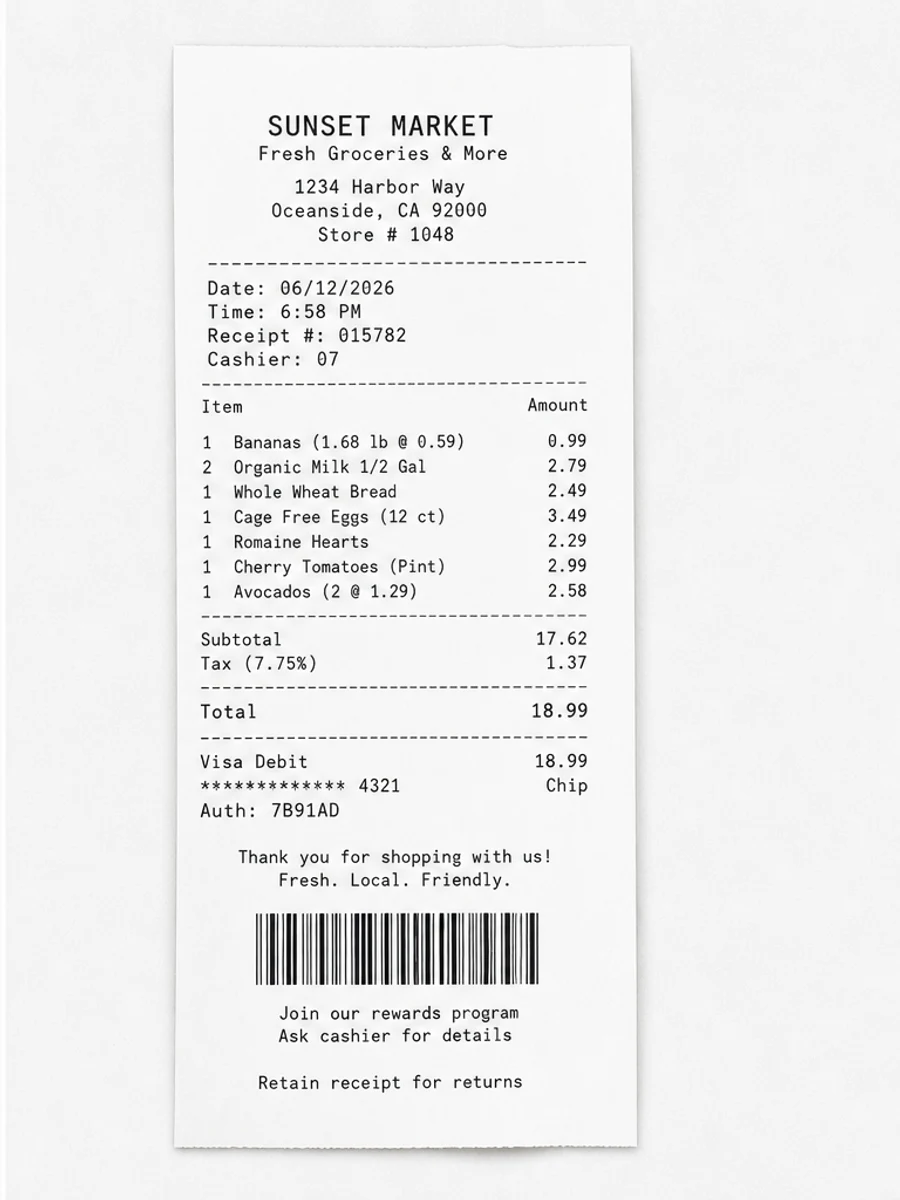
قبل وبعد: Clean a scanned receipt
خطوات العمل
- افتح ملف PDF الممسوح ضوئيا.
- اختر الصفحة التي يظهر فيها «تحسين الإيصالات والنماذج الممسوحة ضوئيًا» بوضوح.
- استخدم أمر تحسين متحفظ للوضوح.
- قارن الصفحة قبل المعالجة وبعدها.
- تحقق من النصوص والأرقام والتواريخ والجداول المهمة.
- صدّر الملف بعد التأكد من النتيجة.
أوامر جاهزة للاستخدام
01نظّف صفحة PDF الممسوحة ضوئيا مع التركيز على تحسين الإيصالات والنماذج الممسوحة ضوئيًا، وقلّل الخلفية الرمادية والظلال والبقع، واحتفظ بالتخطيط الأصلي كما هو.
02حسّن الوضوح بشكل متحفظ: قوِّ النص الباهت ونظّف الخلفية، مع الحفاظ على الكتابة اليدوية والأختام والجداول والعلامات.
03أعد إنتاج هذه الصفحة الممسوحة ضوئيا بصورة أوضح، دون تغيير النصوص أو الأرقام أو مواضع العناصر.
متى يناسبك RedesignPDF
- صفحات PDF الممسوحة ضوئيا التي ما زال نصها مقروءا.
- المستندات المصورة التي تحتاج وضوحا بصريا أكبر.
- الملفات التي يكون الهدف منها تحسين القراءة لا تعديل النص.
متى لا يناسبك RedesignPDF
- تعديل طبقة النص في PDF بدقة.
- تحويل PDF إلى Word أو استخراج بيانات آلي.
- المستندات الرسمية التي تحتاج تحققا قانونيا أو أرشيفيا.
Common mistakes
- المبالغة في التبييض حتى تختفي الخطوط الرفيعة والعلامات الفاتحة.
- الخلط بين التنظيف البصري وتحويل OCR.
- التصدير قبل مراجعة الأرقام والتواريخ والجداول والكتابة اليدوية.
اقرأ أيضا
FAQ
هل يمكن لـ RedesignPDF معالجة تحسين الإيصالات والنماذج الممسوحة ضوئيًا؟
نعم، عندما تكون الصفحة صورة ممسوحة ضوئيا والهدف تحسين الوضوح البصري. راجع النتيجة قبل التصدير.
هل يصبح النص قابلا للتحديد بعد المعالجة؟
لا. يعمل المحرر على صورة الصفحة ويصدّر ملف PDF مصورا؛ النص يبقى غير قابل للتحديد، وهذه ليست أداة OCR.
ما الذي يجب التحقق منه قبل التصدير؟
راجع النصوص والأرقام والتواريخ والجداول والكتابة اليدوية والأختام، لأن إعادة الإنتاج بالذكاء الاصطناعي قد تغيّر تفاصيل دقيقة.
الخلاصة
إذا كان هدفك أن تصبح الصفحة الممسوحة ضوئيا أوضح وأسهل قراءة مع الحفاظ على التخطيط الأصلي، ابدأ بصفحة واحدة وبأمر متحفظ، ثم راجع النصوص والجداول والأرقام والكتابة اليدوية قبل التصدير. أما إذا كنت تحتاج إلى تعديل طبقة النص أو تحويل PDF إلى Word أو تعبئة نماذج بدقة، فاستخدم أداة OCR أو محررا متخصصا أو أعد المسح.
ارفع ملف PDF