حالات شائعة
- صفحات مائلة
- ظلال جانبية
- ضباب الحركة
- إضاءة غير متساوية
What makes phone scans difficult
Phone scans often include side shadows, curved paper, perspective distortion, motion blur, and lighting that changes across the page. Those issues make the scan look unprofessional and can make small text or handwriting hard to verify.
Use a page-specific prompt
Tell RedesignPDF what is visible: shadows near the edge, curled paper, low contrast, or a dark background. Ask it to clean those issues while keeping the page layout and all handwriting, stamps, and marks unchanged.
When cleanup helps
Cleanup is useful when the phone scan is readable but messy. It is a good fit for quick forms, classroom documents, receipts, field notes, and paperwork that cannot be rescanned easily.
When to reshoot instead
If the page is cropped, text is out of focus, or motion blur hides characters, take a new photo when possible. Better source capture beats any cleanup workflow.
Before and after checks for phone scans
The after image should reduce the obvious phone-capture artifacts while keeping the page believable. Shadows should no longer cover text, paper tone should be more even, and handwriting should remain recognizable. Be careful with perspective correction: if the page becomes visually straighter but small labels look distorted, the result may be less useful than the original.
How to prompt for shadows and lighting
Name where the shadow appears. A prompt like "reduce the dark shadow along the left edge" is more useful than "clean this scan." If the paper is curled, mention uneven lighting and page curl. If the phone flash created glare, ask to reduce glare while preserving text and stamps. Specific visual defects help the generation avoid broad, risky edits.
What RedesignPDF should not be used for
Do not use visual cleanup to change the content of a photographed form, repair missing page edges, or certify that a phone scan is equivalent to a flatbed scan. If a document will be used in a formal process, rescan it properly when possible. Use the cleaned version as a readable copy, not as evidence that the capture was perfect.
Quick capture fixes before uploading
If you still have the paper, try a better capture before relying on cleanup. Move away from direct overhead shadows, flatten the page with a clean weight outside the content area, and retake the photo with the camera parallel to the paper. Check the corners and the smallest text before making a PDF. These steps often produce a cleaner result than any after-the-fact correction.
Example prompt for phone scans
Use a prompt that describes the capture problem: "Reduce the dark side shadow, even out lighting, improve text contrast, and preserve handwriting, stamps, form fields, and the original layout." If the page is angled, add "make the page easier to read without inventing missing edges." This keeps the output grounded in what is actually visible instead of asking for a perfect scan from an imperfect photo.
Related example to compare
A phone-scan example is most helpful when you inspect the shadowed edge and the smallest handwriting. If the example after image keeps those details readable, use the same conservative language. If your source photo is more blurred or cropped than the example, reshooting may be the better path. Do not let cleanup hide capture mistakes; fix the source when you can, then clean the better scan.
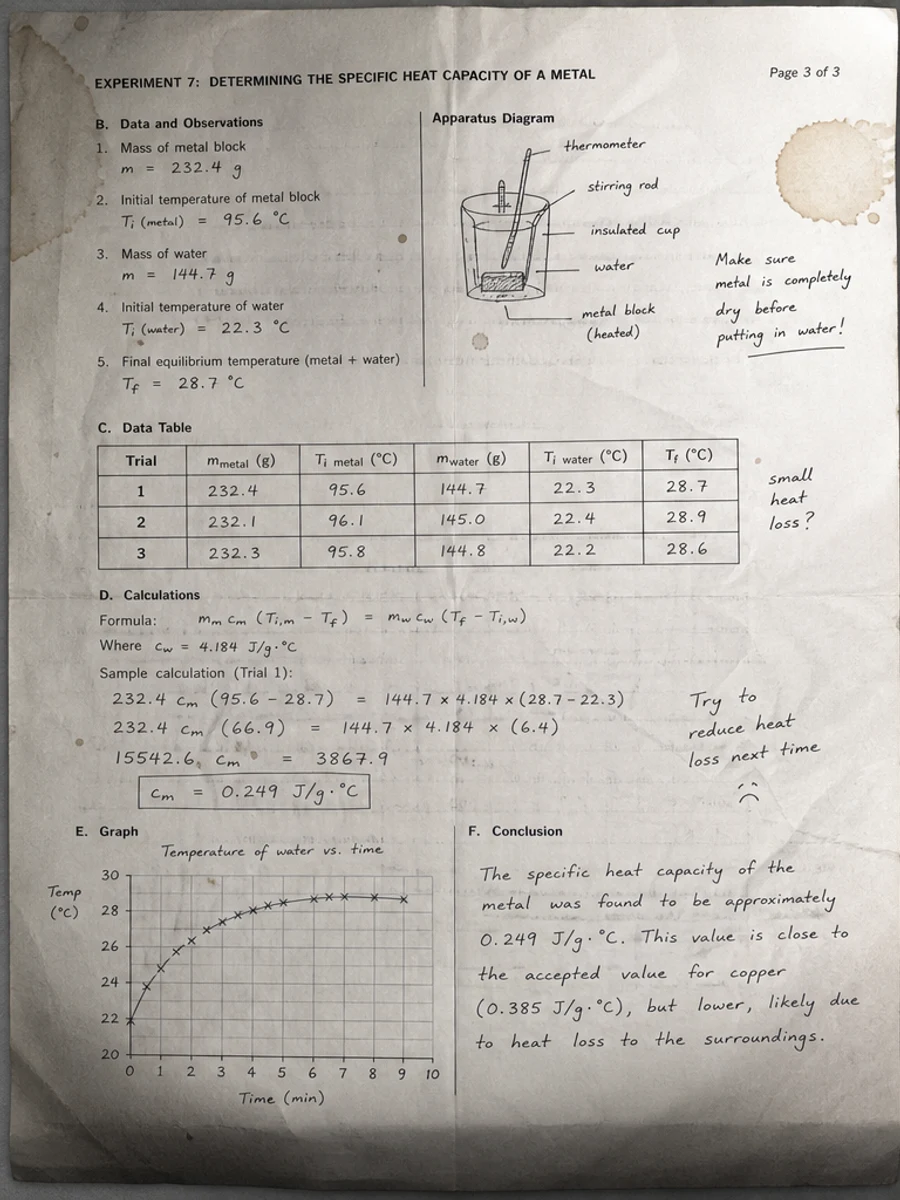
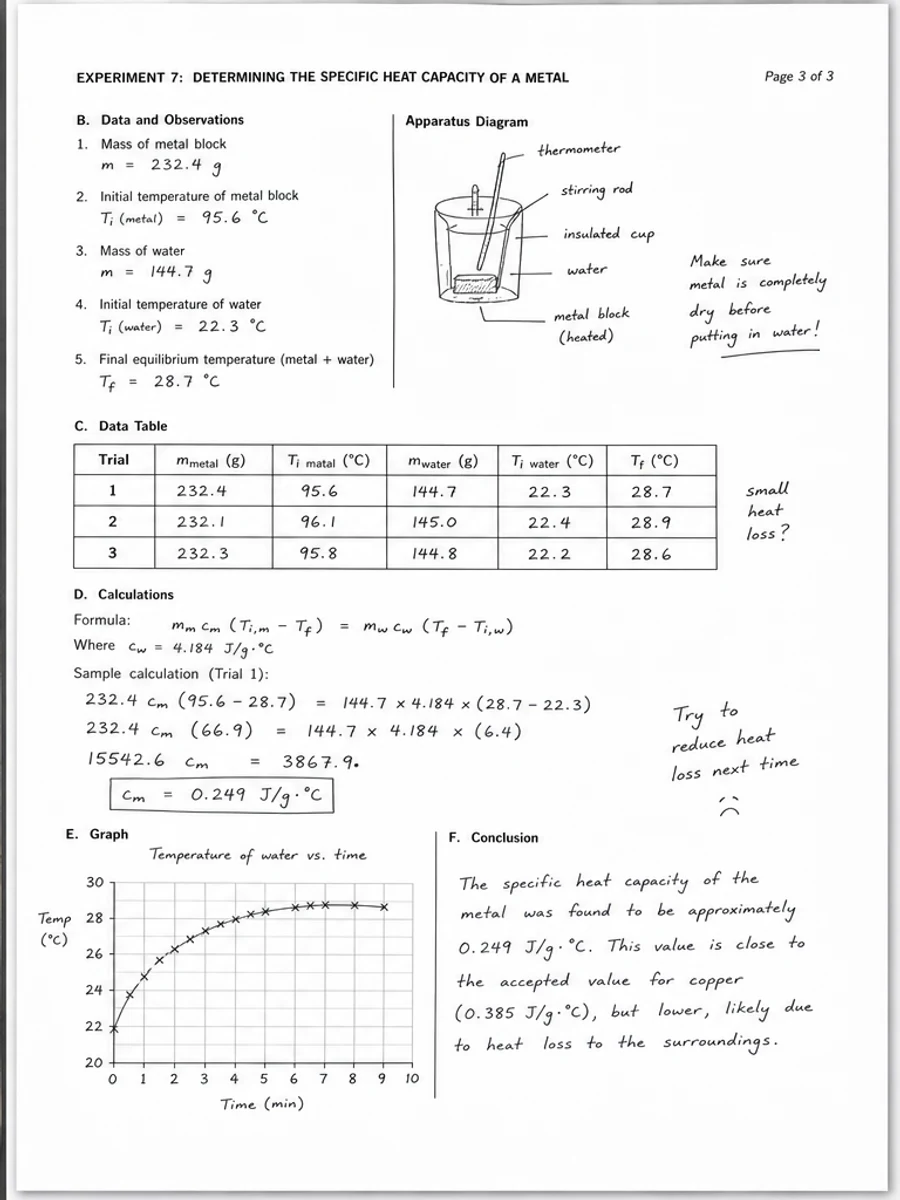
قبل وبعد: Clean a phone-scanned PDF page
خطوات العمل
- افتح ملف PDF الممسوح ضوئيا.
- اختر الصفحة التي يظهر فيها «إصلاح صفحات PDF الممسوحة بالهاتف» بوضوح.
- استخدم أمر تحسين متحفظ للوضوح.
- قارن الصفحة قبل المعالجة وبعدها.
- تحقق من النصوص والأرقام والتواريخ والجداول المهمة.
- صدّر الملف بعد التأكد من النتيجة.
أوامر جاهزة للاستخدام
01نظّف صفحة PDF الممسوحة ضوئيا مع التركيز على إصلاح صفحات PDF الممسوحة بالهاتف، وقلّل الخلفية الرمادية والظلال والبقع، واحتفظ بالتخطيط الأصلي كما هو.
02حسّن الوضوح بشكل متحفظ: قوِّ النص الباهت ونظّف الخلفية، مع الحفاظ على الكتابة اليدوية والأختام والجداول والعلامات.
03أعد إنتاج هذه الصفحة الممسوحة ضوئيا بصورة أوضح، دون تغيير النصوص أو الأرقام أو مواضع العناصر.
متى يناسبك RedesignPDF
- صفحات PDF الممسوحة ضوئيا التي ما زال نصها مقروءا.
- المستندات المصورة التي تحتاج وضوحا بصريا أكبر.
- الملفات التي يكون الهدف منها تحسين القراءة لا تعديل النص.
متى لا يناسبك RedesignPDF
- تعديل طبقة النص في PDF بدقة.
- تحويل PDF إلى Word أو استخراج بيانات آلي.
- المستندات الرسمية التي تحتاج تحققا قانونيا أو أرشيفيا.
Common mistakes
- المبالغة في التبييض حتى تختفي الخطوط الرفيعة والعلامات الفاتحة.
- الخلط بين التنظيف البصري وتحويل OCR.
- التصدير قبل مراجعة الأرقام والتواريخ والجداول والكتابة اليدوية.
اقرأ أيضا
FAQ
هل يمكن لـ RedesignPDF معالجة إصلاح صفحات PDF الممسوحة بالهاتف؟
نعم، عندما تكون الصفحة صورة ممسوحة ضوئيا والهدف تحسين الوضوح البصري. راجع النتيجة قبل التصدير.
هل يصبح النص قابلا للتحديد بعد المعالجة؟
لا. يعمل المحرر على صورة الصفحة ويصدّر ملف PDF مصورا؛ النص يبقى غير قابل للتحديد، وهذه ليست أداة OCR.
ما الذي يجب التحقق منه قبل التصدير؟
راجع النصوص والأرقام والتواريخ والجداول والكتابة اليدوية والأختام، لأن إعادة الإنتاج بالذكاء الاصطناعي قد تغيّر تفاصيل دقيقة.
الخلاصة
إذا كان هدفك أن تصبح الصفحة الممسوحة ضوئيا أوضح وأسهل قراءة مع الحفاظ على التخطيط الأصلي، ابدأ بصفحة واحدة وبأمر متحفظ، ثم راجع النصوص والجداول والأرقام والكتابة اليدوية قبل التصدير. أما إذا كنت تحتاج إلى تعديل طبقة النص أو تحويل PDF إلى Word أو تعبئة نماذج بدقة، فاستخدم أداة OCR أو محررا متخصصا أو أعد المسح.
ارفع ملف PDF