حالات شائعة
- ظلال الهاتف
- دقة مسح منخفضة
- صفحات متجعّدة
- ضغط مفرط
Start with capture quality
Cleanup cannot fully compensate for cropped edges, severe blur, or missing text. Place the document flat, avoid strong side light, and keep the camera or scanner parallel to the page. For phone captures, use even lighting and check focus before saving.
Avoid preventable artifacts
Many cleanup problems come from shadows, curled paper, glossy reflections, low scan resolution, or heavy compression. Fixing those before upload is faster than trying to repair every page later.
Scan one test page
Before scanning a large packet, test one page and inspect small text, margins, signatures, and tables. If the test page looks gray or blurry, adjust lighting, resolution, or page position before continuing.
Use RedesignPDF where it helps most
After you have the best available scan, use RedesignPDF for pages that still have gray background, faded text, stains, or shadows. Do not use cleanup as a substitute for OCR, form filling, compression, or merging.
Phone scanning setup
If you use a phone, place the document on a flat surface with light coming from both sides or from a broad source above the page. Keep your hand and phone shadow away from the text. Hold the phone parallel to the page, tap to focus, and check the corners before saving. A few seconds spent on capture can remove several minutes of cleanup later.
Flatbed or office scanner setup
For a scanner, clean the glass, align the page, and avoid settings that create tiny compressed files at the cost of legibility. If the document has faint pencil or light type, preview one page and make sure those marks remain visible. If the scanner creates a gray background, you can still clean it later, but the best source file should retain as much real detail as possible.
After scanning, choose the right tool
Use RedesignPDF when the page image needs visual cleanup. Use OCR when you need searchable text. Use merge, split, or compression tools when the file structure or size is the problem. Separating those jobs prevents unrealistic prompts and gives better results. A clean scan is the starting point; the next tool depends on whether you need reading, search, editing, or file management.
A final pre-cleanup checklist
Before uploading, ask four questions: is the whole page visible, is the smallest text in focus, is the lighting even, and is the file not overly compressed? If the answer is no, fix the scan if possible. If the answer is yes but the page still has gray background, shadows, stains, or faded text, then visual cleanup is a sensible next step. This keeps RedesignPDF focused on the problems it is actually designed to solve.
Example prompt after a good scan
Once the capture is good, the prompt can stay simple: "Clean remaining scan artifacts, reduce gray background and shadows, improve text contrast, and preserve handwriting, stamps, tables, margins, and document structure." This prompt assumes the scan already contains the needed detail. It asks RedesignPDF to improve readability without turning cleanup into OCR, form filling, compression, or a general PDF utility workflow.
Related example to compare
Before scanning a large batch, compare your test page with a phone-scan or photocopy cleanup example. If your source has fewer shadows and sharper text than the example, cleanup should be straightforward. If it looks worse, improve the capture first instead of expecting post-processing to solve everything.
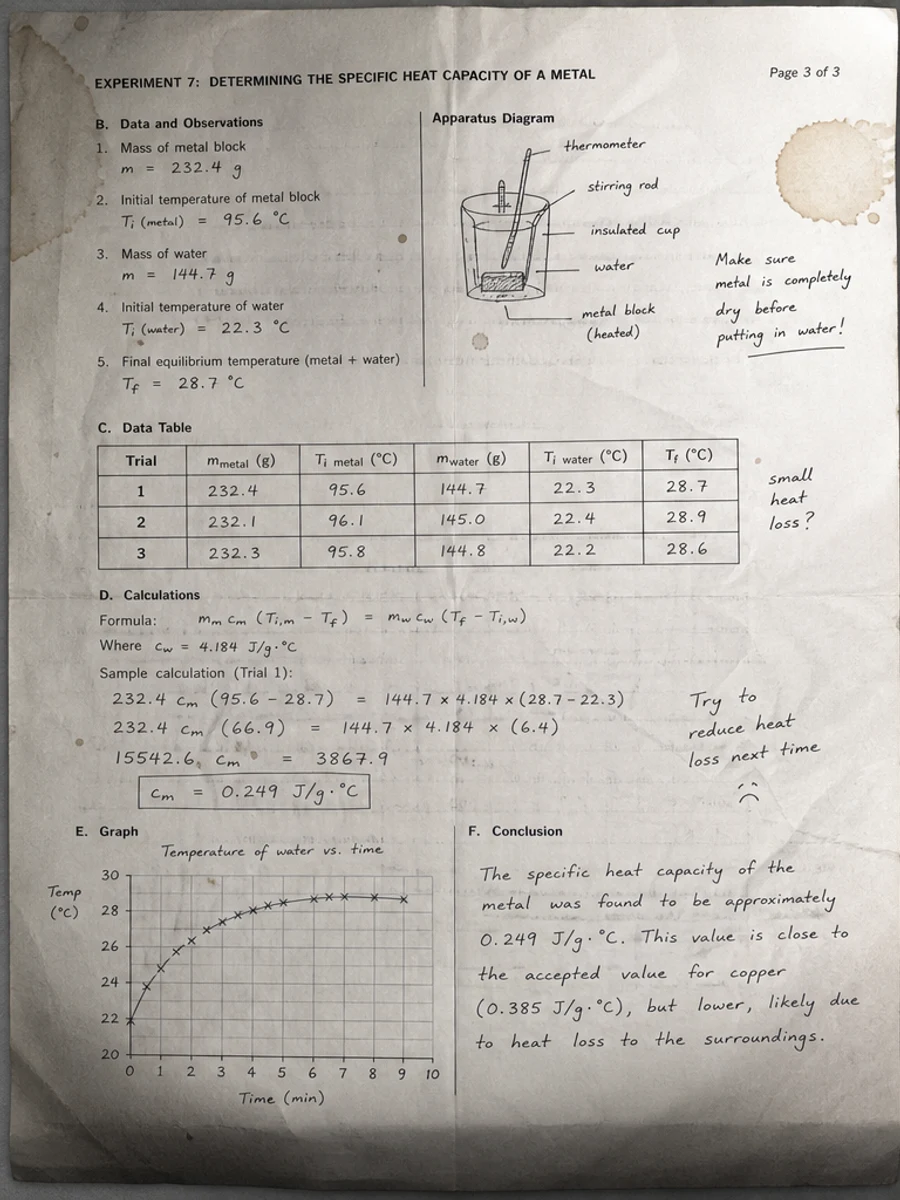
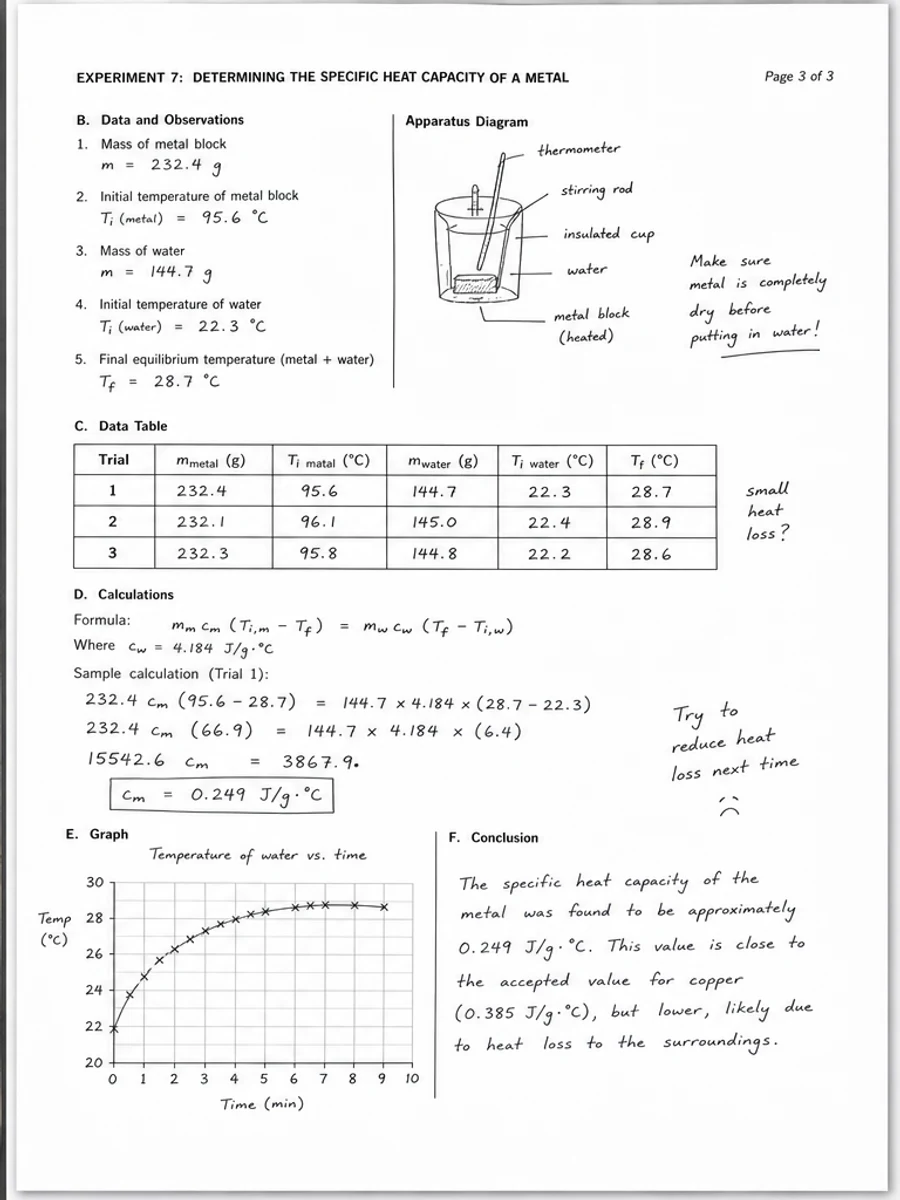
قبل وبعد: Clean a phone-scanned PDF page
خطوات العمل
- افتح ملف PDF الممسوح ضوئيا.
- اختر الصفحة التي يظهر فيها «مسح المستندات قبل التنظيف» بوضوح.
- استخدم أمر تحسين متحفظ للوضوح.
- قارن الصفحة قبل المعالجة وبعدها.
- تحقق من النصوص والأرقام والتواريخ والجداول المهمة.
- صدّر الملف بعد التأكد من النتيجة.
أوامر جاهزة للاستخدام
01نظّف صفحة PDF الممسوحة ضوئيا مع التركيز على مسح المستندات قبل التنظيف، وقلّل الخلفية الرمادية والظلال والبقع، واحتفظ بالتخطيط الأصلي كما هو.
02حسّن الوضوح بشكل متحفظ: قوِّ النص الباهت ونظّف الخلفية، مع الحفاظ على الكتابة اليدوية والأختام والجداول والعلامات.
03أعد إنتاج هذه الصفحة الممسوحة ضوئيا بصورة أوضح، دون تغيير النصوص أو الأرقام أو مواضع العناصر.
متى يناسبك RedesignPDF
- صفحات PDF الممسوحة ضوئيا التي ما زال نصها مقروءا.
- المستندات المصورة التي تحتاج وضوحا بصريا أكبر.
- الملفات التي يكون الهدف منها تحسين القراءة لا تعديل النص.
متى لا يناسبك RedesignPDF
- تعديل طبقة النص في PDF بدقة.
- تحويل PDF إلى Word أو استخراج بيانات آلي.
- المستندات الرسمية التي تحتاج تحققا قانونيا أو أرشيفيا.
Common mistakes
- المبالغة في التبييض حتى تختفي الخطوط الرفيعة والعلامات الفاتحة.
- الخلط بين التنظيف البصري وتحويل OCR.
- التصدير قبل مراجعة الأرقام والتواريخ والجداول والكتابة اليدوية.
اقرأ أيضا
FAQ
هل يمكن لـ RedesignPDF معالجة مسح المستندات قبل التنظيف؟
نعم، عندما تكون الصفحة صورة ممسوحة ضوئيا والهدف تحسين الوضوح البصري. راجع النتيجة قبل التصدير.
هل يصبح النص قابلا للتحديد بعد المعالجة؟
لا. يعمل المحرر على صورة الصفحة ويصدّر ملف PDF مصورا؛ النص يبقى غير قابل للتحديد، وهذه ليست أداة OCR.
ما الذي يجب التحقق منه قبل التصدير؟
راجع النصوص والأرقام والتواريخ والجداول والكتابة اليدوية والأختام، لأن إعادة الإنتاج بالذكاء الاصطناعي قد تغيّر تفاصيل دقيقة.
الخلاصة
إذا كان هدفك أن تصبح الصفحة الممسوحة ضوئيا أوضح وأسهل قراءة مع الحفاظ على التخطيط الأصلي، ابدأ بصفحة واحدة وبأمر متحفظ، ثم راجع النصوص والجداول والأرقام والكتابة اليدوية قبل التصدير. أما إذا كنت تحتاج إلى تعديل طبقة النص أو تحويل PDF إلى Word أو تعبئة نماذج بدقة، فاستخدم أداة OCR أو محررا متخصصا أو أعد المسح.
ارفع ملف PDF