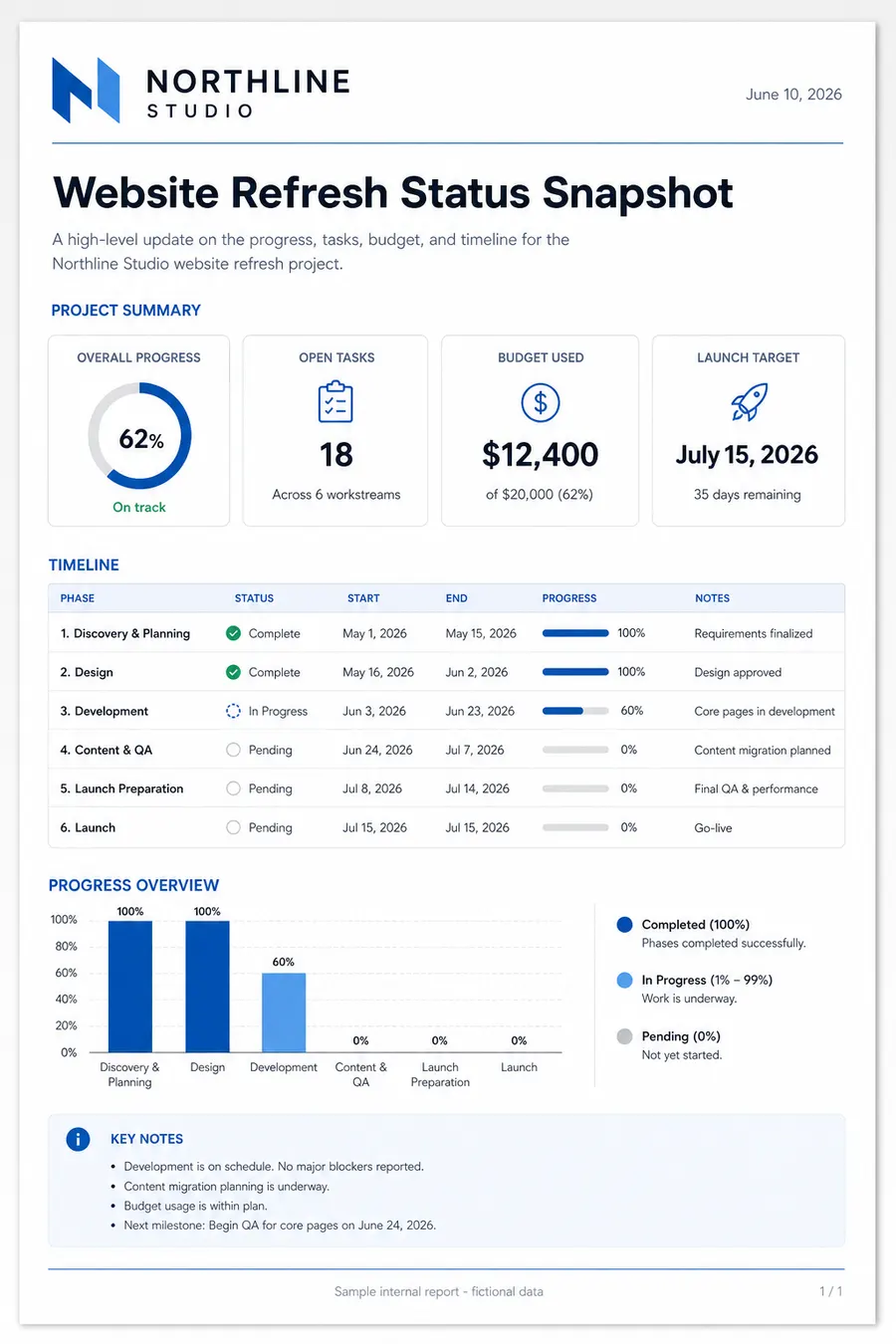
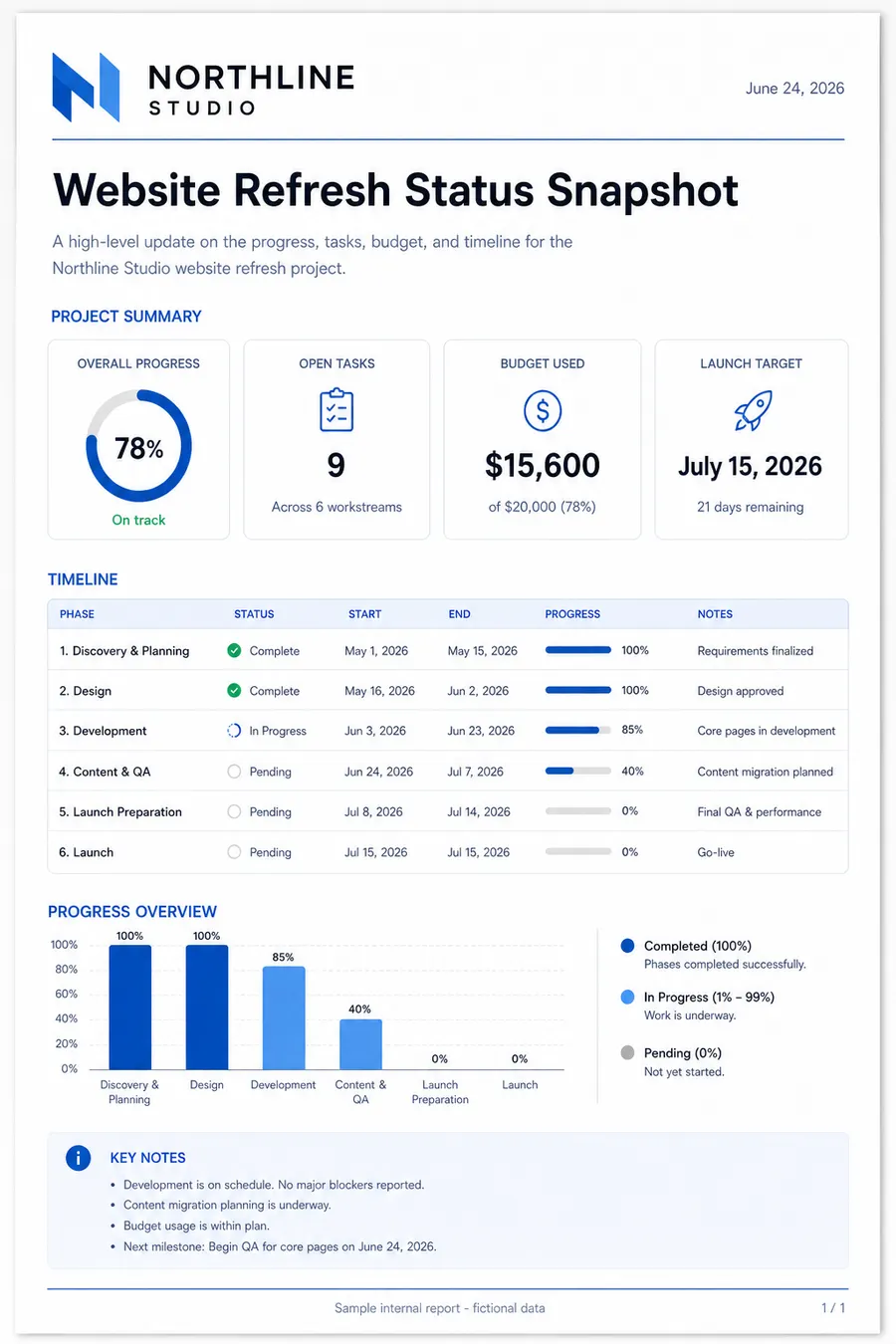
Replace “2024” with “2026” and keep the same font style.
Replace text in a PDF page with AI
Upload a PDF, tell RedesignPDF what text to replace, and generate a new image-based PDF page. Works best for scanned, flattened, or non-editable PDF pages where normal text editing is difficult.
RedesignPDF edits the selected PDF page like an image, then exports it back into a PDF.
AI regenerates the selected page image. Review important information before exporting or sharing.
Before / After
How it works
- Upload your PDF
- Choose the page
- Describe the text to replace
- Generate preview
- Review and export
Upload your PDF → choose the page → describe the text to replace → generate preview → review and export
Example text replacement prompts
Specific instructions work better than broad requests. Name the old text, the new text, and where it appears.
Change the phone number at the bottom of the flyer to +1 415 555 0198.
Replace the old price with $29.99 and keep the layout unchanged.
Change the company name in the header from Acme Studio to Brightlane Studio.
Update the event date to July 18, 2026.
What you can replace
datespricesphone numbersnamestitlesshort paragraphslabelsmenu itemsflyer copy
Best for
- scanned PDFs
- flattened PDFs
- image-based PDFs
- flyers
- menus
- brochures
- posters
- course materials
- simple business documents
Not ideal for
- contracts requiring exact legal formatting
- long text-heavy documents
- documents that need selectable/searchable text
- forms requiring editable fields
- cases where every character must be exact
RedesignPDF vs traditional PDF text editors
Acrobat and traditional PDF editors are better for real text layers, forms, comments, and structured PDF objects. RedesignPDF is better when the page is scanned, flattened, visual, or hard to edit normally.
Use cases
- Replace visible text in PDF pages when normal text editing is difficult.
- Handle scanned, flattened, image-based, and non-editable PDF pages as visual pages.
- Update dates, prices, phone numbers, names, titles, labels, menu items, and flyer copy.
What RedesignPDF does
RedesignPDF treats the selected PDF page as an image and regenerates it with visible text changes.
RedesignPDF works best when you need to change visible text on a scanned, flattened, or non-editable PDF page. It regenerates the selected page as an image-based PDF, so the exported text may not be selectable or searchable.
The exported PDF is image-based. Text may not remain selectable or searchable.
Important limitations
- RedesignPDF does not directly edit the original PDF text layer.
- This is not OCR-level exact conversion and does not create an editable text layer.
- Use caution with contracts, invoices, or files where every character must be exact.
FAQ
Can I replace text in a scanned PDF?
You can try because a scanned PDF is usually an image-based page. RedesignPDF can regenerate the visible page with different text, but you must review the output before export.
Does RedesignPDF edit the original PDF text layer?
No. RedesignPDF does not directly edit the original PDF text layer. It regenerates the selected page image and exports it back into a PDF.
Will the exported text be selectable?
Usually no. The exported PDF is image-based, so text may not remain selectable or searchable.
Can I replace dates, prices, names, or phone numbers?
Yes. Short visible text replacements such as dates, prices, names, labels, and phone numbers are the best fit for this workflow.
Is this good for legal documents or invoices?
Use caution. You must manually check the result. RedesignPDF does not guarantee legal validity or character-level exactness.
Do I need Adobe Acrobat?
No. You can upload a PDF, choose a page, describe the text replacement, generate a preview, and export the result.