حالات شائعة
- أرقام صغيرة
- خطوط شبكة باهتة
- أخطاء OCR في الجداول
- خلايا منخفضة التباين
Why tables need extra care
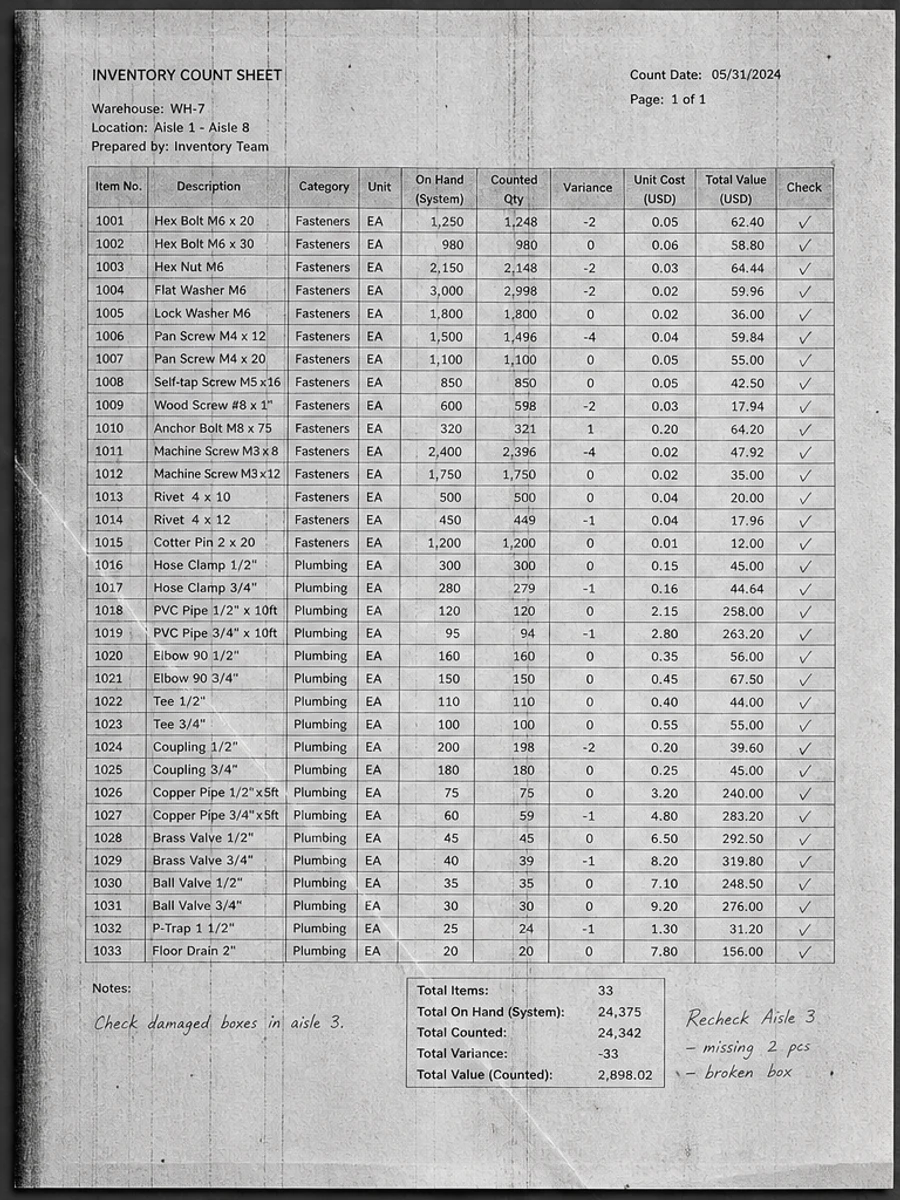
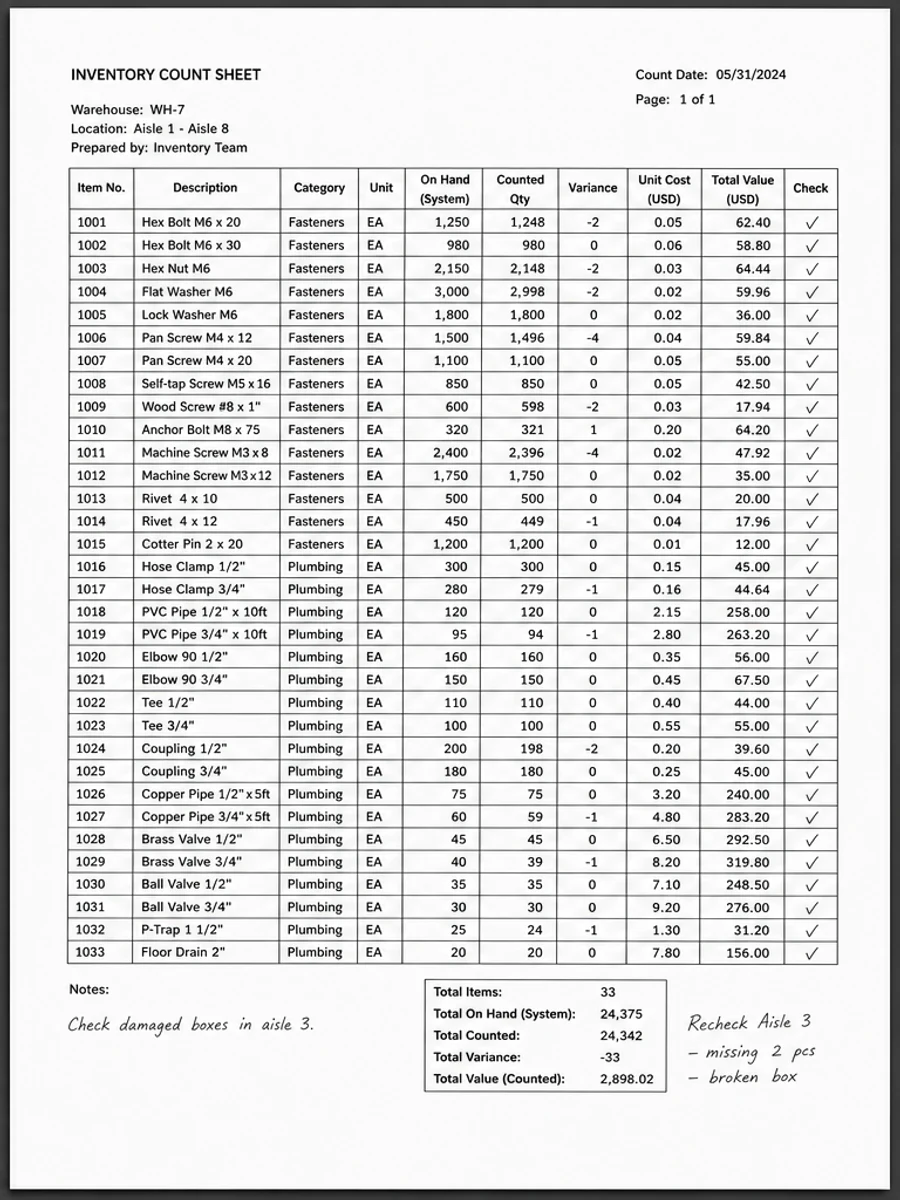
Tables rely on alignment. If cleanup shifts a column, weakens a grid line, or changes small digits, the page may look cleaner but become less useful. Table scans also often contain tiny numbers that are easy to damage with aggressive contrast changes.
Specify layout preservation
Your prompt should say to keep row alignment, column widths, grid lines, and handwriting unchanged. Ask for clearer text and background cleanup without table extraction, reformatting, or interpretation.
Review small values
After generation, zoom into the smallest numbers, totals, decimal points, check marks, and handwritten notes. Compare suspicious values against the original before exporting.
What this is not
This workflow does not convert a scanned table into Excel, CSV, or editable cells. It produces a cleaner image-based PDF page for reading, sharing, or later OCR with a dedicated tool.
Before and after evidence for tables
The best before and after comparison is a local zoom on the densest part of the table. Check row labels, small numbers, decimal points, grid intersections, and handwritten ticks. A clean-looking page is not enough if a faint vertical rule disappears or a decimal point becomes ambiguous. For tables, usefulness depends on preserving structure as much as improving contrast.
How to phrase table prompts
Use language that forbids restructuring. Ask to preserve row alignment, column widths, grid lines, and all values. If the table has handwritten marks, mention them. If it has formulas or footnotes, mention those too. Avoid prompts that say "recreate," "extract," or "convert" unless you are using a different tool designed for data extraction.
When OCR or spreadsheet tools come later
If your final goal is spreadsheet data, first create the clearest faithful scan you can, then use a dedicated extraction workflow. Keep the cleaned image as a reference because table extraction often makes mistakes in merged cells, blank cells, and repeated headers. RedesignPDF helps create a readable source image; it does not validate the extracted data.
Table-specific export checklist
Before exporting a cleaned table, inspect the first row, last row, narrowest column, and any cells with small decimals or handwritten corrections. Check whether grid lines still separate values clearly. If the table spans multiple pages, confirm that headers and repeated labels remain consistent. A cleaned table page is successful when it is easier to read without making the reader wonder whether the structure changed.
Example prompt for scanned tables
A table prompt should be strict: "Clean the scanned table, reduce gray background, strengthen small numbers and grid lines, preserve row alignment, column widths, handwritten marks, and all values." Add "do not extract, convert, or reinterpret the table" if there is any risk of confusion. This wording keeps the task visual and helps avoid changes that would make the table look cleaner but less reliable.
Related example to compare
Use a scanned table example to judge whether the after image preserves structure. The grid should still guide the eye, small values should stay separated, and handwritten marks should not become noise. If a result changes the apparent structure, it is not acceptable even if the page background looks cleaner. Accuracy matters more than visual neatness, especially for financial or scientific tables. Recheck totals manually before export or OCR, then keep the original scan.
خطوات العمل
- افتح ملف PDF الممسوح ضوئيا.
- اختر الصفحة التي يظهر فيها «تنظيف الجداول الممسوحة دون تغيير التخطيط» بوضوح.
- استخدم أمر تحسين متحفظ للوضوح.
- قارن الصفحة قبل المعالجة وبعدها.
- تحقق من النصوص والأرقام والتواريخ والجداول المهمة.
- صدّر الملف بعد التأكد من النتيجة.
أوامر جاهزة للاستخدام
01نظّف صفحة PDF الممسوحة ضوئيا مع التركيز على تنظيف الجداول الممسوحة دون تغيير التخطيط، وقلّل الخلفية الرمادية والظلال والبقع، واحتفظ بالتخطيط الأصلي كما هو.
02حسّن الوضوح بشكل متحفظ: قوِّ النص الباهت ونظّف الخلفية، مع الحفاظ على الكتابة اليدوية والأختام والجداول والعلامات.
03أعد إنتاج هذه الصفحة الممسوحة ضوئيا بصورة أوضح، دون تغيير النصوص أو الأرقام أو مواضع العناصر.
متى يناسبك RedesignPDF
- صفحات PDF الممسوحة ضوئيا التي ما زال نصها مقروءا.
- المستندات المصورة التي تحتاج وضوحا بصريا أكبر.
- الملفات التي يكون الهدف منها تحسين القراءة لا تعديل النص.
متى لا يناسبك RedesignPDF
- تعديل طبقة النص في PDF بدقة.
- تحويل PDF إلى Word أو استخراج بيانات آلي.
- المستندات الرسمية التي تحتاج تحققا قانونيا أو أرشيفيا.
Common mistakes
- المبالغة في التبييض حتى تختفي الخطوط الرفيعة والعلامات الفاتحة.
- الخلط بين التنظيف البصري وتحويل OCR.
- التصدير قبل مراجعة الأرقام والتواريخ والجداول والكتابة اليدوية.
اقرأ أيضا
FAQ
هل يمكن لـ RedesignPDF معالجة تنظيف الجداول الممسوحة دون تغيير التخطيط؟
نعم، عندما تكون الصفحة صورة ممسوحة ضوئيا والهدف تحسين الوضوح البصري. راجع النتيجة قبل التصدير.
هل يصبح النص قابلا للتحديد بعد المعالجة؟
لا. يعمل المحرر على صورة الصفحة ويصدّر ملف PDF مصورا؛ النص يبقى غير قابل للتحديد، وهذه ليست أداة OCR.
ما الذي يجب التحقق منه قبل التصدير؟
راجع النصوص والأرقام والتواريخ والجداول والكتابة اليدوية والأختام، لأن إعادة الإنتاج بالذكاء الاصطناعي قد تغيّر تفاصيل دقيقة.
الخلاصة
إذا كان هدفك أن تصبح الصفحة الممسوحة ضوئيا أوضح وأسهل قراءة مع الحفاظ على التخطيط الأصلي، ابدأ بصفحة واحدة وبأمر متحفظ، ثم راجع النصوص والجداول والأرقام والكتابة اليدوية قبل التصدير. أما إذا كنت تحتاج إلى تعديل طبقة النص أو تحويل PDF إلى Word أو تعبئة نماذج بدقة، فاستخدم أداة OCR أو محررا متخصصا أو أعد المسح.
ارفع ملف PDF